Activities
Track tasks, calls, meetings, emails, and follow-ups against accounts and rentals. Activity types are user-configurable.
Overview
Activities represent CRM engagement items in Signals. Each activity has a type, status, priority, and can be linked to an account or rental via the "regarding" association. Activities help teams track follow-ups, schedule calls, log meetings, and manage tasks.
Activity Type is user-configurable via Settings → Lists (the Activity Type list). Admins can add, rename, reorder, or deactivate types. The seeded defaults are:
| Type | Description |
|---|---|
| Task | General to-do items and action points |
| Call | Phone calls — scheduled or logged |
| Fax | Fax correspondence records |
| Email correspondence records | |
| Meeting | In-person or virtual meetings |
| Note | Free-form notes and observations |
| Letter | Physical letter correspondence records |
Activities Workspace
Route: /activities (requires activities.view)
The activities workspace answers what needs a human today, whose it is, and what can be cleared right now. Everyone chooses one of two views; both show the same activities with the same scope, filters, bulk actions, Undo and permissions.
My day (default)
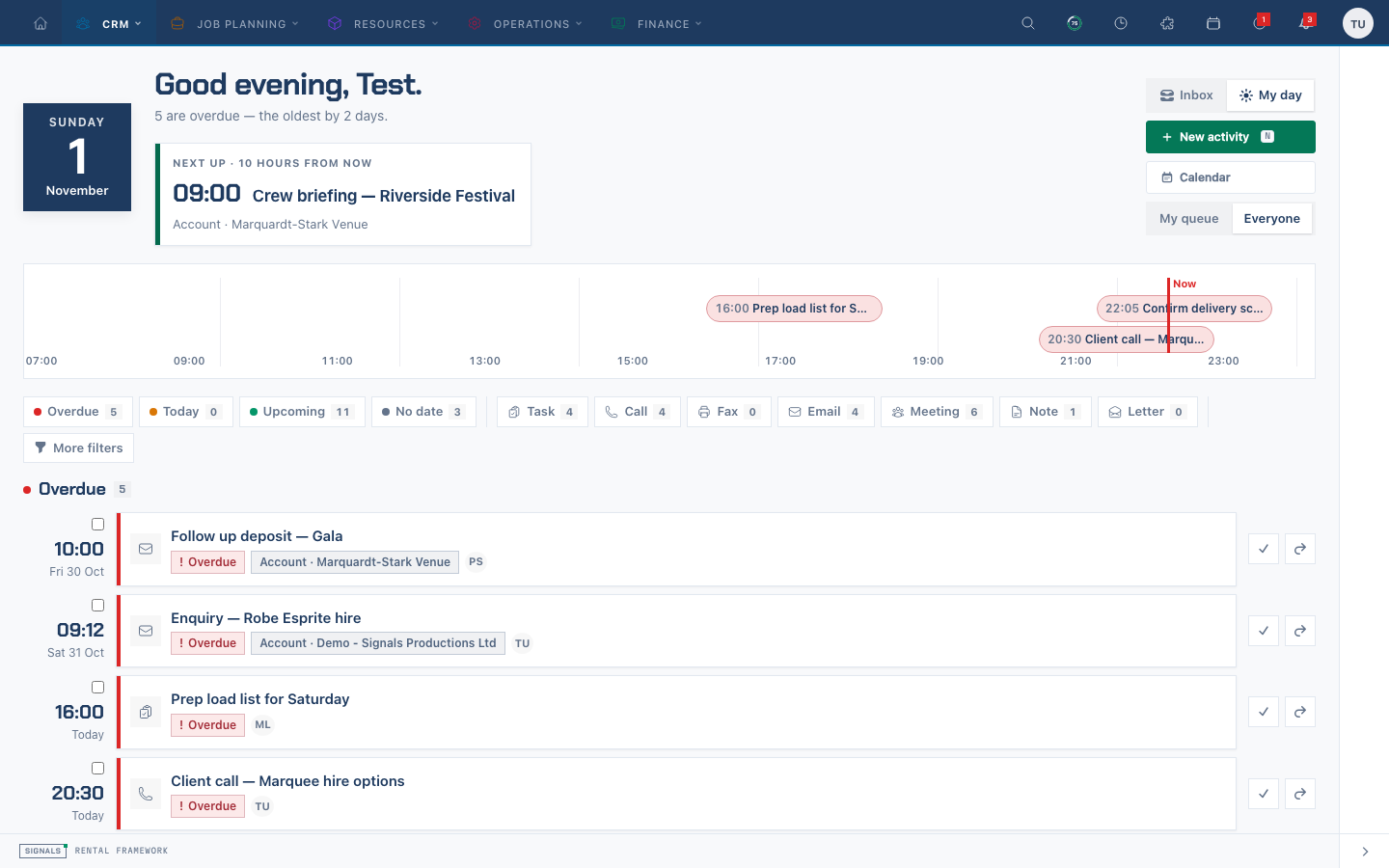 My day — today and next up first, then the agenda.
- Header — a greeting with today's date, Next up (the next open activity, click to open it), Calendar, New activity (shortcut
n) and the My queue / Everyone scope. - Today, hour by hour — a ribbon of today's timed activities, including any that have already slipped into Overdue, with a Now marker. With nothing timed it reads Nothing timed today — a clear run.
- Agenda — time-ordered sections: Overdue, Today, This week, Later and No date. Each card shows the type, title, a verdict chip, the regarding record and the time, with Complete beside it. Each section starts with up to 50 rows; Load more fetches the next page without repeating rows. Counts continue to show the full matching total.
Inbox
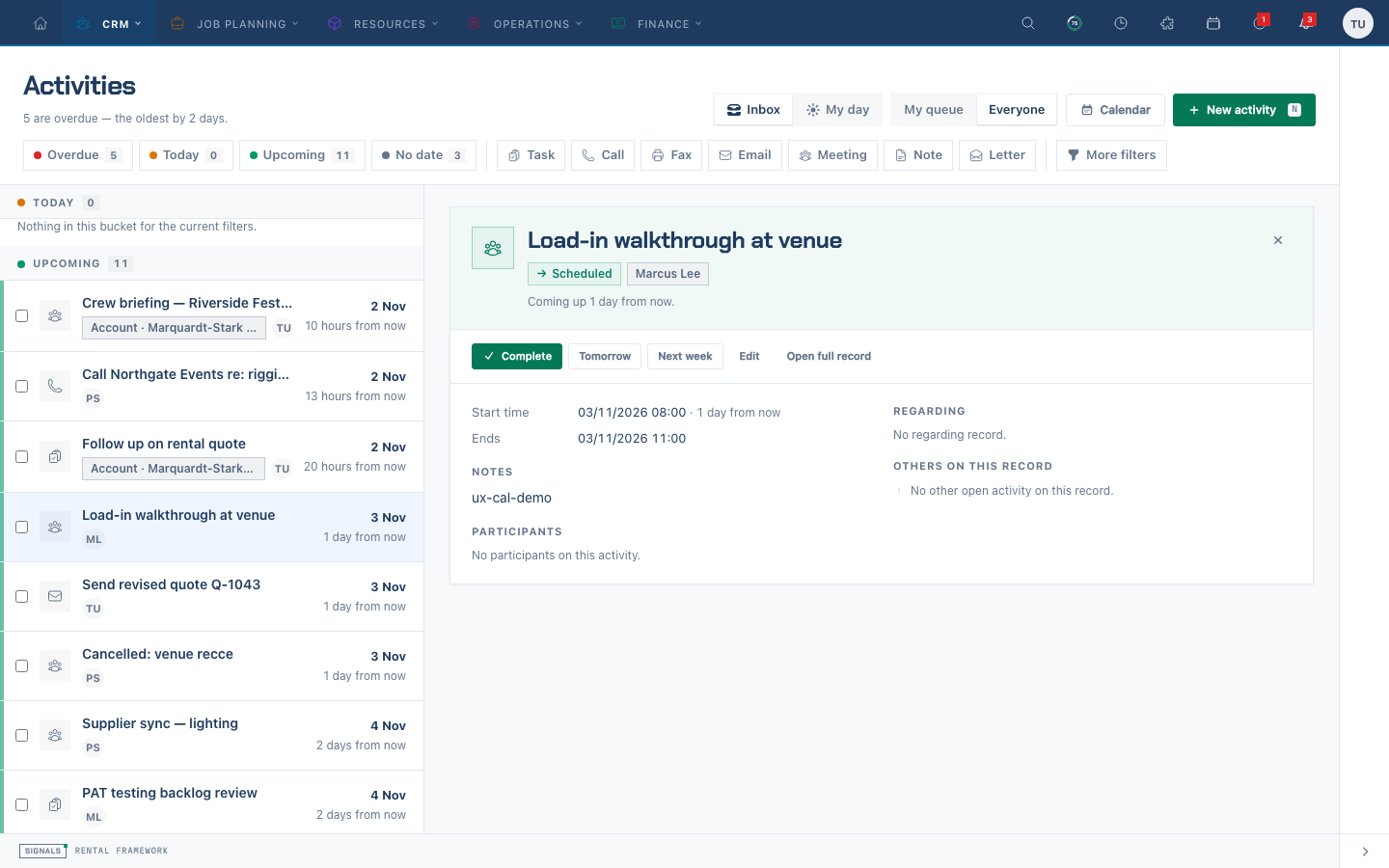 Inbox — work through the list; the selected activity opens beside it.
- List — every activity in scope with its type, regarding record and time, grouped by bucket (Overdue, Today, Upcoming, No date). Use ↑ and ↓ to move between rows and Enter to open one. Undated work never becomes overdue.
- Brief — select a row to open it beside the list: description, regarding record, participants (labelled Staff or Contact), schedule, owner and other open activities on the same record, with Complete or Reopen, Edit, Open full record and the reschedule shortcuts. Until you pick one it reads Select an activity.
In both views
- Search activities — searches titles, notes and locations, narrowing the feed and its counts together. Changing search or filters resets loaded pages.
- Filters — the bucket filters (Overdue, Today, Upcoming, No date) carry the real scoped counts even when the list is capped; the type filters follow. Click a filter again to clear it.
- More filters — Owners (with open and overdue counts per person), Regarding kind, Status and Favourites. Each toggles: click once to filter, again to clear. Picking an owner switches the scope to Everyone.
- Select and act in bulk — tick activities to show the bar for Selected activities: complete or delete them together. Completing — one activity or a selection — shows a toast with Undo, which reopens what was just completed with the status it had.
- Detail drawer — in My day, select a card (or focus it and press Enter or Space) to open the drawer with the same brief as Inbox. Edit opens the editor in a modal without leaving the workspace. Reschedule moves it to Tomorrow or Next week at the same time of day, or dates undated work Today. Esc closes it.
Switching view
An Activities layout switch in the page header (Inbox / My day) changes the view and remembers it for you; it works from the keyboard and announces the current choice. You can also pick it on Settings → Calendar under Your views. Until you choose, the company default from Admin → Settings → Scheduling → Default activities view applies (My day on a new installation).
There is no snooze, no SLA, and no "due date" concept — an activity has a start time, and overdue means its end time (or its start when no end is set) has passed while it remains open. Activities regarding a Facility show without a link (facilities have no page). The Calendar plots the same activities on a day, week or month grid.
Activity Detail
Route: /activities/{id}
The activity page follows your activities view, so it reads like the workspace you came from:
- With Inbox — a record brief. The header shows the type icon, the title, a verdict badge (Overdue, Today, Scheduled, Undated, Done or Cancelled) and a line with the type, status, priority and owner. Below are When (in your time zone), Regarding, the notes and the attendees, Others on this record, custom fields and files, and the Timeline.
- With My day — a run sheet. Run lists the steps in order — Logged, Starts, Ends and Complete (Waiting until it is done) — with a Now marker between them, then the notes and the History. The side column holds the actions, Reschedule, the regarding record and the People taking part.
In both, the actions are the same: favourite, print, Complete (or Reopen a completed activity), Edit and Delete (shortcut d, with a confirmation), and the Reschedule shortcuts (Tomorrow, Next week, and Today for undated work); Edit sets any other time. Completing and reopening each show a toast with Undo. Participants are labelled Staff or Contact, and the regarding record links to that record in the same tab.
Adding and Editing Activities
There is one activity editor. The quick-create modal (New activity on the workspace, the calendar and every record's Activities tab), the calendar's edit modal and the full-page form at /activities/create and /activities/{id}/edit share the same editor and save behaviour. The compact modal keeps optional fields under More details, including participants; the full page places participants beside the owner. Only custom fields are page-only: the modal's Open full form link carries any regarding record across.
The editor is grouped into:
Expand More details for the regarding record, status, priority, location, notes, reminder and repeat options.
- Title (required) and Type — the types from the Activity Type list, as a row of buttons with their icons.
- When — Starts and Ends, an All day switch (all-day activities run from local midnight to 23:59), duration buttons (15m, 30m, 1h, 2h) and Clear dates. A line under the fields names your time zone and summarises the schedule, for example Times in Europe/London · 02/11/2026 09:00–10:00 · 1h. Moving the start keeps the end after it. Leave both dates empty for an undated to-do; it waits in the No date bucket and the calendar's Unscheduled tray.
- Who — Owner (required; Change reopens the search and Assign to me puts it back on you) and Participants: colleagues, and — when the activity regards an account — that account's contacts. Each suggestion and each chosen participant is labelled Staff or Contact.
- More details → Regarding — a record type (Account, Catalogue Item, Asset, Rental, Vehicle or Facility) and then the record itself. Clearing the record also clears the type.
- More details → Details — Status, Priority, Show as (Free or Busy), Location and Notes.
Times are entered and shown in your time zone and stored as exact moments, so the same activity reads the same on the calendar, the workspace, the activity page and the editor. Saving with status Completed marks the activity done everywhere; changing a completed activity back to another status reopens it. Every activity has an owner — saving without one is refused with Choose who owns this activity.
On the full page, choose Create activity or Save changes; Signals returns you to the activity's detail page. The action bar shows Unsaved changes until you save.
Form Fields
| Field | Description |
|---|---|
| Title | Activity title or summary (required) |
| Type | Activity type, from the Activity Type list (Settings → Lists) |
| Starts / Ends | Scheduled start and end, in your time zone |
| All day | Runs the activity from local midnight to 23:59 on the chosen days |
| Owner | The responsible user (required) |
| Participants | Who takes part: staff (users with a linked account) and contacts of the regarded account, each labelled by kind |
| Regarding | The record the activity relates to: a type, then the record itself |
| Status | Current status; Completed marks it done |
| Priority | Low, Normal or High |
| Show as | Free or Busy |
| Location | Where the activity takes place |
| Notes | Detailed notes or body text |
| Custom Fields | Any custom fields defined for activities (full page only) |
Activity type icons
Each Activity Type entry has an icon — Task, Call, Email, Meeting, Note, Letter or Fax. Pick it in Settings → Lists → Activity Type → Edit; it is used on the calendar, the workspace and the editor.
Permissions
| Permission | Description |
|---|---|
activities.access |
Access the activities module |
activities.view |
View activity details |
activities.create |
Create new activities |
activities.edit |
Edit existing activities |
activities.delete |
Delete activities |
activities.complete |
Mark activities as complete |
Scoped Activity Tabs
Activities can be viewed in context on related record pages:
| Record | Tab | Shows |
|---|---|---|
| Account | /accounts/{id}/activities |
Actionable activities linked to this account, with the commitments timeline in a Commitments disclosure. History diagnostics sit behind Data freshness. |
| Catalogue item | /catalogue-items/{id}/activities |
Activities linked to this catalogue item; New activity opens the quick-create modal for it |
| Asset | /assets/{id}/activities |
Activities linked to this asset; New activity opens the quick-create modal for it |
| Rental | /rentals/{id}/activities |
Activities linked to this rental; New Activity opens the quick-create modal for this rental |
| Vehicle | /fleet/{id}/activities |
Activities linked to this vehicle; New activity opens the quick-create modal for it |
| Credit note | /credit-notes/{id}/activities |
Activities for the invoice account, with financial events and audit history in Commitments; New activity is prefilled for that account |
| Payment | /payments/{id}/activities |
Activities for the invoice account, with financial events and audit history in Commitments; New activity is prefilled for that account |
All seven tabs use the workspace activity row, verdict chip and inline Complete action. Select a row to open the same activity drawer, including other work on the same record. The list supports Load more; the compact thread in a drawer uses the same list without opening another drawer inside it. Completing work in that thread refreshes the workspace counts and resets loaded pages.
The activity list requires permission to view both activities and its subject. Account, payment and credit-note commitments remain available to readers authorized for those records when the activity list is unavailable. Account rows follow account privacy rules: readers without contact-PII access see a generic activity label; privacy-restricted and purge-pending accounts show retained activity labels. Those rows omit owner details, record links, detail drawers and activity controls.
New activity on a tab needs activities.access and activities.create. The wizard is prefilled with the subject, and the list updates when the activity is saved. Credit-note and payment tabs use their invoice account as the subject, so those activities appear in both document tabs and on that account’s Activities tab.
Some records also have a similarly named tab that shows the record's change history rather than CRM activities:
| Record | Tab | Shows |
|---|---|---|
| Account | /accounts/{id}/activity (Activity) |
A 12-month activity density chart and the account's audit timeline |
| Invoice | /invoices/{id}?tab=activities (Activity Timeline) |
The invoice's audit timeline; /invoices/{id}/activity redirects here |
| Equipment test | /equipment-tests/{id}/activity (Activity) |
The test's audit timeline |
| Rental project | /projects/{id}/activity (Project changes) |
Changes to the project and its rentals |
| Rental | /rentals/{id}/action-log |
The rental's commitments and action log |
Activity payloads
Requests and responses link activities with subject: {type, id}. include=subject adds the linked resource's name inside that group. owner_id identifies the responsible user. An omitted subject retains the link during an update; a null subject clears it.
Use string values for priority (low, normal, high), status (scheduled, completed, cancelled, held) and time_status (free, busy). type_id selects an Activity Type list entry; activity_type_name provides its display name. Webhook activity payloads and MCP tools use this shape too. Subject filters are filter[subject.type][eq] and filter[subject.id][eq]; sort=status orders by status.
Completion and timezones
status determines completion. Creating or updating with status: "completed" sets completed true and records completed_at (UTC) and completed_by_id (the acting user). Changing to another status clears both fields. If a payload includes completed, it must agree with the resulting status; a disagreement returns 422. Repeating Complete or Reopen leaves timestamps unchanged and emits no additional transition event.
Forms read wall-clock times in your profile timezone, with the company timezone and then UTC as fallbacks. They convert to UTC for persistence; the activity page and calendar convert the instant back for display. Workspace Today ends at your next local midnight, including daylight saving changes. Cached bucket counts are separated by timezone and local date. For example, 09:00 on 1 July in Asia/Singapore is 01:00Z in API responses.
API and MCP
Every workspace action has an API equivalent under /api/v1/activities (see the API reference):
| Workspace action | REST | MCP tool |
|---|---|---|
| List / filter (scope, owner, type, status, regarding kind, bucket) | GET /api/v1/activities with filter[owner_id][eq], filter[type_id][eq], filter[status][eq], filter[subject.type][eq], filter[completed][eq], filter[starts_at][lt] / filter[starts_at][gte] |
list-upcoming-activities, or execute-endpoint |
| Favourites facet | GET /api/v1/activities?favourites=1 |
execute-endpoint |
| Open a row | GET /api/v1/activities/{id} |
execute-endpoint |
| New activity | POST /api/v1/activities (POST /api/v1/activities/bulk for many) |
create-activity, bulk-create-activities |
| Edit | PUT or PATCH /api/v1/activities/{id} |
execute-endpoint |
| Complete / bulk complete | POST /api/v1/activities/{id}/complete or POST /api/v1/activities/bulk_complete |
complete-activity, bulk-complete-activities |
| Reopen | POST /api/v1/activities/{id}/reopen (activities.edit) |
reopen-activity |
| Delete / bulk delete | DELETE /api/v1/activities/{id} per activity |
execute-endpoint |
Reminders and overdue work
The shared editor offers No reminder (disables advance reminders), At the start, 15 minutes before (default), 1 hour before, and 1 day before. Timed reminders use the activity’s start instant. All-day reminders run at 09:00 in the owner’s timezone, falling back to the company timezone. The tenant scheduler checks every five minutes, so delivery follows the next check. Undated, completed and cancelled activities do not send reminders.
A reminder is sent once for its schedule. Changing the schedule, owner or reminder setting rearms it. Open work whose end (or start when no end is set) has passed receives at most one overdue nudge per owner-local date. Notification settings and personal preferences apply to both in-app and email delivery; unread activity notifications can appear in the daily digest. The activity.overdue event can trigger an account workflow for an activity linked to an account.
Calendar API and tools
GET /api/v1/activities/calendar?from=2026-11-01&to=2026-11-30lists overlapping activities with cursor pagination; optionalowner_ids[]narrows the owners. Thelist-calendar-eventstool uses the same query.POST /api/v1/activities/bulk_completeacceptsactivity_ids(up to 100).bulk-complete-activitiesexposes the same operation.POST /api/v1/activities/{activity}/assignaccepts a requiredowner_id;assign-activityuses the same action.list-upcoming-activitiesexcludes completed activities by default. Setopen_only: falseto include them.
Calendar windows, partial-update semantics and bulk result shapes follow API conventions. Explicit null clears nullable fields on an update; omitting a field retains it. An owner is required and cannot be cleared. The response includes reminder_minutes_before and the UTC remind_at instant.
Activity API and MCP responses redact subject.name and participants[].account_name when the recipient lacks account identity access or the token lacks accounts:read. Webhook payloads apply the same recipient identity rule. Identifiers remain available for joining permitted records.
Repeating activities
All activity editors offer Repeat with daily, weekly and monthly frequencies, an inclusive Repeat until, a total Repeat count (1–366, including the first activity), and a Repeat timezone. Without a count, up to 366 occurrences are allowed. The calendar materialises eight weeks ahead and extends the horizon daily. Each occurrence has its own owner, participants, completion state, reminders and audit history. Moving or deleting one occurrence leaves the other occurrences intact.
On an existing series, This activity edits only the selected occurrence. This and following splits the series from that occurrence, replaces following scheduled occurrences, and keeps earlier activities and work with another status. Set Does not repeat with that scope to stop repeating. See Calendar → Repeating activities.
Recurrence API fields
Create accepts recurrence_rule (daily, weekly, monthly or null), recurrence_until (YYYY-MM-DD), recurrence_count (1–366) and recurrence_timezone (IANA identifier; company zone when omitted). A repeating activity requires starts_at. Read responses include these fields and recurrence_parent_id, which identifies the anchor for a materialised occurrence. Update defaults recurrence_scope to this; use this_and_following to change repeat settings or split a series. An omitted field retains its value; null clears a nullable repeat option. The create-activity MCP tool accepts the same repeat fields.
{
    "title": "Weekly crew call",
    "starts_at": "2026-11-02T09:00:00Z",
    "ends_at": "2026-11-02T09:30:00Z",
    "recurrence_rule": "weekly",
    "recurrence_timezone": "Europe/London",
    "recurrence_count": 12
}
Deleting the series anchor stops further generation and keeps its materialised activities as independent records. Deleting a generated occurrence does not recreate it.
Additional form guidance
When no activity exists and no search is active, My Day and Inbox show No activities yet with the permitted creation action instead of empty buckets and filters.