Looking Up a Customer Account
Find a company, contact, or venue, review its linked work, and interpret the visible credit headroom before quoting.
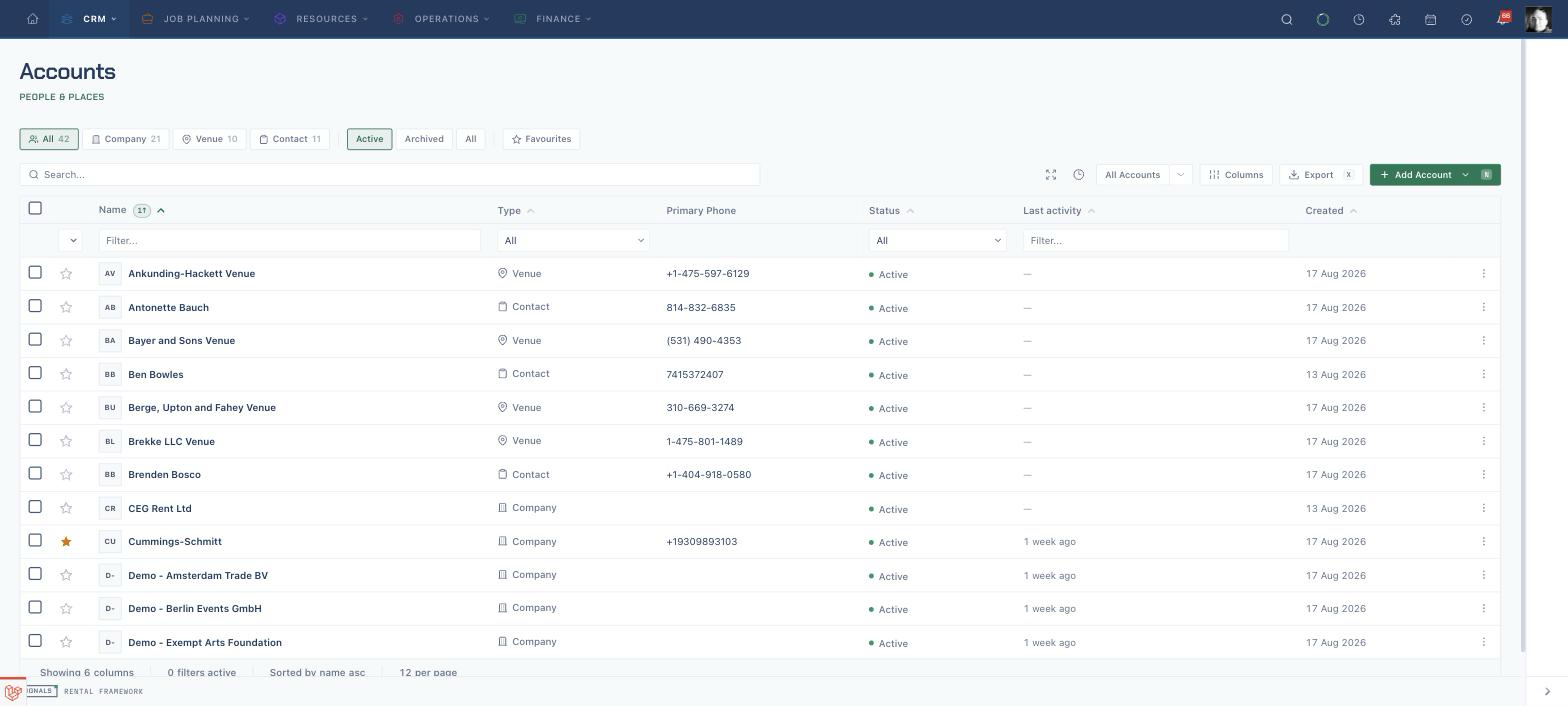
Find the account
- Open
/accounts. - Search by account name.
- Use Company, Venue, or Contact to narrow the account type, or leave All selected.
- Leave Active selected for current customers; use Archived or the second All chip when you need an archived record.
- Use Favourites to limit the list to accounts you have marked as favourites.
- Confirm the name, type, primary phone, status, tags, and last activity, then select the account name.
Check for duplicates before creating
Search existing Company, Contact and Venue records before creating another identity. The account form can show Possible duplicate accounts as you type a name of at least three characters when similarity search is available. No suggestions can mean the service is unavailable; it does not prove uniqueness. Open a permitted candidate, compare its type and contact details, and keep separate people or organisations separate. Suggestions neither merge records nor authorize access to hidden fields.
Credit is checked by the commercial command, not by the page. The page uses a tenant-wide exposure snapshot for its headroom display; the expanded credit register displays the snapshot generation time and credit version. Quote-to-order conversion, customer reassignment, exposure-increasing edits, and dispatch run a fresh authoritative decision inside the same transaction as the change. Missing required currency evidence produces a refusal reason; see the override limitation below.
Confirm the account identity
- Read the account name, Company, Venue, or Contact badge, and Active, Inactive, or Archived badge in the header.
- Check the city, account number, account owner, and customer-since date when those values are present beneath the name.
- Use Information for the full profile, commercial terms, addresses, emails, phones, links, and custom fields.
- Return to Overview for the operational and financial summary.
Follow the customer relationships
- Open Contacts to see linked contacts for a company or venue, or linked companies for a contact.
- Check the contact's name, type, primary email, primary phone, and status.
- Select a related account name to open its own account record.
- Use New Contact only when you intend to create and link a new contact to this account.
Use the authorized relationship editor to link an existing Contact to a Company or Venue; Company and Venue do not link directly to each other. A Contact can also link to another Contact. Both endpoints must be active; User identities are not CRM relationship endpoints. Primary Company applies only to a Contact–Company relationship, with one primary Company per Contact.
An email, phone or address primary is a separate choice from the primary Company relationship. Set the intended contact point primary in its editor and keep other legitimate contact points. If several primaries or a legacy collision appear, stop relying on the ambiguous selection and ask an account operator to review it; do not delete contacts to force a winner.
Review a merge preview
- Confirm that the two records describe the same identity and that you have
accounts.mergepermission. A duplicate suggestion is not sufficient evidence. - Open the merge action and deliberately choose the canonical record to keep and the source to become an alias. Check both names, types and current versions.
- Review the preview's field, contact, relationship and custom-field conflicts, reference counts and declared resolutions. Canonical values win the documented conflicts; issued invoices and legal history can retain source provenance.
- If the records or preview change, refresh and review again. A version conflict or manifest-drift refusal is a reason to stop, not to bypass the check.
- Confirm only the reviewed pair and resolutions. Retain the receipt and use the canonical record afterwards; authorized source-ID reads can resolve to it, while mutations on the alias refuse.
- A partial historical merge or an unclassified association needs operator remediation. A receipt is not proof that every plugin, serialized or external reference moved, and compensation is not an unrestricted undo button.
Archive and restore
Use Archive only with accounts.archive permission when the account is no longer needed for new operational work. Archiving retains history; it is not deletion or anonymisation. The command can refuse protected identities, holds or incompatible lifecycle state. Refresh after a stale-version refusal before deciding again.
Find the account using Archived, then use Restore with accounts.restore permission if it should return to use. A merged source alias cannot be restored independently; open its canonical record. Restoring an account does not undo a privacy disposition or restore removed personal data. Ask an account operator about a protected or held identity instead of using a database edit.
Review rentals and invoices
- Open Rentals to see the account's jobs with title, reference, state, status, start, end, charge total, and created date.
- Search the Rentals tab by title, rental number, or reference, then select a row to open the job.
- Open Invoices to see the Outstanding Balance and the account's invoice rows.
- Read each invoice's number, type, status, warehouse, total, outstanding amount, and issued date.
- Select an invoice number when you need its full record.
Interpret the credit view
- On Overview, read Credit headroom and select the card to open Credit headroom — the credit register.
- Compare Invoiced, unpaid, Committed, not invoiced, Reserved, and Free headroom under Where the limit has gone.
- Read Credit limit, Payment terms, Price category, and Currency under Terms and standing.
- Check the displayed currency and any incomplete-evidence warning. Read Generated at and Credit version to identify the displayed read. These fields do not authorize a later booking. Do not add amounts from different currencies yourself. If required base-currency evidence is missing, the result is incomplete and the commercial command fails closed.
- A blank credit limit means the configured policy has no numeric limit. A zero limit means no credit headroom. Both remain subject to cash, on-stop, currency, lifecycle, and override rules.
- On stop is a denial reason at a new commitment or dispatch. In
enforcemode, the command refuses it unless an applicable override or configured grandfathering permits it. It does not block invoicing existing work, returns, cancellation, payment, credit, refund, or collection work. - A Cash account is checked for enough cleared settlement for the rental before commitment or dispatch; a shortfall produces
credit_cash_settlement_required. The rollout mode and applicable override determine whether the command refuses or records a warning. - Quotes do not consume exposure. Confirmed orders, open receivables, and active non-materialised reservations do.
- A refused command includes a specific reason code, such as
credit_account_on_stop,credit_cash_settlement_required, orcredit_limit_exceeded; anoverride_requireddecision is not itself approval. Only a human withaccounts.credit.overridecan grant an override with a reason code and explanation. Its account, optional rental, boundary scope, optional amount ceiling, active status and expiry are checked again when used. The grant records a currency, but the current availability check does not compare that recorded currency; do not treat an old override as proof of current currency compatibility. The default expiry is 60 minutes; supplied finite expiry is between one minute and seven days. Explicitly passing null disables expiry; omitting the argument uses the default 60 minutes, so do not assume every override expires. Tenant policy may require a different second approver. - In rollout
reportorwarnmode, the system records most policy breaches without blocking. Inenforcemode, it blocks them. Missing currency evidence is not downgraded to a warning by rollout mode.
The expanded register also shows Global credit exposure, Overdue exposure, On stop, Cash account, and Completeness. Disputed exposure is unavailable because this calculation does not track disputes. Contributing warehouses show receivables and order commitments; reservations are listed separately. Warehouse access can hide details, but the global total still includes every warehouse.
The credit decision service is live. Displayed headroom, cached registers, earlier decisions, and warehouse-filtered details do not authorize a new action. Submit the commercial command so it rechecks current tenant-wide exposure and policy with your action permissions. In report or warn mode, a recorded warning is a shadow-policy result for that command; it is not reusable approval. Missing pricing evidence and a pause on new exposure are not downgraded to warnings by rollout mode.
For a complete exposure, nominal headroom is credit limit - (open receivables + remaining active-order commitments + active non-materialised reservations) in company base currency. The displayed free headroom is max(0, credit limit - exposure); it shows zero rather than a negative over-limit amount. A null limit or incomplete exposure displays no numeric headroom; neither is a zero balance or permission to proceed. In a source snapshot or a response that exposes them, the generation time and credit version describe that read, not the validity period of a reusable approval. They are visible in the expanded account credit register.
Without an applicable override, incomplete currency evidence and a pause on new exposure fail closed in every rollout mode. Incomplete pricing evidence cannot be overridden.
Current override boundary: the decision service considers an applicable explicit override before refusing missing currency evidence or a pause on new exposure, as permitted by the commercial policy; only incomplete pricing evidence explicitly excludes overrides. The incomplete evidence remains a recorded reason, and an override does not repair that evidence. Report/warn modes do not automatically downgrade these refusals, but a valid audited override can permit the original command. The recorded-currency check and explicitly null expiry limitations above remain implementation limits, not proof of unrestricted override safety.
The visible account detail does not present a separate Credit tab. Credit headroom is a card and expandable register on Overview.
Start a rental for the account
- Open the header actions menu and choose New Rental when it is available.
- From a company account, confirm that company is selected on the new rental.
- From a Contact account, confirm that the eligible Contact itself is selected; do not replace it automatically with a linked Company. The full rental form supports active Company or Contact customers. The guided creation wizard currently offers Company selection only; use the full form for a Contact customer.
- From a Venue account, confirm that the active bookable Venue is prefilled in the venue field, then select an eligible Company or Contact customer separately. The Venue is not a customer. An inactive or unbookable Venue is not prefilled.
- Venue is optional. When selected, it must be an active bookable Venue subtype. A Company, Contact, inactive Venue or unbookable Venue cannot fill that role.
- Continue with the warehouse, dates, catalogue items, and quote workflow. Work without a customer can remain draft, but new quotes, orders, acceptance and dispatch require an eligible customer. Inactive, anonymised, staff-linked and raw legacy identities refuse new commitments; merged selections resolve to their canonical target. Existing obligations can finish under the installed grandfathering rules, while an exposure increase needs a fresh eligible commitment.
Understand merge and privacy limitations
A merged account is a canonical identity with a retained source alias. Classified mutable references can move, but issued invoices and other legal or historical facts can remain on the source. Review the merge preview and receipt; do not assume complete transfer of every association or repair of an older partial merge.
Archiving is a soft lifecycle change, not PII erasure. The direct anonymise compatibility command refuses with privacy_case_required without changing the identity or removing contacts. Use the verified and approved privacy-case workflow instead; do not repeat the refused command to try to finish erasure. Other identifiers, files, communications and historical records need their own store outcomes. A completed or signed receipt alone does not prove complete PII erasure or enforcement of every retained-record restriction.
Legal records need an approved jurisdiction-specific retention schedule and controlled minimum necessary identity. No universal retention duration is promised. Keep these baseline limitations until the corresponding privacy and merge acceptance evidence passes; a source-plan checkmark or old reconciliation note is not that evidence. See Accounts for the current store, provenance, and acceptance boundaries.
Ask for a privacy operation
- Give the authorized privacy operator the canonical subject and request type through the private case process; verify identity and authority before approval. Do not send personal evidence to a shared activity log.
- The operator creates, verifies and approves the case, checks aliases and legal holds, and transfers tenant ownership first when the owner identity is affected. Approval for one disposition does not grant every privacy operation.
- Execution processes the approved store registry. Inspect pending, failed and blocked outcomes; a partial case is not completion. A changed registry or unknown store needs correction and a controlled retry.
- For subject access, only a completed subject-access case can yield its encrypted artifact. Download requires the appropriate audited authority; expired or revoked artifacts refuse.
- For anonymisation, erasure or purge, retain legal exceptions and inspect residue, derived copies, processor and backup outcomes. Do not restore removed PII from logs, exports or backups. The account progress read is status only; it does not execute or approve a case.
These are installed workflow boundaries, not a promise that every privacy store or held credit requirement has passed acceptance. If the necessary operator surface or authority is unavailable, escalate the request; do not invent a public create/approve/execute endpoint or substitute the direct anonymise API.
Related
| Reference | Use it for |
|---|---|
| Accounts | Account types, all detail tabs, relationships, and account maintenance |
| Account integration contracts | Installed API, MCP, import, export, workflow, report and runbook boundaries |
| Creating a Rental Quote | Completing the rental and quote after choosing the customer |
| Rentals | Job states, dates, line items, and conversion |
| Invoicing & Payments | Invoice statuses, outstanding balances, and payments |