Asking for a Report
Draft a report from a question, review its assumptions and preview, and save or edit it.
Draft and review
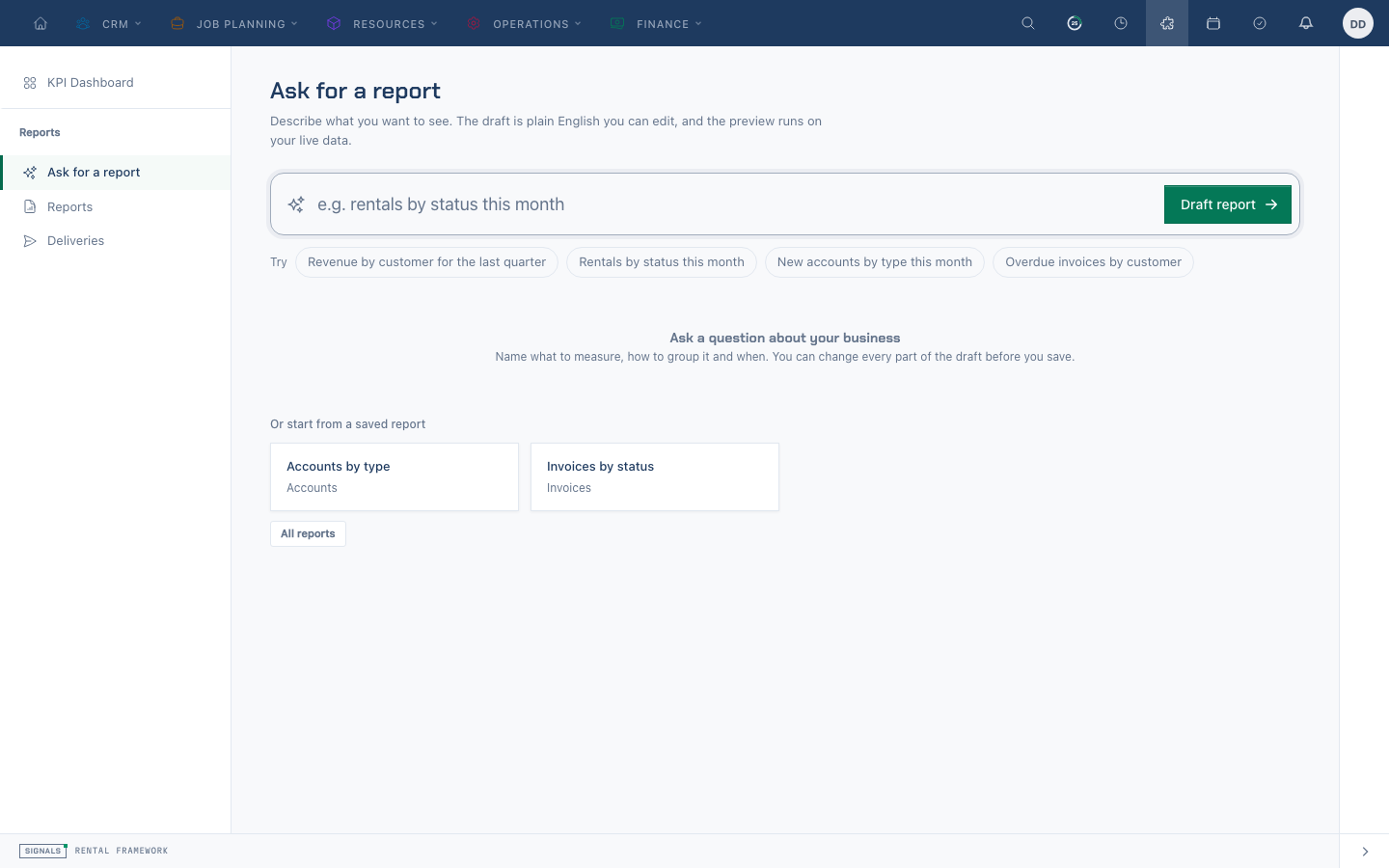
- Choose Ask for a report in the Reports sidebar and describe the measure and grouping you need, such as rentals by status this month.
- Choose Draft report. Review the proposed sentence and its highlighted choices; change a choice or supply a filter value where needed.
- Read What I assumed and edit or remove assumptions. These notes become the report description when saved.
- Check the preview and evidence under your own permissions. Choose Open in editor to adjust the definition, or name and Save report when it answers your question.
Your question is sent to the configured AI provider, together with names and labels of fields you are allowed to use. Report rows, totals, customer records and document contents are not sent. Avoid putting sensitive information in the question itself.
Access and limits
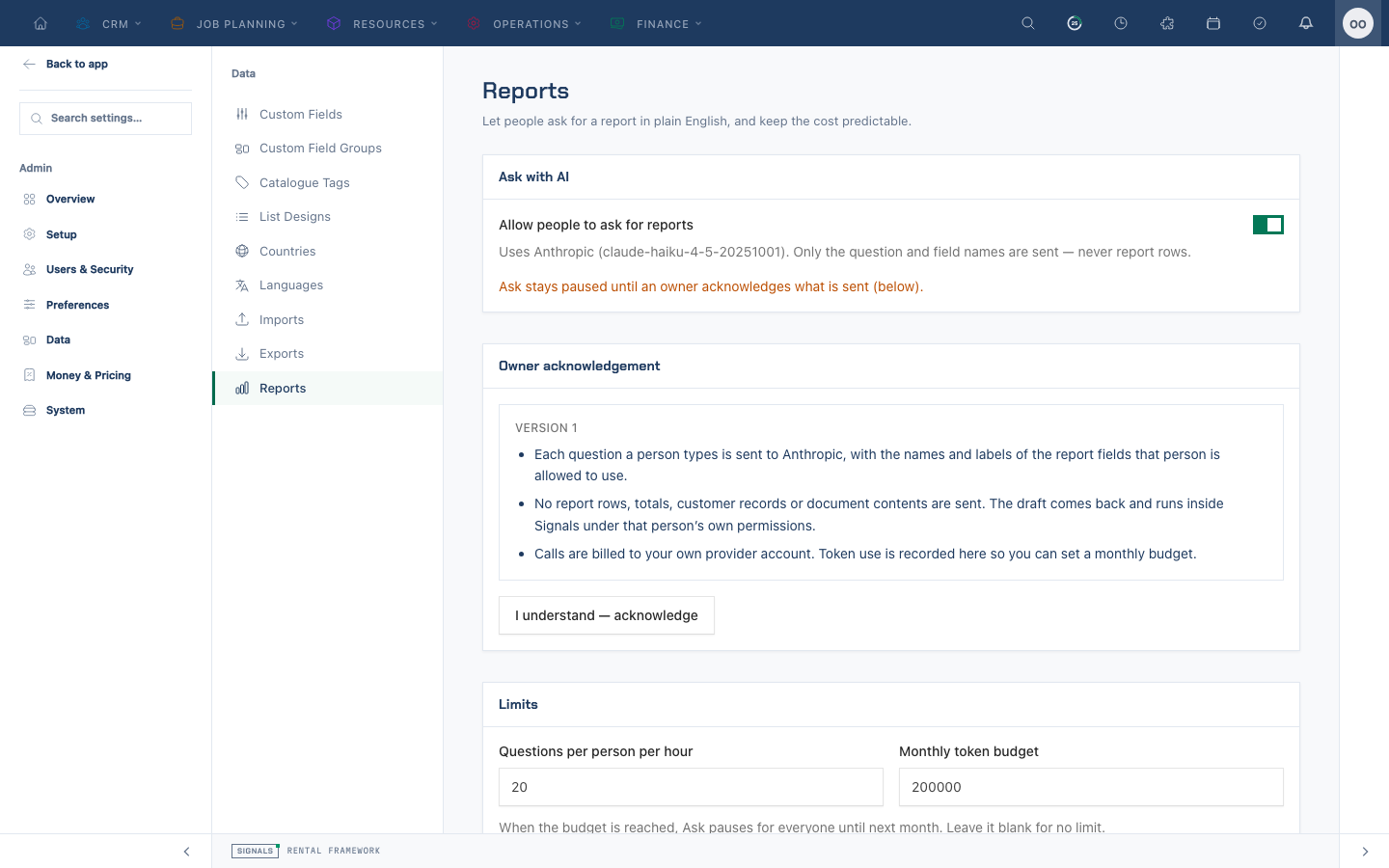
Ask requires reports.ask and reports.view, a configured provider, the organisation's Ask setting and an owner's current acknowledgement of what is sent. An administrator can grant the permission and configure these under Admin > Data > Reports. The default limit is 20 questions per person per hour; an optional monthly token budget pauses Ask for everyone when reached. Saved reports remain available.
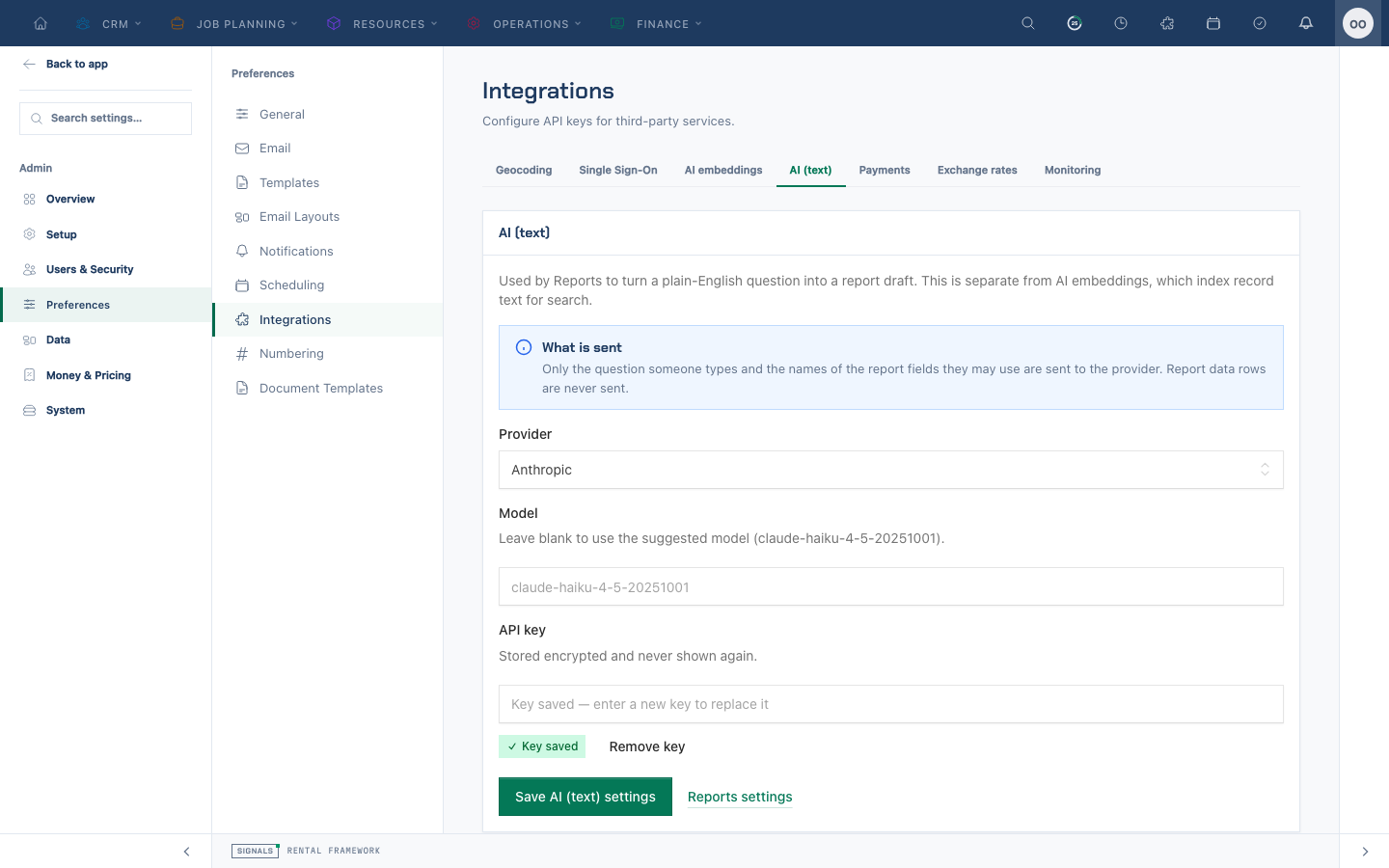
For self-hosted installations, an owner configures the provider, model and encrypted API key in Admin > Integrations > AI (text). This is separate from embeddings. On Signals Cloud the panel is managed by Signals; the deployment uses SIGNALS_REPORTS_AI_PROVIDER, SIGNALS_REPORTS_AI_MODEL and SIGNALS_REPORTS_AI_KEY.
Related
| Reference | Use it for |
|---|---|
| Building a Report | Editing and saving the draft |
| Reports | Ask configuration and safeguards |