Checking Availability Before You Quote
Use the Equipment Availability page — group heatmap, product grid and product timeline, gantt and stacked views — to check stock, read shortages and fixes, and save the views you use.
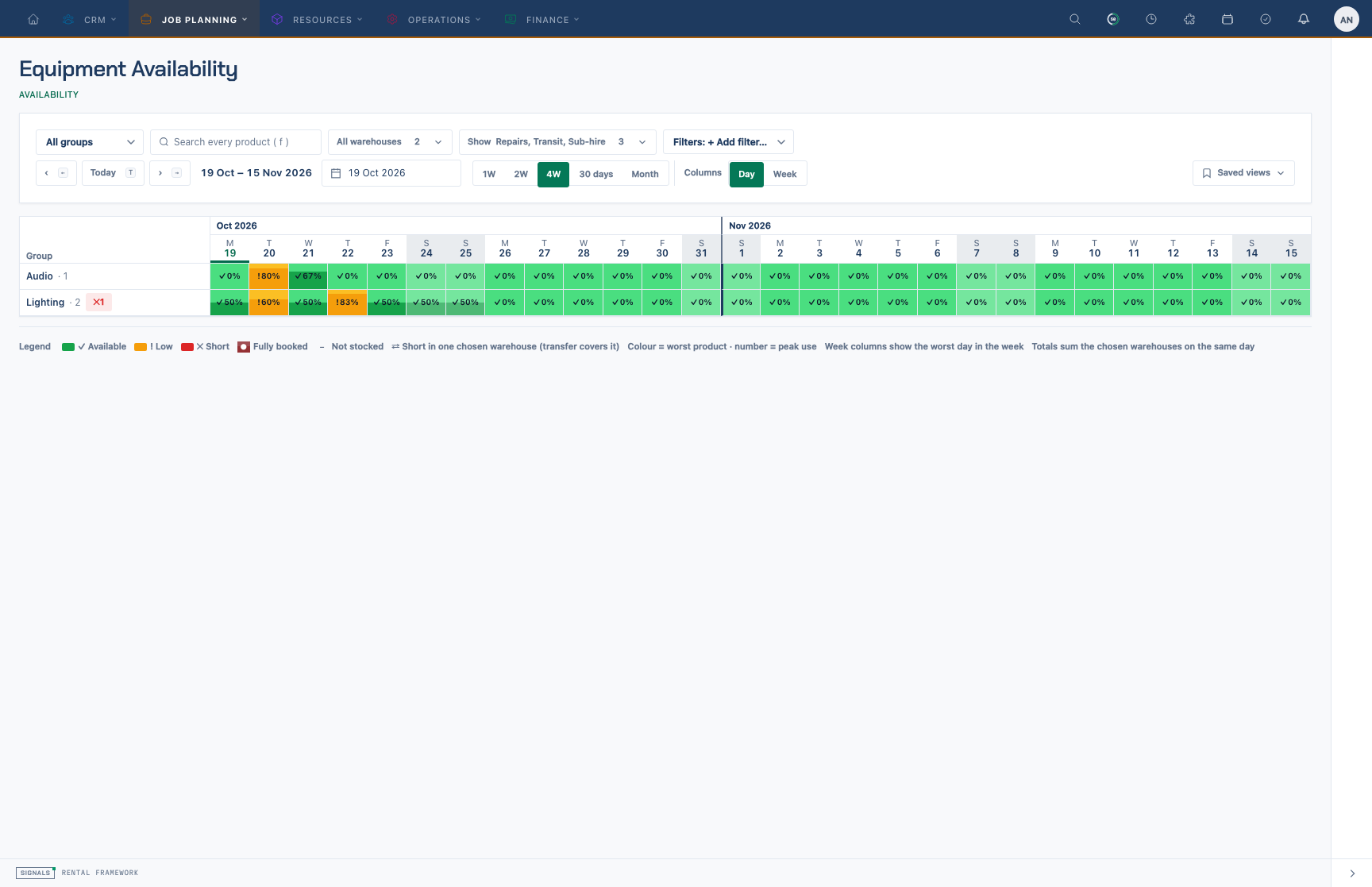
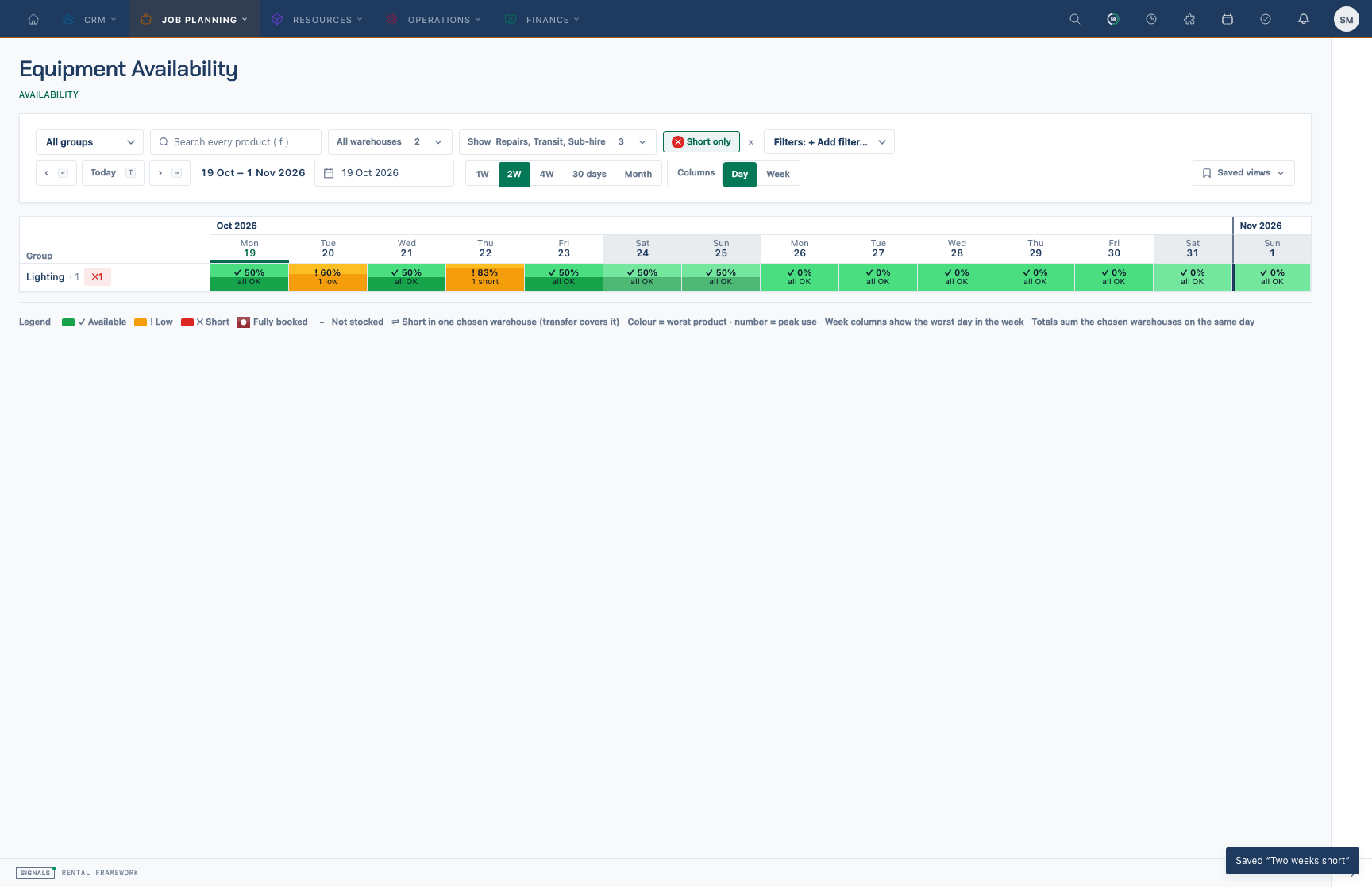
The Equipment Availability page (/availability) answers "is it free?" at three depths that share one control bar and one date axis:
- Groups — a heatmap with one row per catalogue group.
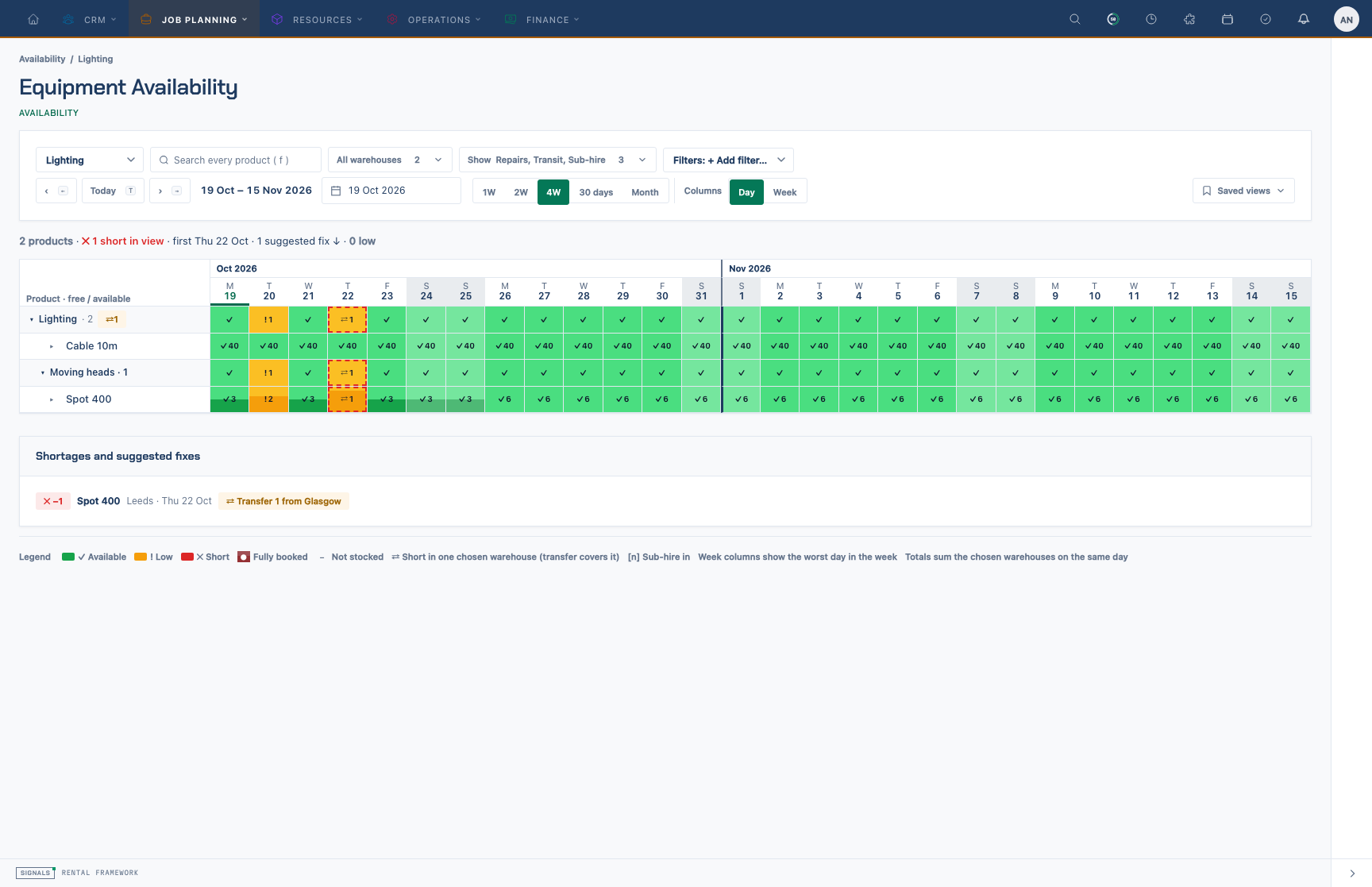
- Products — a grid of every product in a group (or matching a search), one cell per day or week.
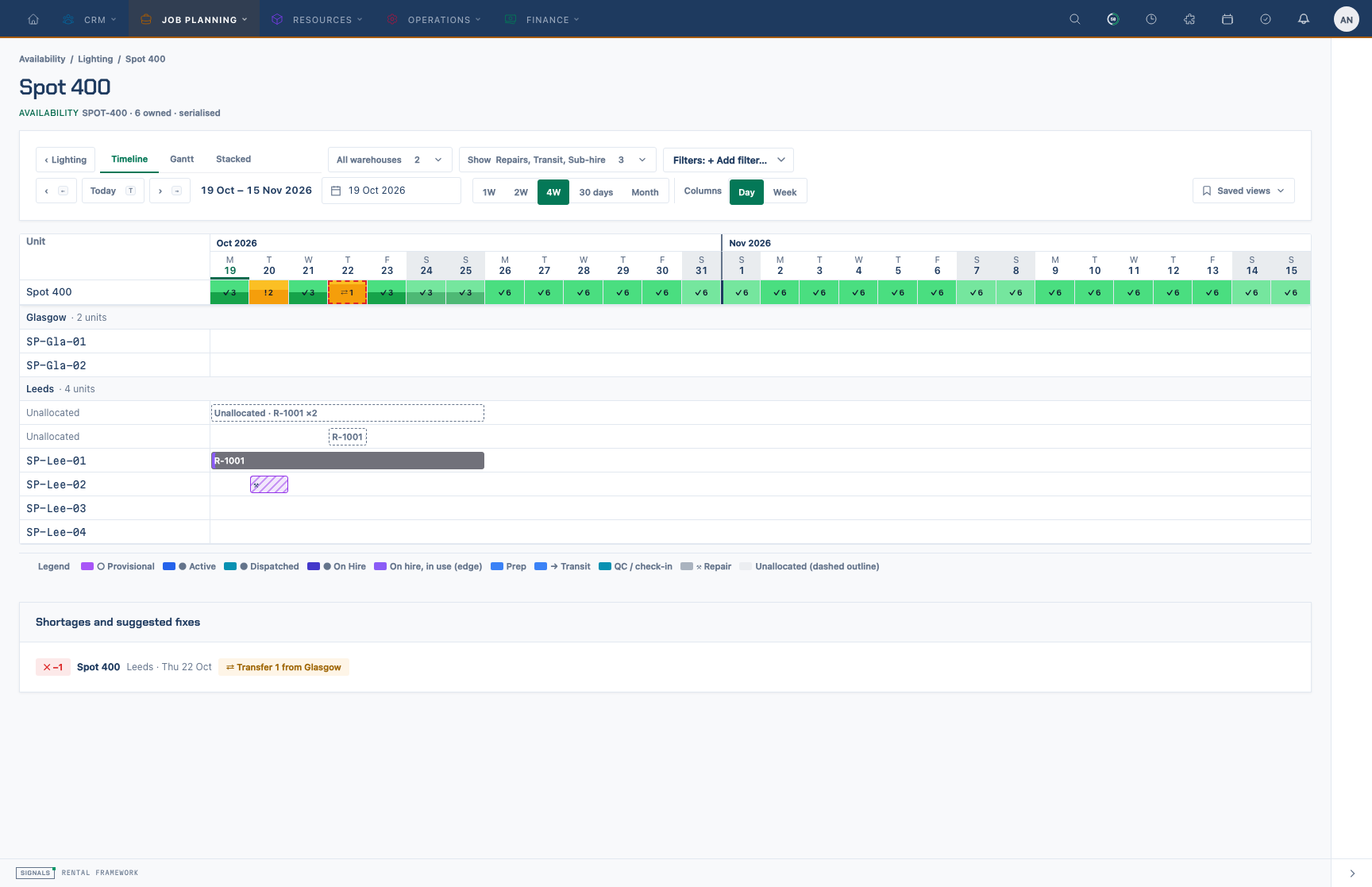
- Product detail — one product full page, with Timeline, Gantt and Stacked tabs.
Everything you set in the control bar (dates, warehouses, demand types, filters) stays as you move between depths, and the address bar always holds the full state, so a copied link opens exactly what you see.
Choose the dates
The date controls sit on the right of the control bar.
- Pick a span from the span dropdown: 1W, 2W, 4W, 30D (30 days) or Month. Month shows the days of the start date's month.
- Pick Day or Week columns. A week column shows the worst day in that week.
- Use ‹ and › to move one span back or forward, Today to return to today, or the date picker to jump to a start date.
Keyboard shortcuts work anywhere on the page outside a text field:
| Key | Does |
|---|---|
| ← / → | Previous / next span |
| T | Today |
| F | Focus the product search |
| Esc | Go up one level (product → grid → groups) |
| Arrow keys in the grid | Move between cells |
| Enter on a cell | Open that product on that day |
| Shift+Enter on a cell | Show the warehouse split for that cell |
| ? | All keyboard shortcuts |
Choose warehouses and what counts as demand
- Open Warehouses and tick the warehouses that could supply the job. All selects every warehouse; at least one always stays selected. Totals add the chosen warehouses on the same day.
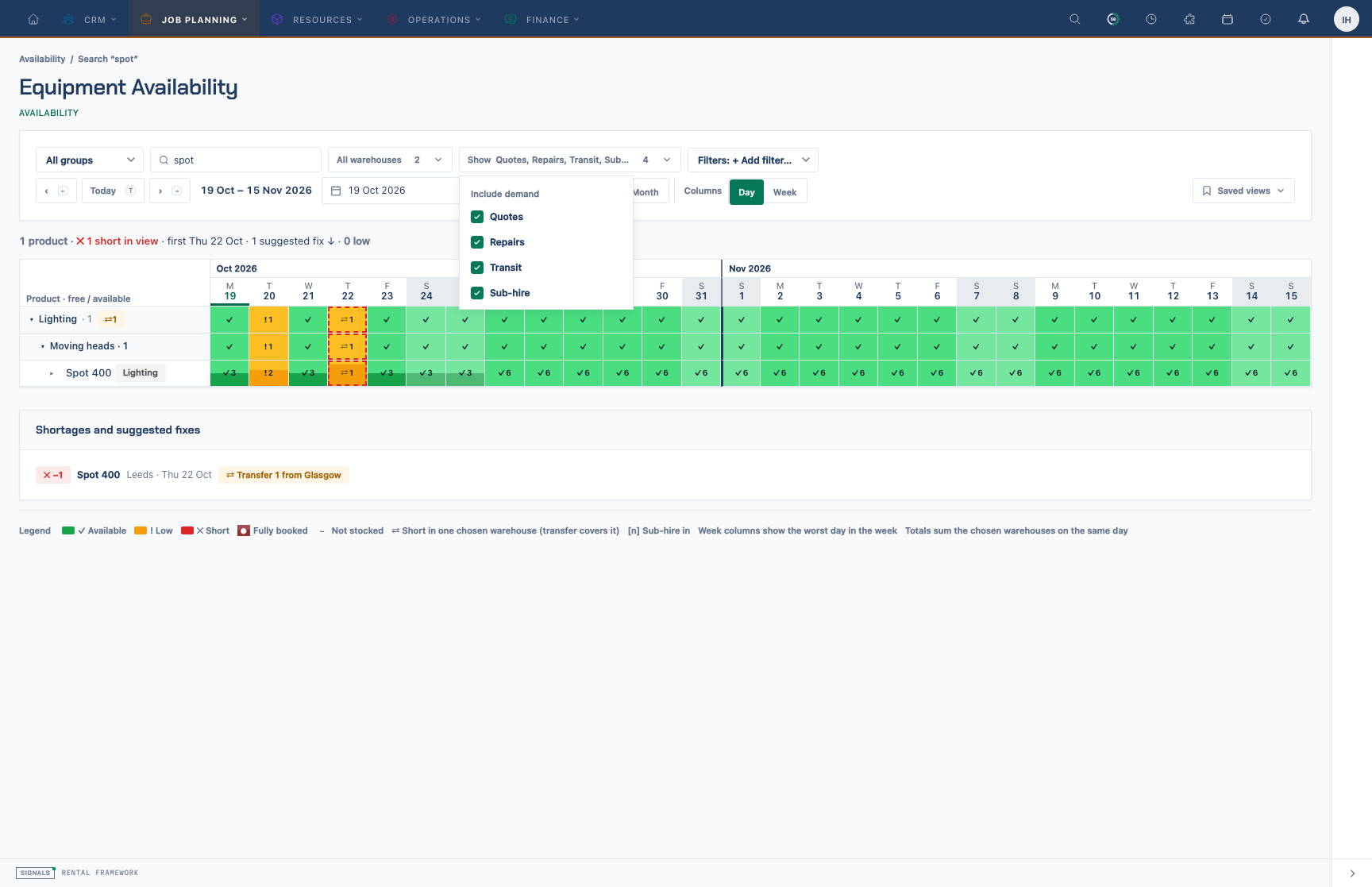
- Open Show and, under Include demand, tick what should reduce free stock:
- Quotes — provisional quotes and unconfirmed enquiries. Off by default, because they are not yet committed. Turn it on to see what would happen if they were confirmed.
- Repairs — units booked out for repair.
- Transit — units on a warehouse transfer.
- Sub-hire — units coming in from a supplier. Turning this off removes those incoming units from free stock.
Narrow the products
- Group and search — pick a group, or type in the search box to look across every product by name, SKU or group. Either one opens the product grid.
- Filters — use + Add filter… to include products by Group, Sub-group, Tag, Tracking (serialised or bulk), Sub-hire supplier or Status. Click a filter chip to switch it between include and exclude (shown as NOT); use × to remove it. Filters on the same field match any of their values; filters on different fields must all match.
- Tags come from Admin › Data › Catalogue Tags and the tags typed on each catalogue item.
Read Short and Low
Each cell shows free / available with a glyph as well as a colour:
| Glyph | Meaning |
|---|---|
| ✓ | Available |
| ! | Low — at or below the warning threshold |
| ● | Fully booked (nothing free) |
| ✕ | Short — free below the short threshold (by default, below zero) |
| ⇄ | Short in one chosen warehouse while the total is fine — a transfer covers it |
| [n] | n units coming in on sub-hire |
Under Show › Highlight, tick Short or Low to keep only products that are short (or low or short) on any day in the span. The counts next to them update as you change filters.
Both thresholds, and every availability colour, are set under Settings › Branding › Schedule: Warning threshold (Low) and Short threshold (free below this counts as short; 0 means only real shortages).
Open a product
- Select a cell to open that product on its Timeline tab; the span moves only if the day is not already in view. Cmd- or Ctrl-click opens it in a new tab.
- Select the ▸ beside a product to split its row by warehouse.
- Timeline shows one row per unit for serialised products — on hire, in repair, in transit — plus Unallocated lines for bookings with no unit yet and, with Quotes on, Quote lines. Bulk products point you to the Gantt.
- Gantt shows the free stock band per warehouse and one bar per rental, repair, transfer or sub-hire.
- Stacked shows booked, quoted, repair and free against capacity for each column.
- Use ‹
(or Esc) to go back with every setting kept.
Use the tooltips and Open links
Hover or focus any cell or bar to see a tooltip with the figures behind it. On the product tabs the tooltip names the rental, its status in its status colour, the customer (if you can view rentals) and the dates, and ends with Open … ↗, which opens the rental, repair, transfer or purchase order in a new tab.
Fix a shortage
Under the grid or product detail, Shortages and suggested fixes lists each run of days a product is short in a warehouse, with a suggestion:
- ⇄ Transfer n from
when another chosen warehouse has enough free stock on every day of the run. - + Sub-hire n when no single warehouse can cover it.
Suggestions are advice only — nothing is booked. Select the product name to open its timeline at the first short day, then follow Resolving a Shortage.
Save the views you use
- Set the page up the way you want it.
- Open Saved views › Save current view…, type a name and press Save.
- Pick a saved view from the same menu to apply it. The built-in Example views are always there.
- Use Manage to rename, reorder (↑ / ↓), delete (with Undo) or Set as default. The default view opens when you visit
/availabilitywith nothing in the address.
Saved views belong to you and are also available through the REST API and MCP (/api/v1/me/availability_views).
Carry the result into the quote
- Note the warehouse, product, quantity and dates you checked.
- Open the rental and add the item with Quick add.
- Recheck the rental's Availability tab — see Checking Availability on a Rental.