Creating a Rental Quote
Check availability, create a rental, add catalogue items, and prepare a quote for the customer.
Check equipment availability
- Open
/availabilitybefore promising stock to the customer. - Select the warehouse or warehouses that could supply the job.
- Choose a Catalogue item group, and narrow the list by Catalogue item type if needed.
- Set the Start date and the number of Days to cover the expected hire period.
- Read the availability grid for the equipment you expect to quote. Use Shortages only or Warnings only when you need to concentrate on problem dates.
Plan with the right warehouse. The rental's warehouse drives its availability and its local clock, so check the same warehouse you intend to select on the rental.
Start the rental
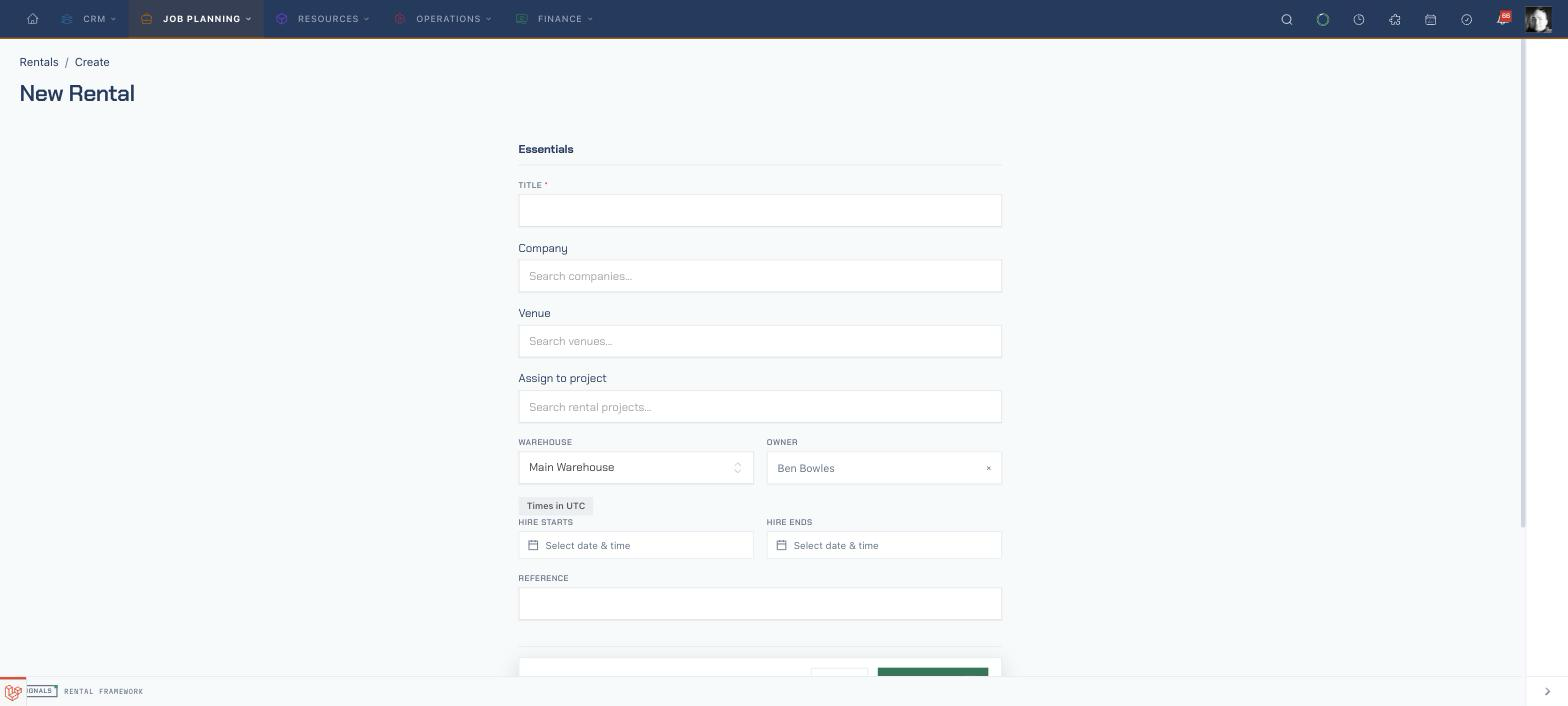
- Open Rentals and choose New Rental, or go directly to
/rentals/create. - Enter a short, recognisable Title for the job. This is the only field marked as required on the form.
- Search Company and select the customer account. The picker only offers active company accounts.
- Select the Venue when the job has one.
- If your team uses rental projects, choose Assign to project. The field only appears when project access is available.
- Confirm the Warehouse and Owner.
Set the hire dates and customer details
- Set Hire starts and Hire ends. The badge above the fields shows the warehouse timezone used by the date pickers.
- Enter the customer's PO number or other identifier in Reference when you already have it.
- Open Delivery to choose delivery and collection addresses, record whether the customer is collecting or returning, and add delivery or collection instructions.
- Open Commercial to review the warehouse currency, choose whether prices include tax, and set different charge dates when the billable period differs from the physical hire period.
- Use Schedule only when you need detailed Prep, Load, Deliver, Setup, Show, Takedown, Collect, Unload, or Deprep times. Quote Expires At is also available there.
- Use Details for the internal description, customer-facing External Description, tags, and any custom fields your business has configured.
Customer-facing copy. Text in External Description is shown on customer-facing documents; use Description for the internal job record.
Create the rental
- Review the essentials and any expanded groups.
- Choose Create Rental in the bottom action bar.
- Signals opens the new rental's Overview. A new rental begins as an Enquiry, shown in the header beside its status.
Add the catalogue items
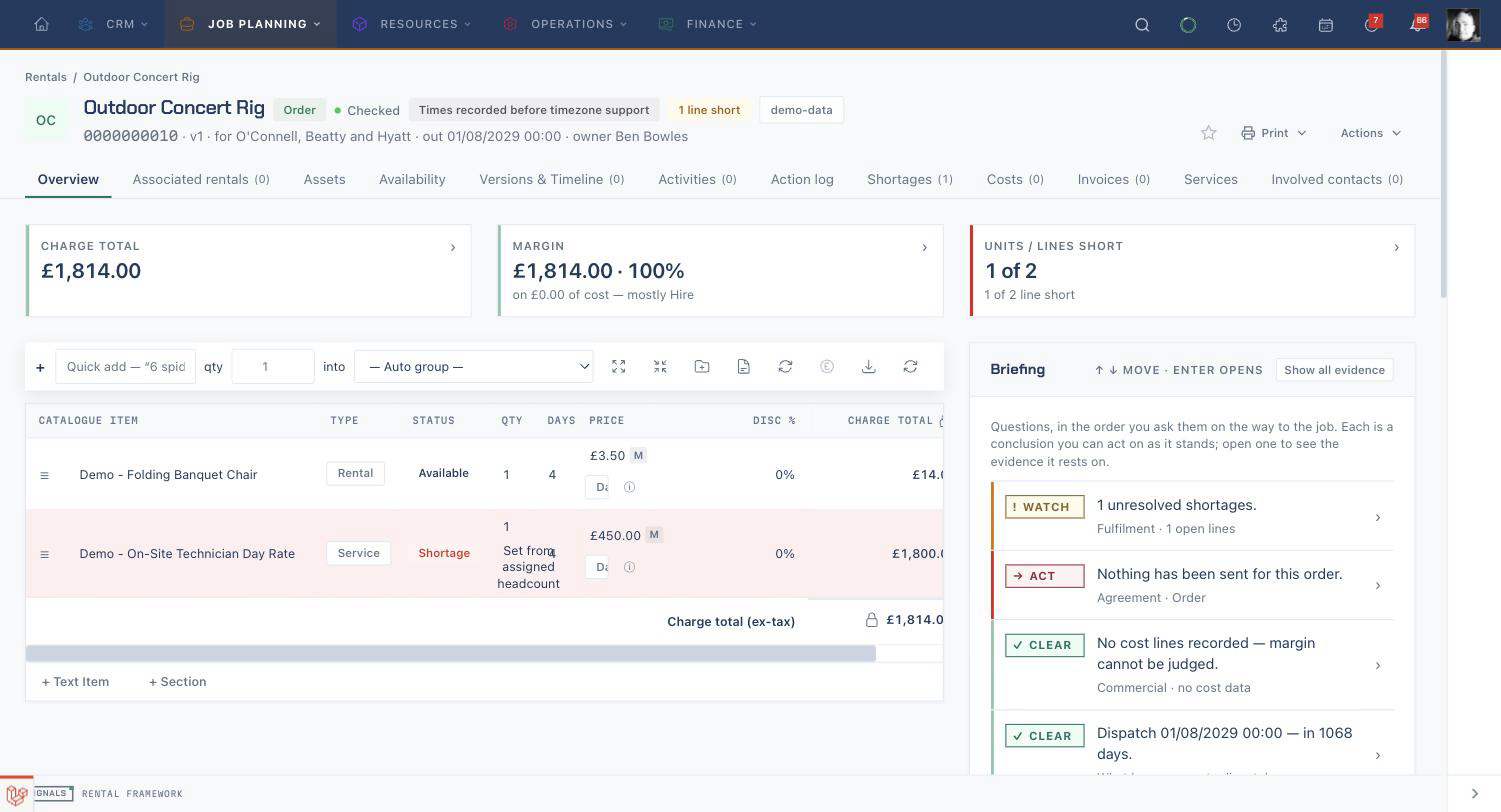
- On Overview, use Quick add in the line-item editor.
- Type a catalogue item name or SKU. You can include the quantity in the search, such as
6 spider, or enter it in the qty box. - Choose where to place the line with the into selector, then press Enter on the matching item.
- Use New section to organise a longer quote into customer-friendly groups. Use Add text for a free-text line when that feature is enabled.
- Check each line's quantity, days, price, discount, and charge total. Use Recalculate if the displayed action is available and the pricing needs refreshing.
- Check the Charge total and Units / Lines short headline cards above the editor. Open the rental's Availability tab when you need the line-by-line picture for this job.
Turn the enquiry into a quote
- Review the customer, dates, line items, totals, and any shortages.
- Open the header Actions menu.
- Choose Convert to Quote.
- In the confirmation dialog, choose Convert to quote. The state badge changes from Enquiry to Quote.
Generate and share the quote
- Open the rental's Documents tab.
- Choose Generate document, select the appropriate quote template, and choose PDF or HTML output.
- Choose Generate.
- Open the generated document's row actions and choose Share.
- Configure the public link. Once it exists, use Copy link to send the quote through your normal customer communication channel. The same menu also offers Configure and Revoke.
Related
| Reference | Use it for |
|---|---|
| Rentals | Rental states, the full line-item editor, tabs, pricing, and fulfilment |
| Equipment Availability | How the availability grid and bookings drill-down calculate stock |
| Accounts | Customer companies, contacts, addresses, and account records |
| Documents & Templates | Document generation, public links, and customer responses |