Logging and Tracking a Repair
Raise a repair hold, follow its effect on stock, and return or write off the repaired quantity.
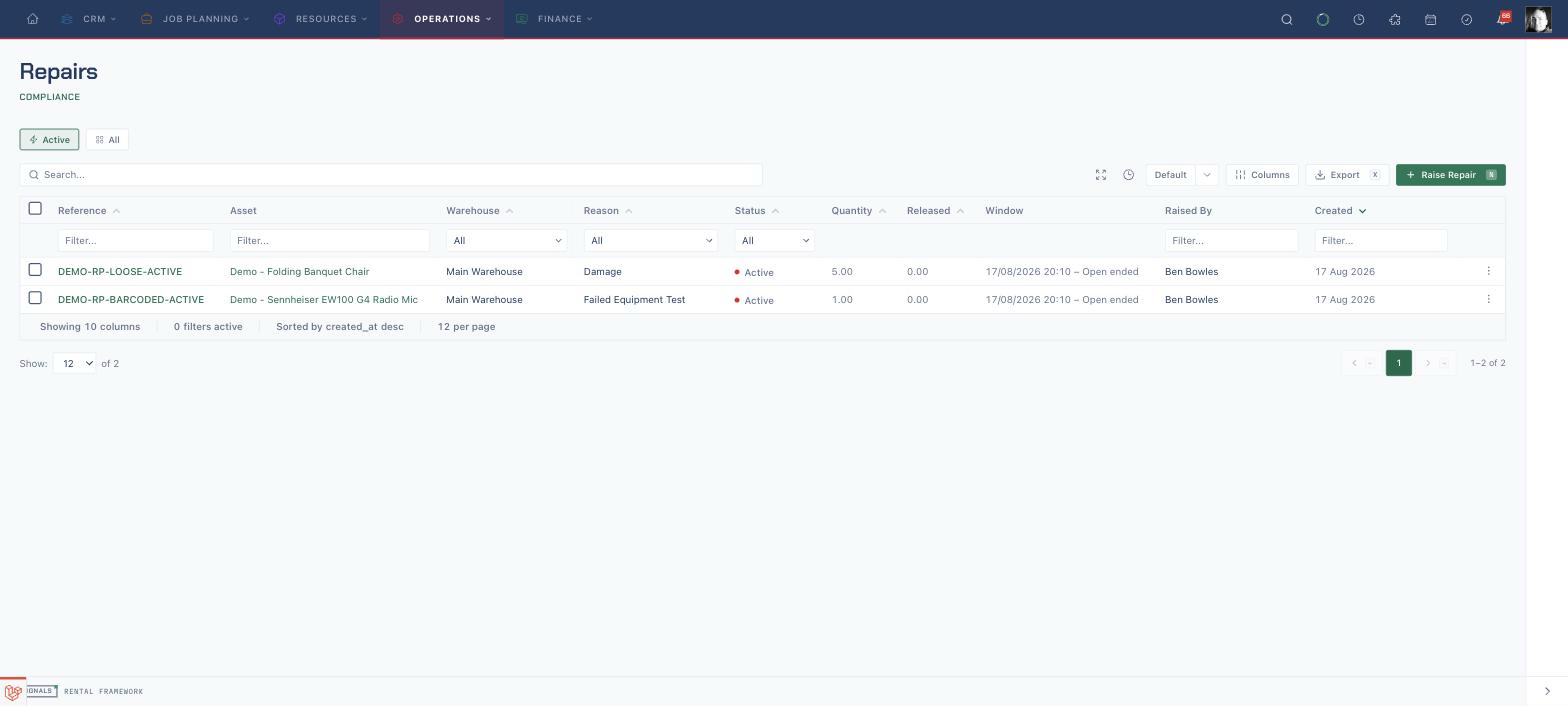
Find active repairs
- Open
/repairs. - Leave Active selected to see current repair holds, or choose All to include completed and cancelled records.
- Compare Reference, Asset, Warehouse, Reason, Status, Quantity, Released, and Window.
- Select the reference to open the repair and read its availability impact, squeezed commitments, and disposition history.
An active repair holds its quantity out of availability. For a barcoded item, the repair applies to one specific asset.
The standard Raise Repair form and the Repair disposition in Returns Workbench both use the active Repair Reason picker configured by your administrator.
Raise a repair
- Choose New Repair from
/repairs. - Search Asset by catalogue item, item name, asset number, or serial number, then select the intended stock record.
- Choose Reason.
- Enter Quantity for loose stock. A barcoded asset is fixed at one.
- Add a Reference, set Starts at, and choose an open-ended or fixed Ends at window.
- Add Notes, then choose Raise Repair.
A currently dispatched asset is rejected: return or check it in before raising the repair. Holding an asset that has a future confirmed allocation can displace that allocation and expose a shortage on the affected rental.
Track the repair
- Open the repair from
/repairs. - Read the availability-impact summary and Squeezed commitments before extending its window.
- Use Edit while the repair is active to update its reason, reference, dates, or notes.
- Use the Files tab for damage photographs, estimates, or service paperwork.
- Review the Disposition ledger to see how much has already returned to stock or been written off.
The cost figure on the repair overview is a window-based approximation from asset maintenance costs; it is not a repair-specific cost total.
Complete or release stock
- Choose Complete on an active repair.
- Read Remaining repaired quantity.
- Choose Return to Stock when the quantity is serviceable, or Write Off when it must leave inventory.
- Enter the quantity to release and choose Confirm.
- Repeat with the other disposition when a repair has a mixed outcome.
| Disposition | What confirming it actually does |
|---|---|
| Return to Stock | Releases that quantity from the repair hold and returns it to availability |
| Write Off | Releases the hold and removes the quantity from inventory; a barcoded asset is retired |
A partial disposition leaves the repair active with a smaller remaining quantity and confirms Partial disposition recorded. Repair remains active. The repair completes, and reports Repair completed., only when all held quantity has been dispositioned.
Cancel an unused repair
- Choose Cancel only when the repair record should be abandoned rather than completed.
- Confirm the action.
- Recheck the asset and any affected rental availability.
Cancelling restores the held quantity without recording a Return to Stock or Write Off disposition.
Related
| Reference | Use it for |
|---|---|
| Repairs | Repair holds, availability effects, displacement, and dispositions |
| Equipment Tests & Maintenance | Failed tests and automatic repair creation |
| Equipment Availability | Seeing held repair demand against bookings |
| Processing a Return | Recording damage found during check-in |