Using the Rental Diary and Timeline
Choose the right planning view, move through its dates, and open the job or assignment that needs attention.
Choose the planning view
- Open
/rental-diarywhen the question is which quotes and orders overlap, when each job runs, or where delivery, use, and collection fall. - Open
/scheduling/timelinewhen the question is which crew member, facility, or vehicle is assigned, or where assignments conflict. - Use the warehouse filter on either view to narrow the plan to the sites you are coordinating.
Do not treat either timeline as an equipment promise. The Rental Diary plots jobs and the Resource Timeline plots assignments; use
/availabilityto confirm bookable stock.
Navigate the dates
- On the Rental Diary, use the date controls on the right of the toolbar: ‹ and › move by the displayed span, Today (or
T) returns to today, and the date picker sets the first day.←and→also step. - Choose the span from the span dropdown (1W, 2W, 4W, 30D or Month) and Day or Week columns from the columns dropdown.
- Leave Time on Mine unless you need one warehouse's clock. Warehouse is offered only when exactly one warehouse is selected.
- The Resource Timeline and Fleet diary use the same right-aligned date controls: ‹ and › move by the span (by one day in the vehicle view and the Fleet diary), Today (or
T) returns to today, the date picker sets the first day, and the span is 1W, 2W or 1M. The key sits below the grid on all three pages.
Read the Rental Diary
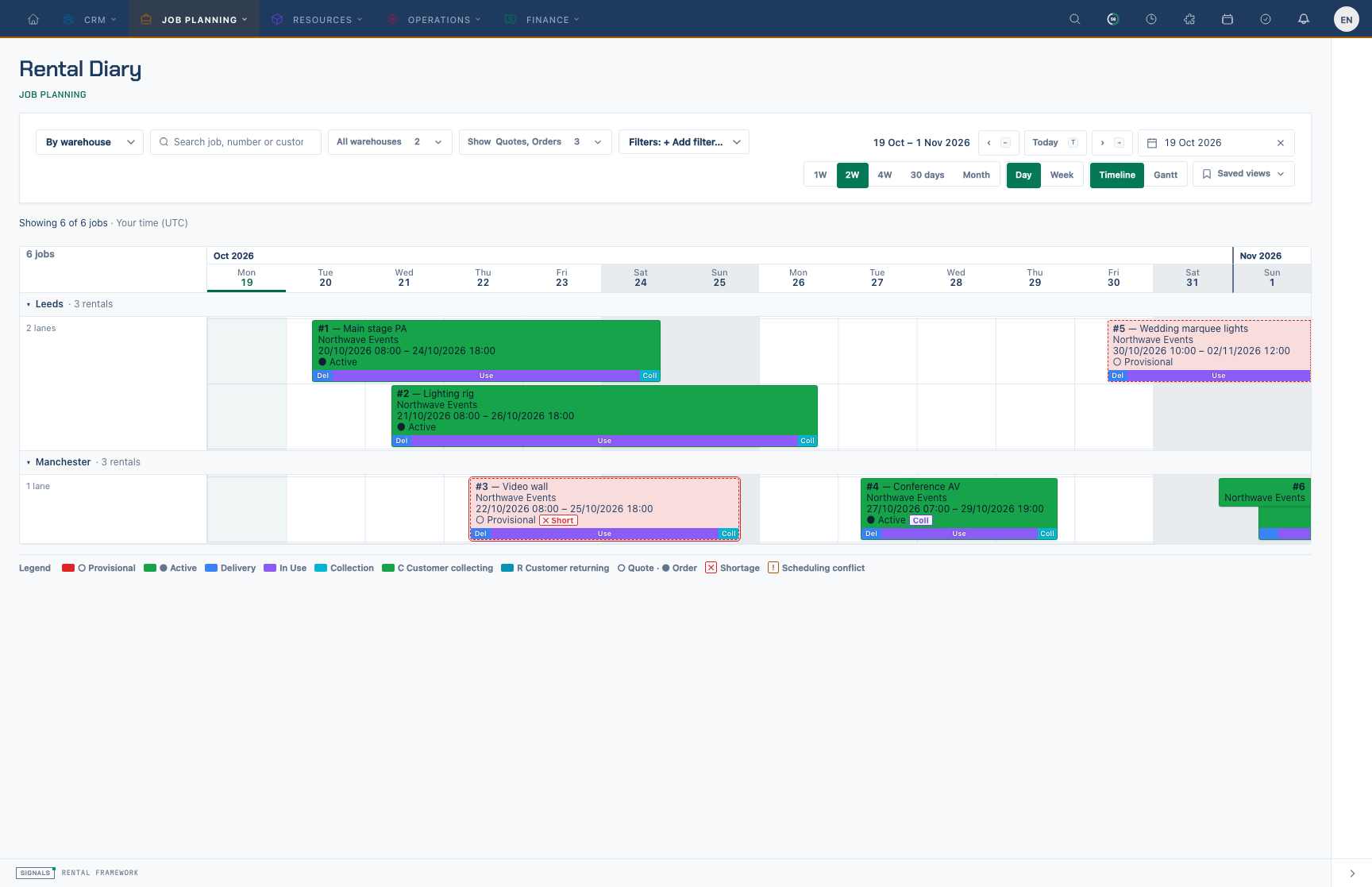
- Choose Timeline to read jobs as cards, or Gantt to zoom from weeks down to hours. In the Gantt use Hour, Day, Week or Fit,
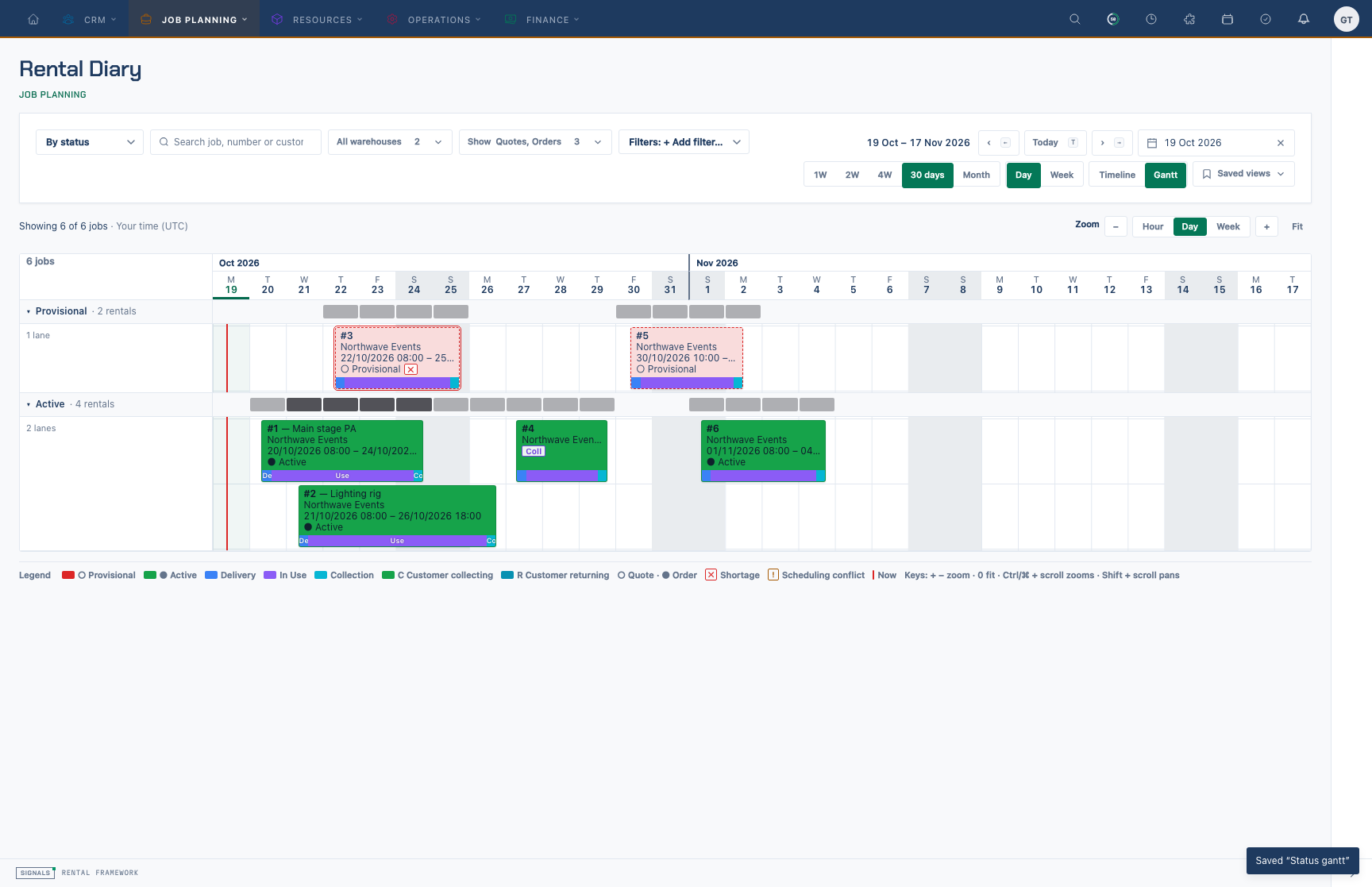
+and−, or Ctrl/⌘ + scroll; Shift + scroll pans. - Under Group, keep By warehouse (every selected warehouse gets a row, even with no rentals) or choose By status or By project. Select a group's name to collapse or expand it.
- Under Show ▾, tick Quotes and Orders, turn Phases off for plain cards, tick Conflicts only, or switch to Warehouse time when one warehouse is selected.
- Use Filters: + Add filter… to show only some statuses, Warehouses ▾ to pick sites, and search by title, rental number or customer (
f). All warehouses includes jobs without a warehouse, in a No warehouse row when grouped by warehouse. Picking specific warehouses excludes those jobs and other warehouses; your warehouse access still applies. - Read each card: rental number and title, the customer, then ○ quote or ● order with the status. The bar along the foot shows the rental's lifecycle (Prep, Delivery, In Use, Collection, Deprep), each part as wide as the days it takes, with a tick for today. The card stretches from the first dated phase to the last, so prep and deprep days show on the diary too; Coll and Ret badges mean the customer is collecting or returning.
- ✕ Short means the job is short of equipment; ! Conflict means a crew, vehicle or facility assignment clashes.
- Hover a card for its details and Open R-… ↗, which opens the rental in a new tab. "Showing x of y jobs" tells you when filters hide jobs.
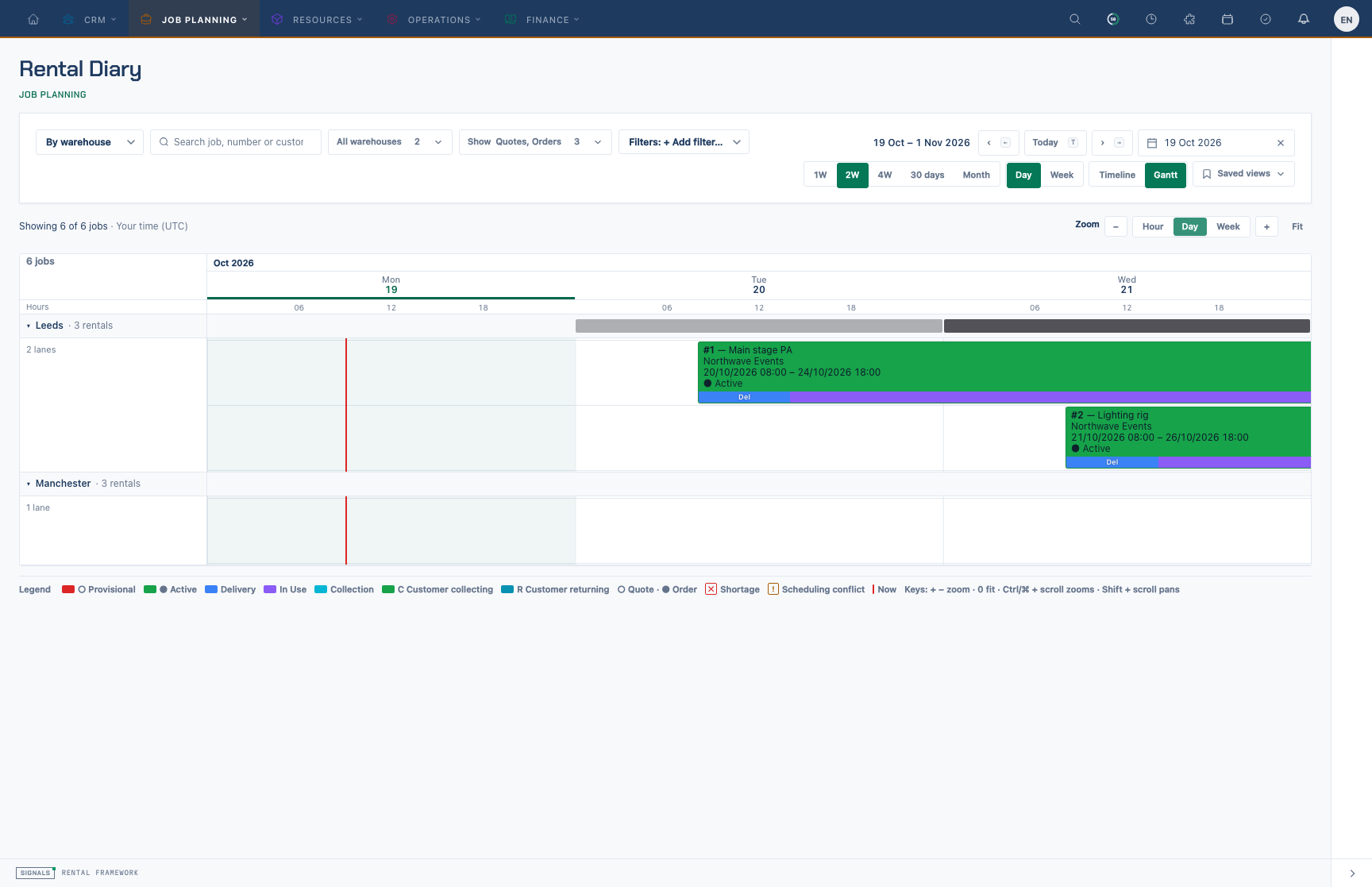
The diary is read-only. To change a job's dates, open the rental.
Save a view
- Set up the diary the way you want it (view, grouping, filters, span).
- Open Saved views and choose Save current view…, then name it.
- Pick a saved view from the same menu to return to it. Use Manage to rename, reorder, delete or set a default view, which opens whenever you visit
/rental-diarywith nothing else in the address.
Read the Resource Timeline
Choose All, Crew, Facilities, or Vehicles in the toolbar, next to the warehouse filter. Each choice has its own layout.
All and Facilities: resources by day
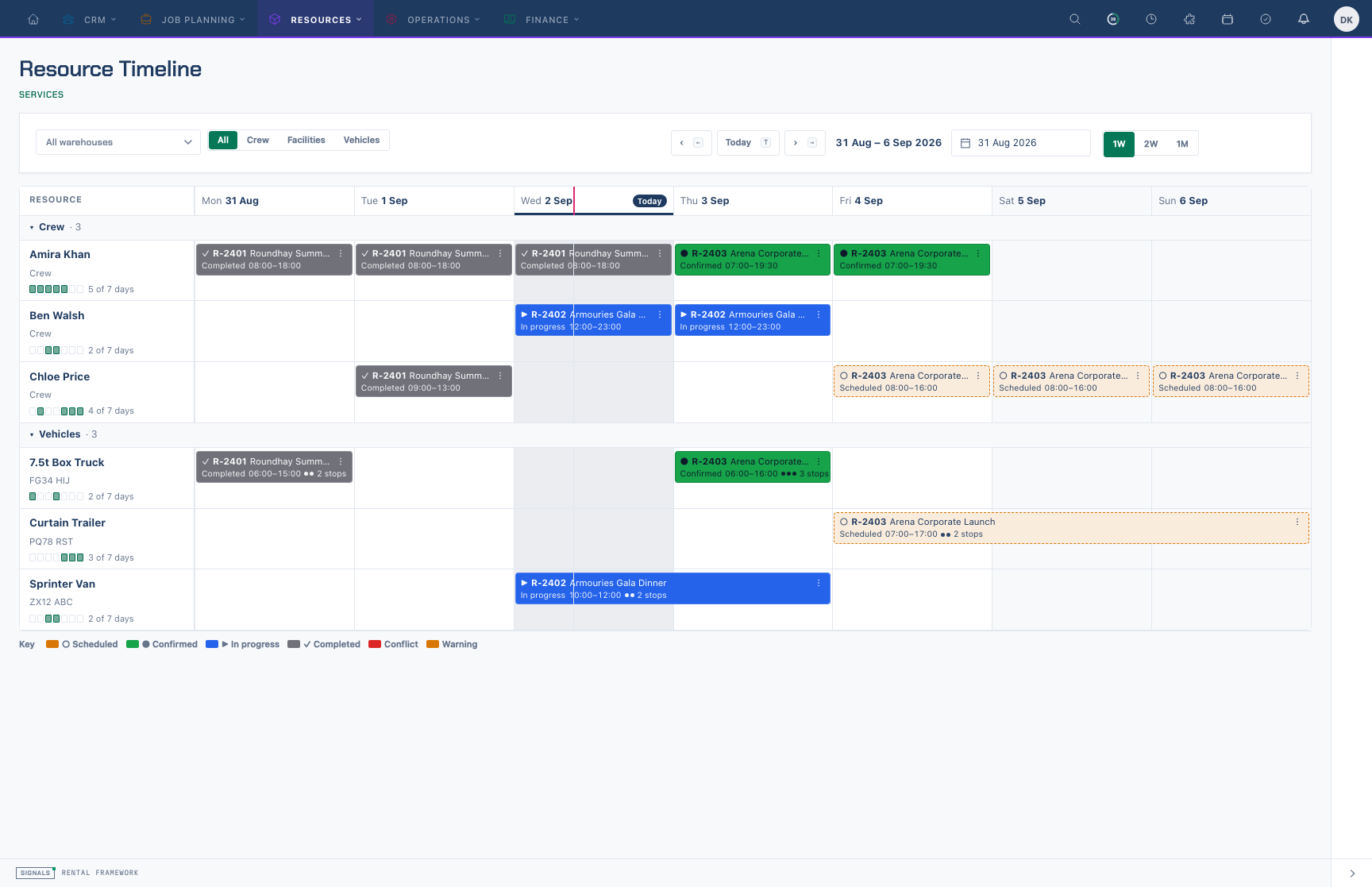
All resources, one week: each row has a load meter, and each bar shows the rental, its status, time window and route stops.
- Rows are grouped Crew, Facilities and Vehicles; select a group's name to collapse or expand it.
- Under each resource name, read the sub line (the plate for a vehicle) and the load meter: one square per day, filled on booked days and outlined in red on days with an open conflict, then "n of m days".
- Read each bar: the status glyph, rental number and title, then the status as a word, the time window, and one dot per route stop. Scheduled bookings are dashed tints; the Key shows ○ Scheduled, ● Confirmed, ▶ In progress and ✓ Completed. At 2W and 1M bars shorten to one line.
- Each bar covers the whole days it touches; its second line gives the start and end times. A bar with a square edge carries on before or after the window.
- Select a Warn or Conflict badge (or the bar) to review conflicts; use ⋮ for Charge-line actions for this assignment when they are offered.
- Select a resource name, or a bar without a conflict, for a side panel of its bookings in the window (with route stops for a vehicle). Select a booking's title to open the rental.
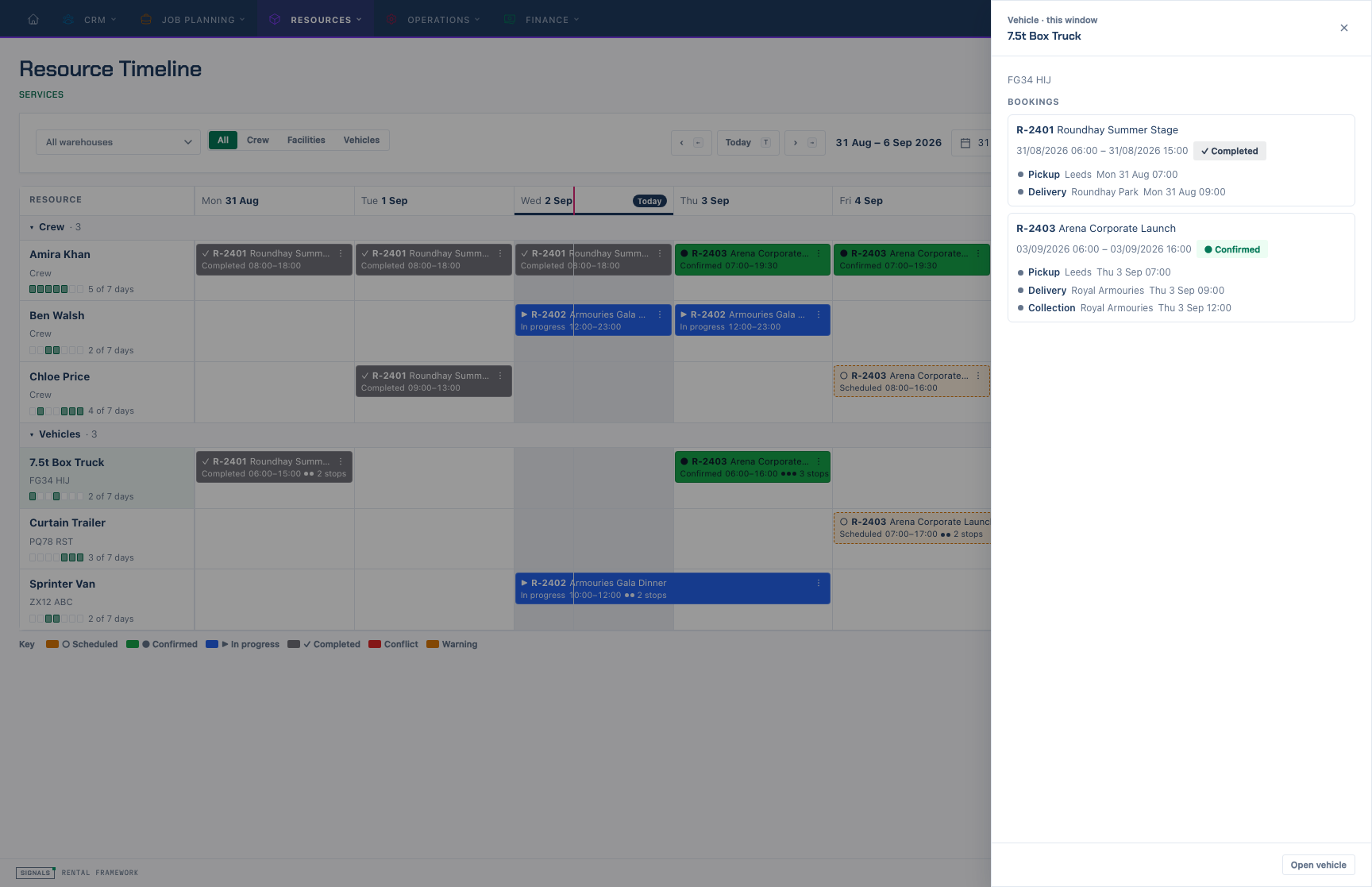
The side panel for a vehicle: its bookings in the window and the route stops on each.
Crew: who is busy and who is free
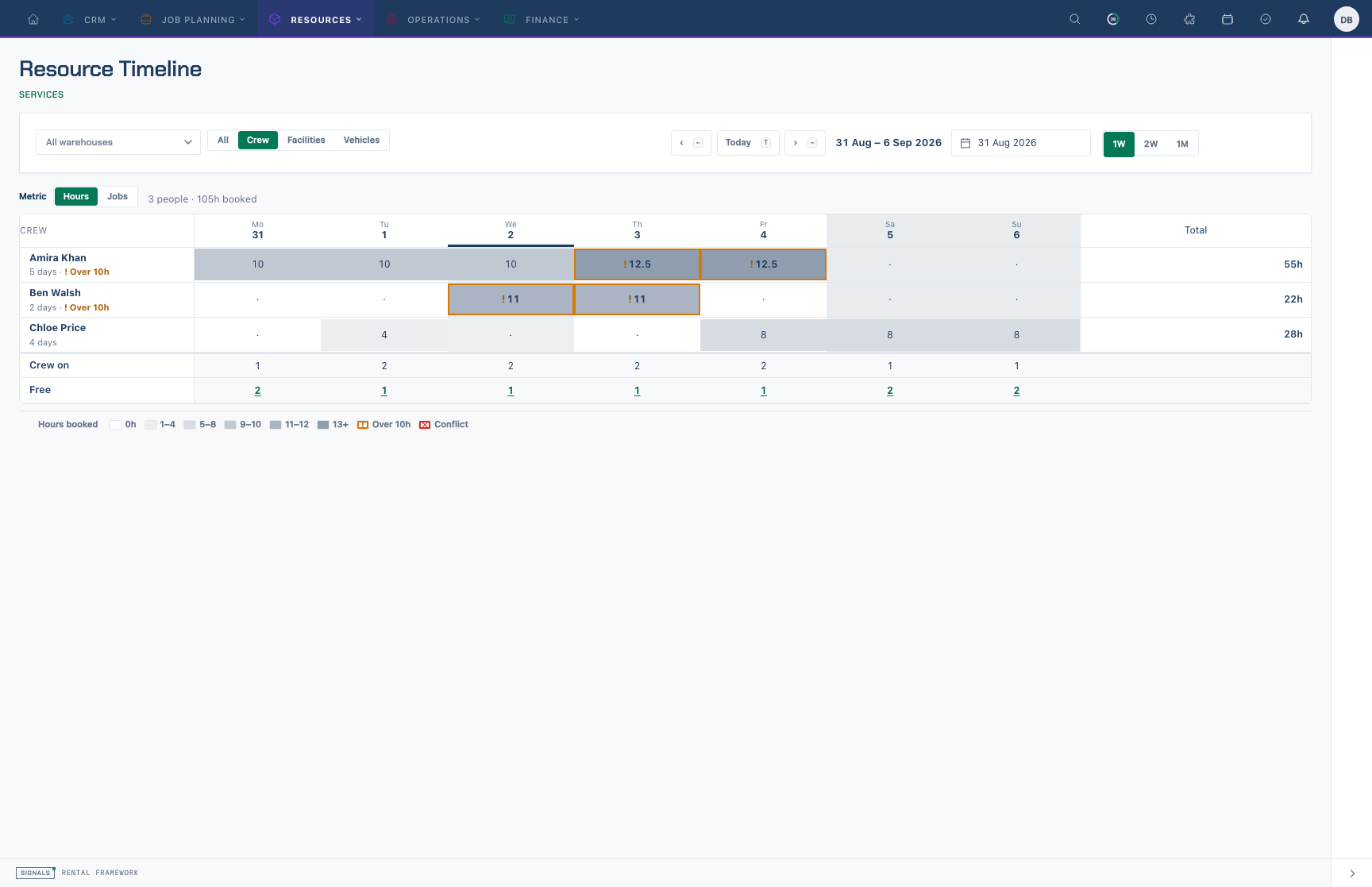
The crew view: hours booked per person per day, darker for longer days, with ! on days over 10 hours.
- Each cell is the hours a person is booked that day; switch Metric to Jobs for the number of bookings instead. A dot means nothing booked.
- ! and an amber outline mark a day over 10 hours; ✕ and a red outline mark a day with an open scheduling conflict. Cancelled bookings never count.
- Total is the hours booked in the window. The footer counts Crew on each day and Free — people in the view with nothing booked that day.
- Hover a cell for the bookings behind it. Select a cell to open that day on an hour axis, with the rest of the crew beneath so you can see who could cover.
- Select a Free number for the day summary: who is free, who is working and who is over 10 hours.
- Only crew with a booking in the window appear; move the window or clear a filter to see more people.
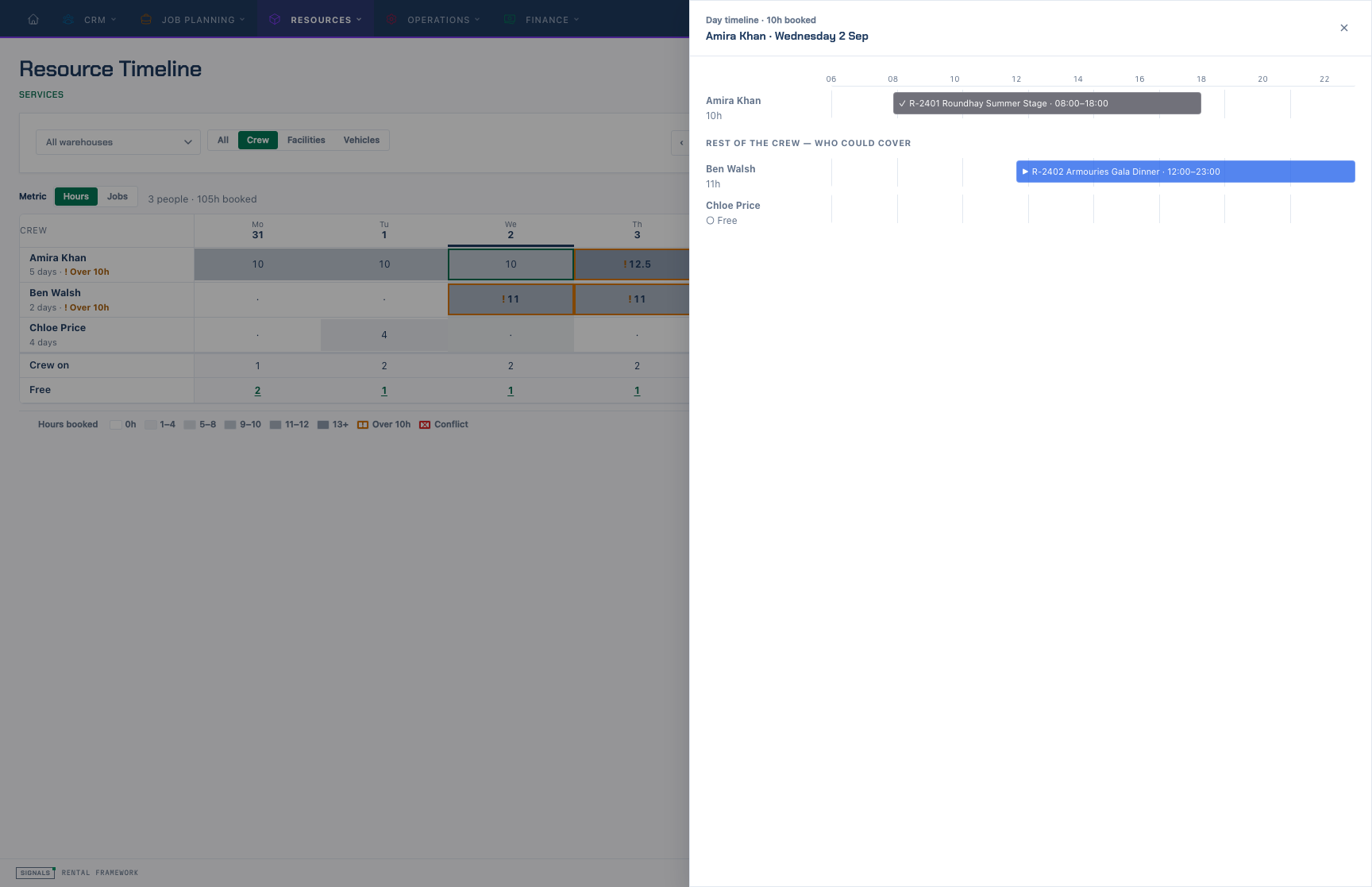
Drilling into a crew day: the selected person's bookings by the hour and who else is free or working.
Vehicles: the route day
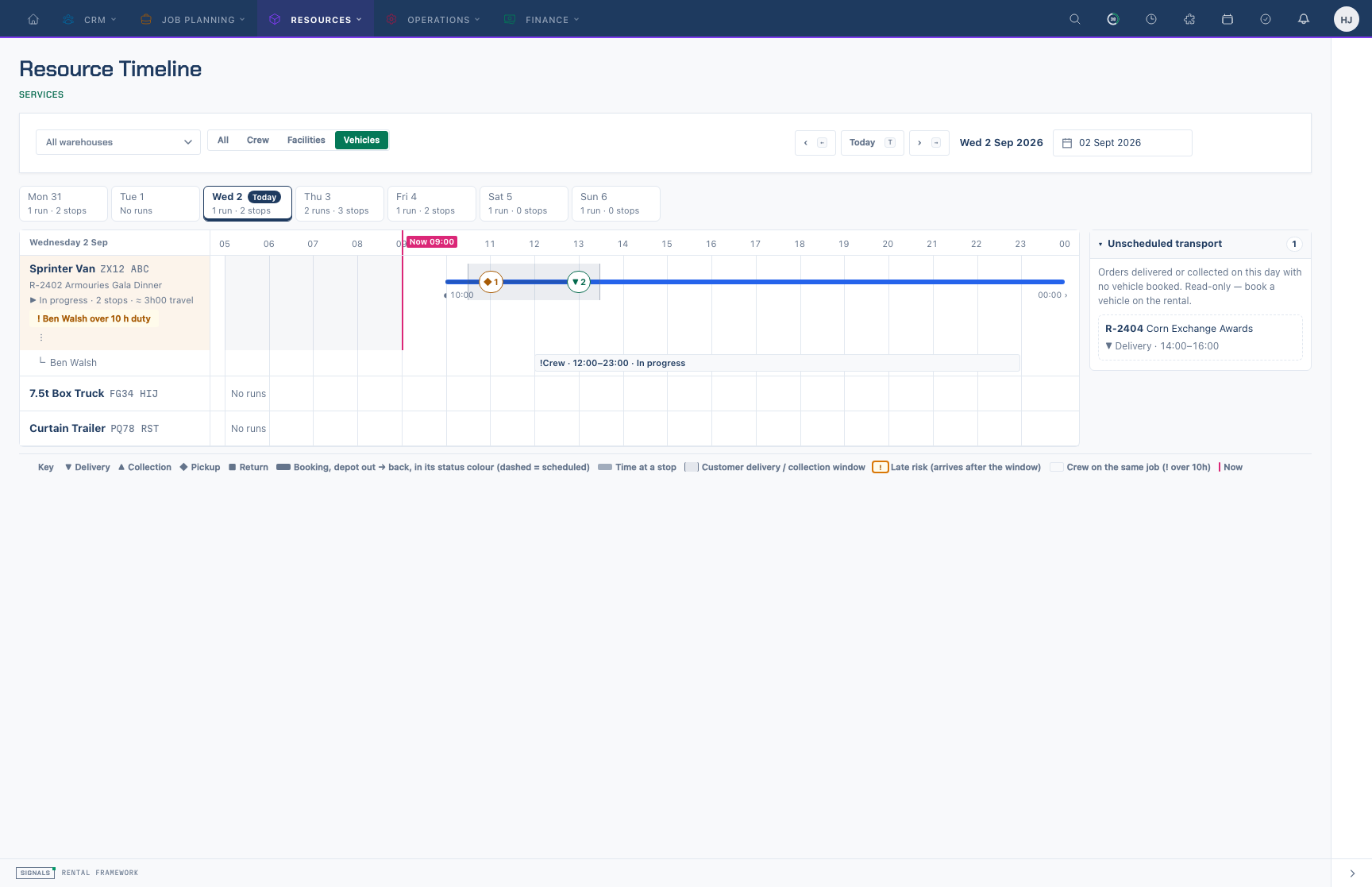
The vehicle view for one day: each booking runs from depot out to depot back, with numbered stops and the crew on the same job beneath.
- The vehicle view is one day. Pick a day from the strip above the grid (each shows its runs and stops), or use ‹ Today › and the date picker on the right of the toolbar, which step a day at a time.
- Each vehicle booking that touches the day is a lane from depot out (◖) to back (◗); ‹ or › means it started earlier or carries on later. A dashed line is a scheduled booking.
- Route stops sit at their arrival time — ▼ delivery, ▲ collection, ◆ pickup, ■ return — with a darker bar for the time until they leave. Behind a delivery or collection stop, the shaded band is the rental's delivery or collection window; a stop arriving after the window closes gets ! and a Late risk callout on the vehicle.
- Crew booked on the same rental that day are listed beneath with their hours (! over 10 hours). A run with nobody booked on the rental that day is flagged No crew booked. The vehicle line shows its assignment role and the time travelling between stops.
- The Unscheduled transport tray lists orders delivered or collected that day (not by the customer) that have no vehicle booked. It is read-only; book a vehicle on the rental.
- On today, the now line marks the current time and the hours before it are shaded.
- Vehicles with nothing booked that day stay listed as No runs.
- Select a vehicle for its run sheet (booking, status, crew and every stop, with Print run sheet), or a stop for its details.
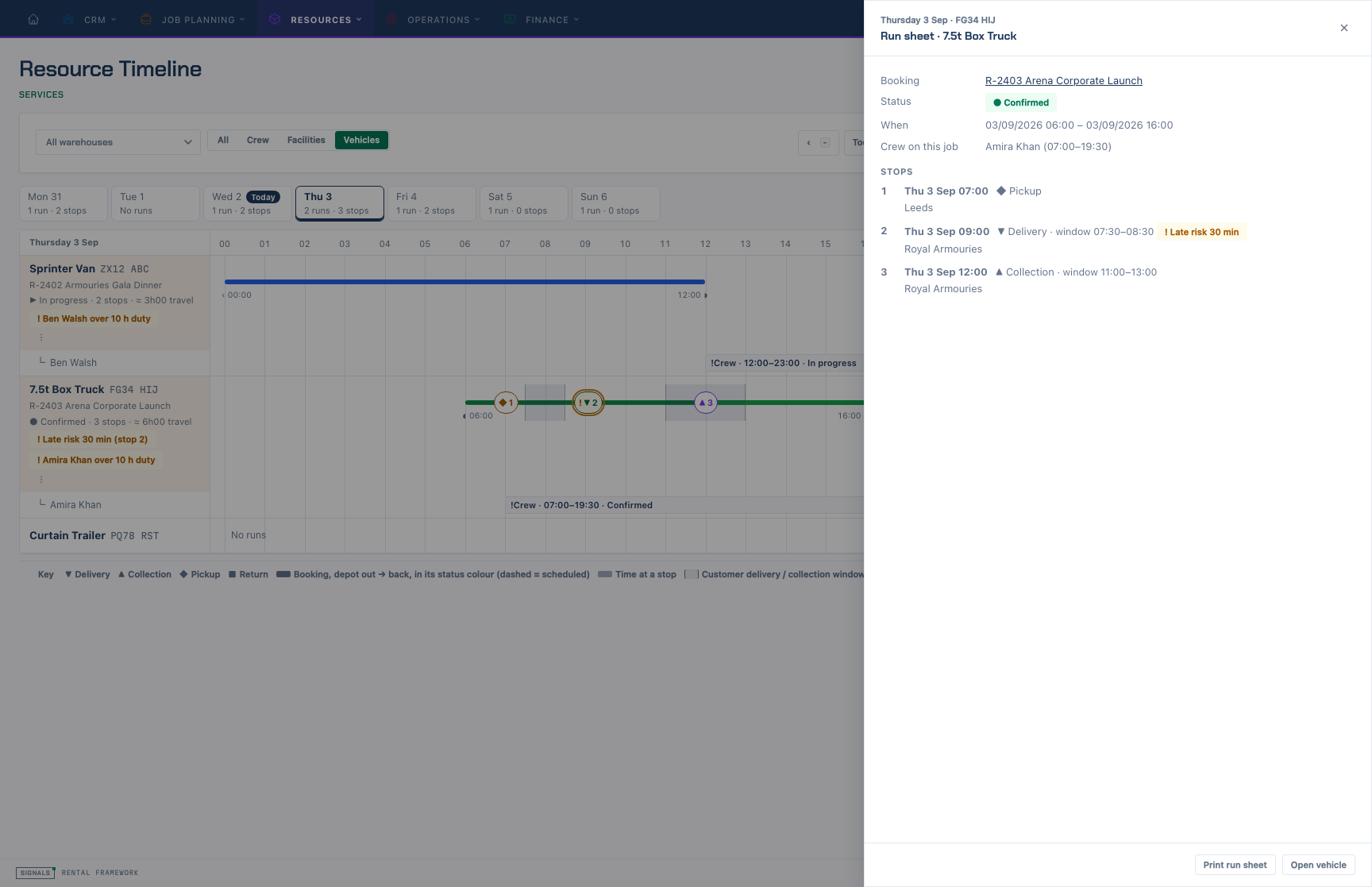
The run sheet: the booking, the crew on the job, and each stop with its time and place.
The route day shows what Signals stores. Customer windows come from the rental's delivery and collection times. Mileage and a driver role are not recorded, so the view shows travel time instead of miles and "No crew booked" instead of "No driver".
Read the Fleet diary
- Open Resources › Services › Fleet diary (
/fleet/diary), or Fleet diary at the top of the fleet list. You need permission to view vehicles and to access resource assignments. - The diary is the vehicle route day on its own page: pick a day, read each vehicle's runs and stops, and open a run sheet or stop the same way.
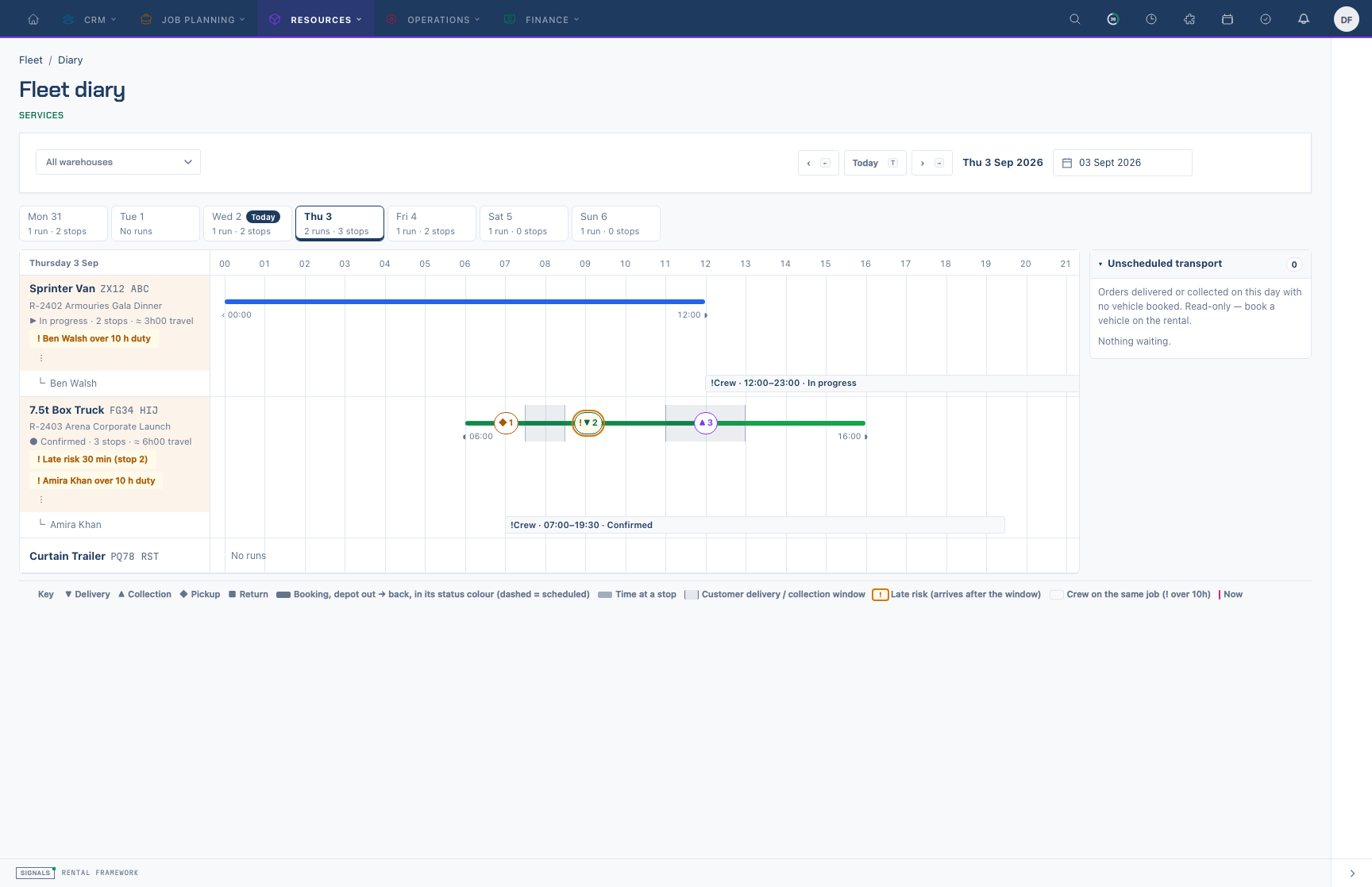
The Fleet diary for one day: every vehicle with its runs, stops and crew, and idle vehicles listed as No runs.
Open the work behind a bar
- Select a Rental Diary card to open the rental, or use Open ↗ in its tooltip for a new tab.
- On a phone, the diary shows "Rental diary works best on a larger screen": copy the link for a desktop, ask your AI assistant through the Signals MCP, or choose Continue anyway.
- On the Resource Timeline or Fleet diary, open a side panel (resource, crew cell, run sheet or stop), then the booking's title to open its rental; conflict and charge-line controls open their own panels.
Related
| Reference | Use it for |
|---|---|
| Rental Diary | Diary views, filters, grid time, saved views and the API |
| Scheduling | Resource assignments, conflicts, and charge-line actions |
| Fleet | Vehicles and the Fleet diary |
| Equipment Availability | Confirming free equipment across the same dates |
| Rentals | Editing the job opened from the diary |