Managing Crew and Transport on a Project
Assign project crew, plan vehicle runs and route stops, and carry eligible project costs into billing.
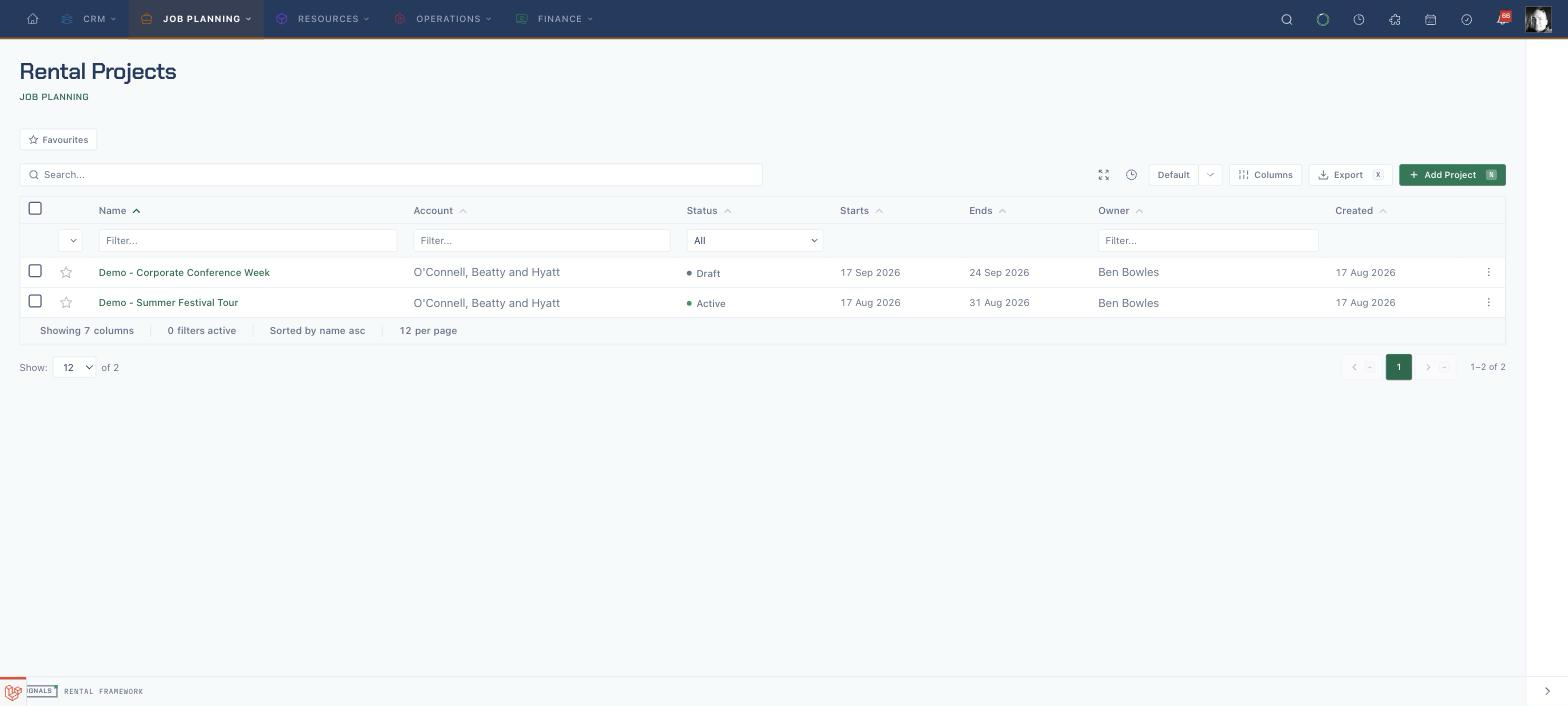
Open the project plan
- Open
/projectsand select the project. - Use Overview for the combined operational and money registers.
- Open Rentals to confirm the project's linked rentals.
- Open Crew for people, account, and dispatch-group assignments.
- Open Transport for vehicle assignments and route stops.
The project must contain at least one rental before project-level crew or transport assignments can be added. Both planning tabs combine project-owned assignments with assignments from linked rentals; use Linked to to tell them apart.
A project crew assignment created on the Crew tab creates one Labour project cost. Select the Labour service whose active company-base rate should price the assignment window. The assignment and cost are saved together; if no valid base-currency rate can be resolved, neither is saved. A vehicle assignment creates a Fleet project cost when the vehicle is linked to a Rental catalogue item with a valid company-base rate.
Assign project crew
- Open Crew and use the day lane to review headcount, assignments, and conflicts.
- Choose Add project-level crew assignment.
- Set Resource type to Person or account or Dispatch group.
- Search Resource and select the intended active account or group.
- Search Labour service and select the catalogue service/rate to charge for this assignment.
- Enter Starts, Ends, and Notes, then choose Add crew assignment.
- Check the new row's Role, Resource, Window, Status, Linked to, and Conflicts.
The form reads and displays the schedule in your display timezone. The saved assignment is stored as an exact instant, so confirm the visible time before adding it.
Reconcile unscheduled service demand
The Crew tab is the operator view; scheduling integrations can read the same outstanding demand across rentals with:
GET /api/v1/resource-assignments/unscheduled?from=2026-09-01T00:00:00Z&to=2026-09-30T23:59:59Z
The caller needs resource-assignments.view and the resource-assignments:read token ability. Add warehouse_id or service_id to narrow the window. Every row reports the rental item and service, its schedule, demanded quantity, assigned count, and shortfall; use it to find work that still needs people rather than counting assignment rows manually.
For event-driven integrations, subscribe to resource_assignment.demand_unmet. It is emitted when cancelling an assignment leaves the linked service demand short, with rental_item_id and shortfall. Treat that event as the prompt to refresh; the unscheduled endpoint remains the authoritative current backlog for the requested window.
Plan project transport
- Open Transport and read the day and vehicle lanes for runs and conflicts.
- Choose Add project-level transport assignment.
- Search Vehicle and select an active vehicle.
- Enter Starts, Ends, and Notes, then add the assignment.
- Check Linked to to distinguish a project run from a linked-rental run.
- Resolve any conflict shown in the row before treating the plan as ready.
If a selected vehicle is catalogue-linked but no valid company-base rate can be resolved, the assignment is rejected instead of being saved without its required Fleet cost.
Build the route stops
- Find the vehicle assignment and choose Manage route.
- Choose Add stop.
- Set Location type to Warehouse, Account or venue, or Address.
- Search and select the Location, then choose the Stop type.
- Enter Arrives, Departs, and Notes, then save the stop.
- Use the up and down controls to put stops in driving order.
- Use Edit or Remove when a stop changes.
The route list records planned stops and times. It does not calculate a road route or journey duration.
Check what reaches billing
- Return to Overview and find the Money register.
- Confirm the assignment-created Labour and Fleet costs are present. The Labour cost description and amount come from the service selected on the Crew assignment.
- Review the saved quantity, unit amount, and total. Assignment costs are snapshotted when the assignment is created; later schedule or rate changes do not automatically reprice them.
- Use the project's invoice action when these costs should be invoiced directly, or include eligible Project costs in a billing run.
- Follow Running a Billing Run for selection, exception review, dry run, and issue steps.
Do not create a second project cost for the same crew assignment. The assignment action has already snapshotted its selected Labour service rate into the Money register; check that record before invoicing.
Related
| Reference | Use it for |
|---|---|
| Rental Projects | Project membership, rollups, assignments, costs, and invoicing |
| Scheduling | Resources, conflicts, vehicles, and route stops |
| Running a Billing Run | Bringing eligible project costs into period billing |
| Rentals | Managing the linked rentals behind a project plan |