Processing a Return
Work the returns board, check items in, record damage or missing stock, and close the return safely.
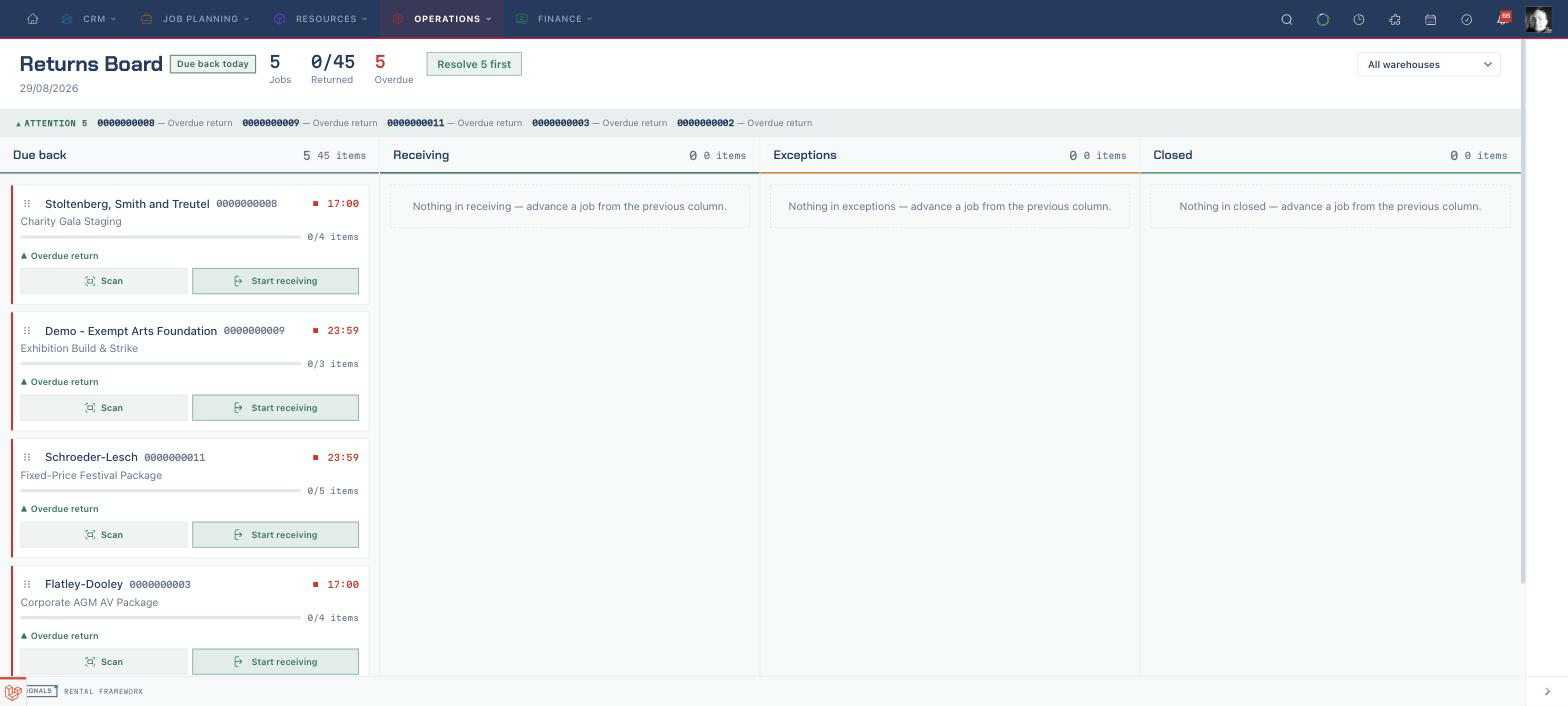
Read the returns board
- Open Returns Board, or go to
/returns. - Confirm the Due back today date and use the warehouse dropdown to narrow the board when needed.
- Read the Jobs, Returned, and Overdue totals.
- Start with the Attention strip and any blocker shown on a card.
- Use the card's return meter to compare returned and expected items.
The columns are the configured return stages. A card can be advanced with its next-action button or dragged to another column when you can manage returns.
Moving a card does not check stock in. Process the physical return in Returns Workbench or through Scan; board stage changes only move the job between return columns.
Open a return
- Choose the job reference on the card to open Returns Workbench.
- If the card shows Open workbench, use that action instead.
- Confirm Job, Due back, Return progress, and the warehouse match the return in front of you.
- Read Off-hire billing. Any late charge shown is suggested and is recomputed when the return closes.
The card's Scan action opens the shared scan console for the same rental. Use the workbench when you also need to triage damaged, missing, or unexpected items.
Check items back in
- Choose Start check-in scan.
- Scan each returned asset into the scan field.
- Read the result card before putting the item away. Resolved records the return; Duplicate, Unknown, Unexpected, or Blocked needs review.
- Compare Expected manifest, the returned count, outstanding, and exceptions as you work.
- For an unexpected scan, use the new Unexpected item card in Exception queue rather than treating it as part of the manifest.
If Start check-in scan is replaced by You need scanning permission to check items in, ask your administrator for scanning access.
Record damage and shortfalls
Inspect assets before scanning them. The Flag return issue control is only shown while a manifest line is still Outstanding and opens the shared Missing, Swap, Repair, and Damage disposition choices.
- Choose Flag return issue once on the affected outstanding line.
- In Exception queue, choose the disposition that matches the decision.
- For Repair, choose Repair reason, then choose Commit. This opens a repair and blocks the asset from allocation until it is released.
- For Damage charge, enter a positive amount and choose Commit. The charge is added to a draft invoice and is not issued.
- For an unreturned shortfall, use the same Flag return issue entry point, then choose Missing. Enter Chase note to customer; optionally select Also raise replacement charge on draft, enter an amount, or create an associated chase rental when that checkbox is available.
- For Swap, enter Substitute asset number and choose Commit. This records the substitute reference only; it does not change the rental allocation.
Unexpected-item cards offer Repair and Swap only. Exceptions are saved when they are raised, are shared by operators working on the same rental, and survive navigation or refresh. Choose Commit to move a decision to Recorded dispositions, or Dismiss when an exception was raised in error.
Complete the return
- Confirm Return progress matches the expected item count and Expected manifest shows
0 outstanding. - Confirm Exception queue says No open exceptions — keep scanning.
- Review Recorded dispositions and their charge amounts.
- Choose Close return & raise charges.
- Check the Return closed summary for clean returns, repairs, missing items, recorded swaps, and Charges on draft.
The close button appears only when there are no pending exceptions and every manifest line has been returned or dispositioned. The close action validates both conditions again, so another entry point cannot close a return with unresolved work. Closing advances the return to its terminal stage and can add suggested late charges to a draft invoice; it never issues the invoice.
Related
| Reference | Use it for |
|---|---|
| Dispatch & Returns boards | Board stages, card controls, scanning links, and warehouse filtering |
| Scan Console | Check-in outcomes, expected manifests, and rejected scans |
| Repairs | Following a repair opened from a return disposition |
| Invoicing & Payments | Reviewing and issuing draft return charges |