Browsing the Catalogue for Stock
Find a rental or sale item, distinguish fleet records from availability, and carry the right item into a booking.
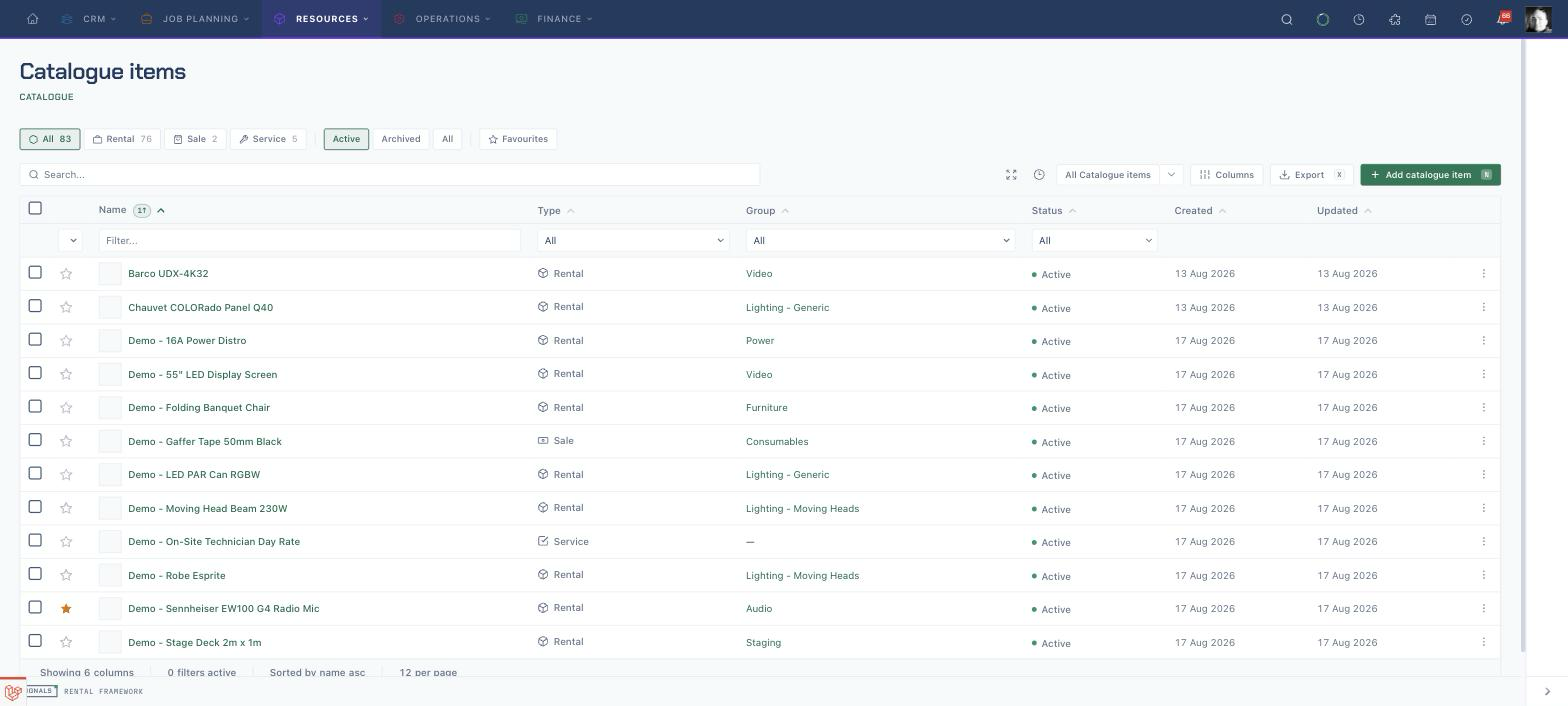
Find the catalogue item
- Open
/catalogue-items. - Search by item name, SKU, or barcode.
- Choose Rental, Sale, or Service, or leave All selected.
- Leave Active selected for current catalogue records; use Archived or the second All chip only when you need historical records.
- Use Favourites to show only items you have marked as favourites.
- Use the Group column filter when you know the catalogue item group.
- Select the item name to open its detail page.
Stock is not availability. The list's Asset records figure and the labelled count beside Stock count asset records, while the item header totals held units and Availability subtracts demand across dates and warehouses.
Confirm the item is the right record
- Read the item name, tracking-method badge, Rental, Sale, or Service badge, and Active, Inactive, or Archived badge.
- Check the SKU and catalogue item group beneath the name.
- Read the header's units-and-warehouses summary for total held quantity and the number of warehouses represented.
- Use Overview for Available now, open commitments, rates, specifications, accessories, and next-hire information when it is present.
Read the Stock tab
- Open Stock.
- Search by item name, asset number, serial number, or barcode.
- Read Warehouse to locate each asset record.
- Compare Held, Allocated, and Unavailable quantities.
- For barcoded stock, use the asset or barcode row to identify the physical unit.
- Read the labelled count beside the Stock tab as an asset-record count, not the sum of held quantities.
Read the Availability tab
- Open Availability when that tab is visible.
- Add the warehouse tags that could supply the booking.
- Set Start date and Days to cover the planned hire.
- Compare Available, Held, and Post-rent across the daily columns.
- Read the rental rows for existing demand and the asset rows for individual barcoded allocations.
- Select a rental row label when you need to inspect the job already using the item.
Carry the item into a booking
- Note the exact item name or SKU from the catalogue record.
- Open Rentals and choose New Rental, or open the rental you are already building.
- On the rental's Overview, enter the item name or SKU in Quick add.
- Enter the required quantity in the search or the qty box, choose the into destination, and press Enter on the matching item.
- Open the rental's Availability tab to check the new demand in the job's own warehouse and date context.
Known gap: the catalogue item page has no direct Add to rental or New Rental action. It identifies and checks the item; the booking is created from the Rentals workflow.
Related
| Reference | Use it for |
|---|---|
| Catalogue items | Catalogue types, overview registers, tabs, rates, and item maintenance |
| Equipment Availability | Daily free stock, held demand, post-rent, and booking rows |
| Creating a Rental Quote | Creating a rental and using Quick add |
| Assets | The individual or bulk stock records shown on the Stock tab |