Running a Stock Check
Scope a warehouse stocktake, count loose and barcoded stock, resolve variances, and submit or revert the result.
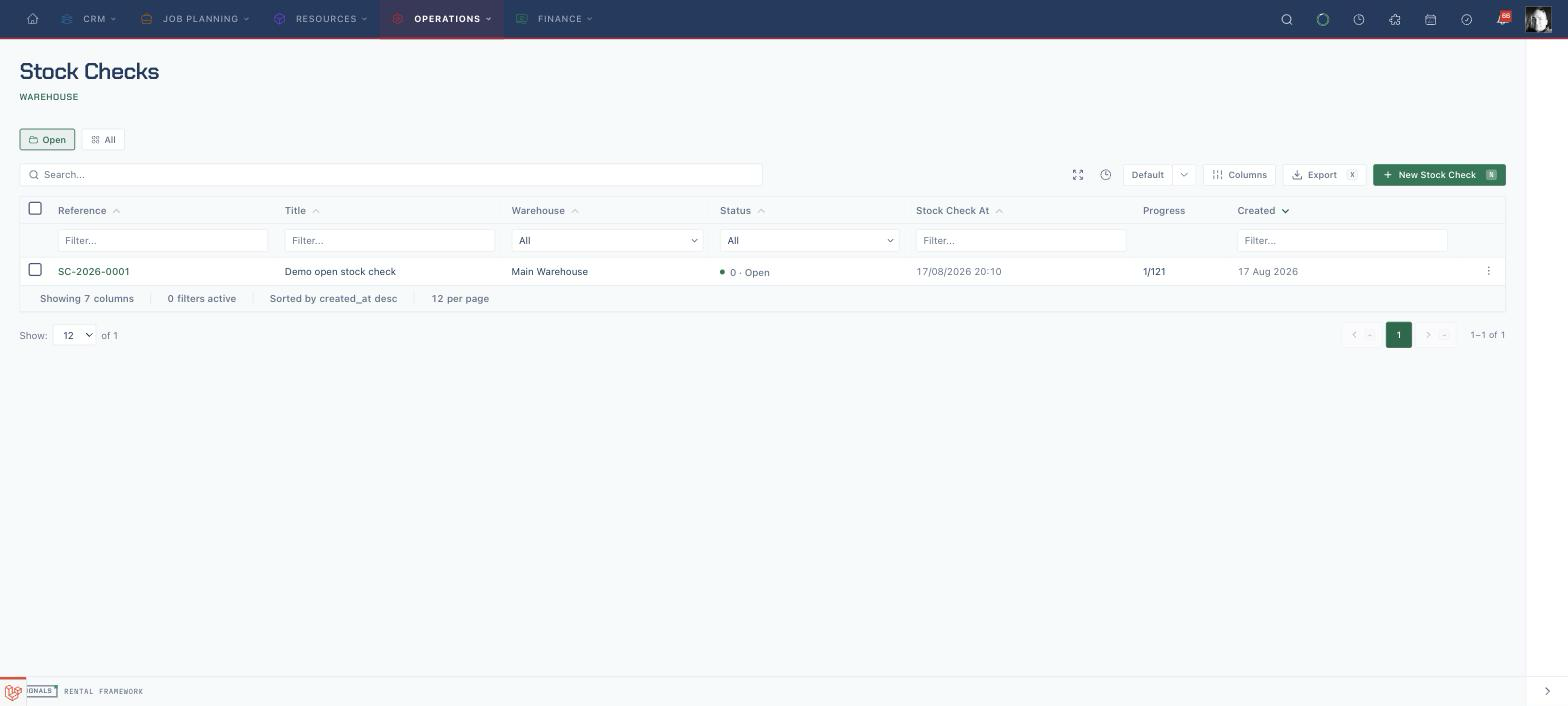
Scope the stock check
- Open
/stock-checksand choose New Stock Check. - Enter a Title and Stock check at time, then select the Warehouse.
- Set Scope to the whole warehouse, a catalogue item group, a location, or one catalogue item.
- When the scope offers them, narrow it with Preferred catalogue type, Tracking filter, and Tag filter.
- Choose whether to Auto-return ended bookings before submit.
- Create the stock check and review the generated count lines.
The warehouse and scope are fixed once the check is created. Use Edit for the remaining editable details, not to turn an existing check into a different stocktake.
Finish every line before choosing Complete count. The confirmation warns that an uncounted loose-stock line is omitted from discrepancy detection, while an uncounted expected barcode is treated as missing.
Count the stock
- Open the check and confirm its Warehouse, Scope, and Stock check at time.
- If the baseline must be refreshed, choose Recalculate expected (uncounted lines only) before counting. Expected quantities on already-counted lines are left unchanged.
- Use Blind count on when counters should not see expected quantities. Choose Blind count off when the expected figures should be visible.
- For loose stock, use the minus and plus controls to record the total found.
- For barcoded stock, mark each listed asset Present or Absent.
- Choose Scan mode when scanning is faster than working the list. It opens the Scan Console's Stocktake desk for this check. When you can open scan sessions, the same desk also appears above the count list, attached to your own stocktake session.
- Use Recount on a line when its recorded count needs to be cleared and entered again.
- Confirm the header shows Counted for every line in scope.
The count list is grouped by catalogue item group. Multiple operators can count different lines at the same time; each scanner uses its own stocktake scan session.
Sign off and submit the count
- Choose the Counter sign-off after checking the count is complete.
- Add the Supervisor sign-off when your stock-check settings require it.
- Choose Complete count & reveal variances.
- Read the confirmation carefully: it names both uncounted-line effects and says whether submission will open discrepancy review or automatically adjust resolvable variances.
- Confirm the submission and wait for processing to finish.
Submitting uses the saved expected quantities and creates discrepancy records. It does not run Recalculate expected for you. In review mode it does not move stock until each variance is resolved.
In auto-apply mode, the check completes only when no discrepancy remains open. If automatic missing-asset write-off is disabled, an unresolved missing-barcode discrepancy keeps the check submitted and its Variance review reachable for manual resolution.
Resolve discrepancies
- In Variance review, compare the expected and counted quantities and read the recent-movement evidence.
- Choose Recount this row when the physical count is doubtful.
- Choose Write off missing for a genuine shortage, or Add found stock for a genuine overage.
- Choose Investigate / dismiss when the variance should be closed without changing stock.
- Use Resolve all only after reviewing every displayed row.
| Resolution | What it actually does |
|---|---|
| Write off missing | Decreases loose stock or retires a missing barcoded asset as lost |
| Add found stock | Increases loose stock or relocates an unexpected barcoded asset into the checked warehouse or location |
| Investigate / dismiss | Closes the discrepancy without changing stock |
The check completes when the last review-mode discrepancy is resolved or dismissed.
Revert a submitted check
- Choose Revert when the submitted result must be undone.
- Read the confirmation and verify that the correct check is open.
- Confirm the revert.
- Review Audit Timeline and the check status afterwards.
If stock adjustments were applied, revert writes compensating transactions and restores retirements or relocations created by this check. It does not delete the original history. A submitted check with no applied adjustments returns to counting and clears its discrepancies.
Related
| Reference | Use it for |
|---|---|
| Stock Checks | Scope rules, count mechanics, discrepancy types, and compensating revert |
| Scanning | Stocktake scan sessions and scan-console behaviour |
| Assets | Loose and barcoded stock records and locations |
| Equipment Availability | Checking availability after adjustments are applied |