Scanning Assets In and Out
Start the right scan session, book assets out or back in, and recover safely from duplicate, unknown, or rejected scans.
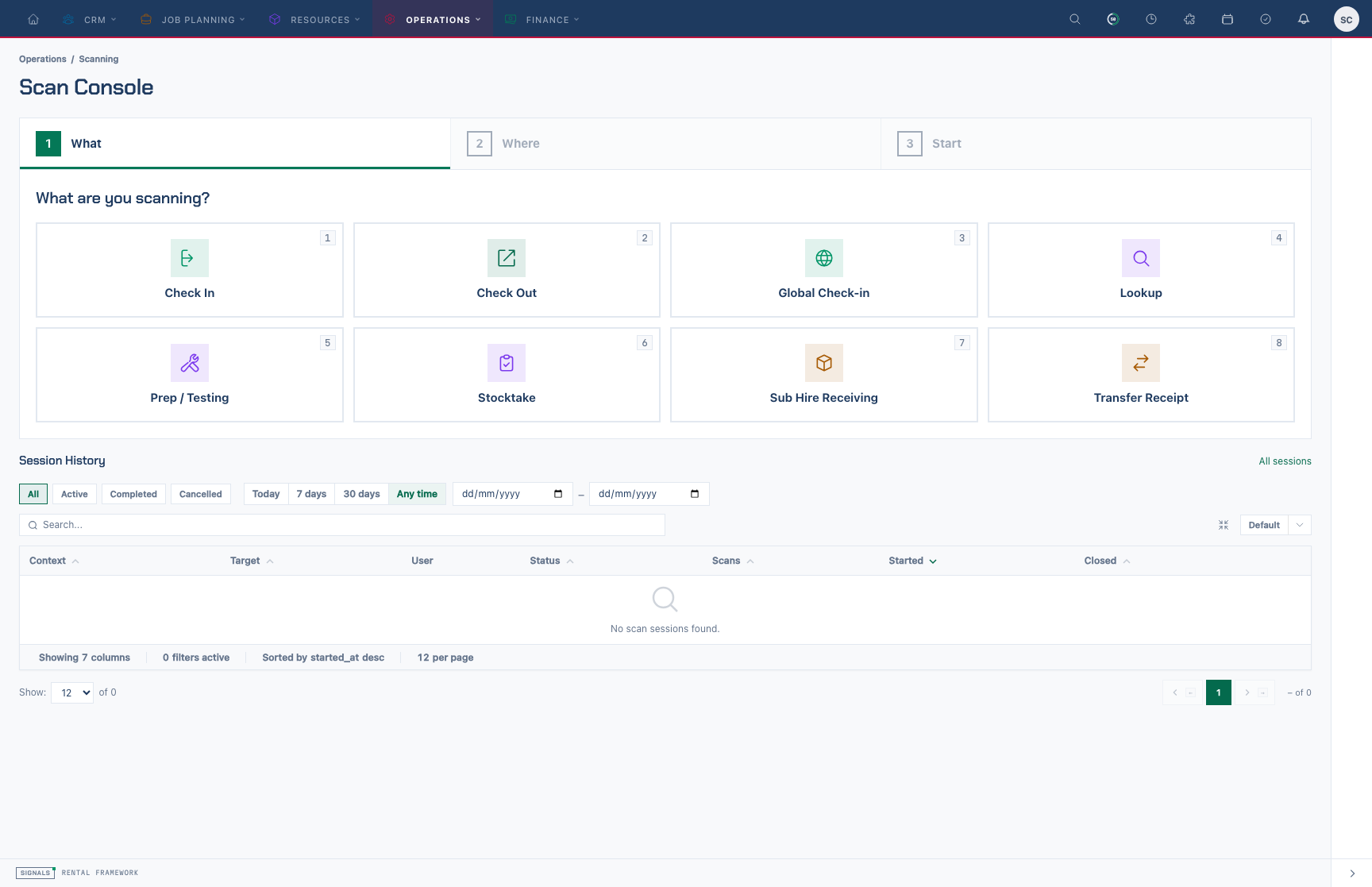
The Scan Console before a session starts: 1 What, 2 Where & which, 3 Start. Tapping a context moves on by itself; tap a finished step in the bar to go back.
Choose the session context
- Open Scan Console, or go to
/scanning/console. - Select the context that matches the physical job.
- Select the Warehouse where the work is taking place.
- When the context says it needs a target, search for and select that rental, stock check, warehouse transfer, or virtual stock intake.
- Check the summary on step 3 and choose Start session (or press Enter).
The context picker can show these modes:
| Context | Use it for |
|---|---|
| Check Out | Booking assets or a sealed flightcase out to a selected rental |
| Check In | Returning assets or a dispatched kit flightcase from a selected rental |
| Global Check-in | Checking in without selecting a rental first |
| Stocktake | Counting against a selected stock check |
| Transfer Receipt | Receiving a selected warehouse transfer |
| Sub Hire Receiving | Receiving a selected virtual stock intake |
| Prep / Testing | Looking up preparation and equipment-test status |
| Lookup | Reading an item's current details without changing it |
Choose Check Out or Check In before the first scan. Check Out can allocate, prepare, and dispatch stock; Check In returns stock to the selected warehouse.
Check Out, Check In, Global Check-in, Stocktake, Transfer Receipt and Sub Hire Receiving open on the desk: a worklist of what the target expects beside the scan field. Lookup and Prep / Testing open on the desk shell, which shows the answer to each scan instead of a worklist. Both have a Scanning tab and an Overview tab.
For Stocktake you can Search existing stock checks or choose Create new stock check, then Create & select to count against a new warehouse-wide check.
Scan assets out
- Select Check Out, then select the rental.
- Confirm the session band shows the correct rental and warehouse.
- Scan each asset or sealed flightcase into the scan field. The field reads Scan to book out.
- Read the result strip after every scan, and watch the row move on the worklist.
- Count loose (non-barcoded) lines on the line itself and confirm the quantity.
- Open Overview to check Can it leave?: shortages, scan attempts, loose quantities and handover.
- Choose Close and book out when the physical load and the worklist agree.
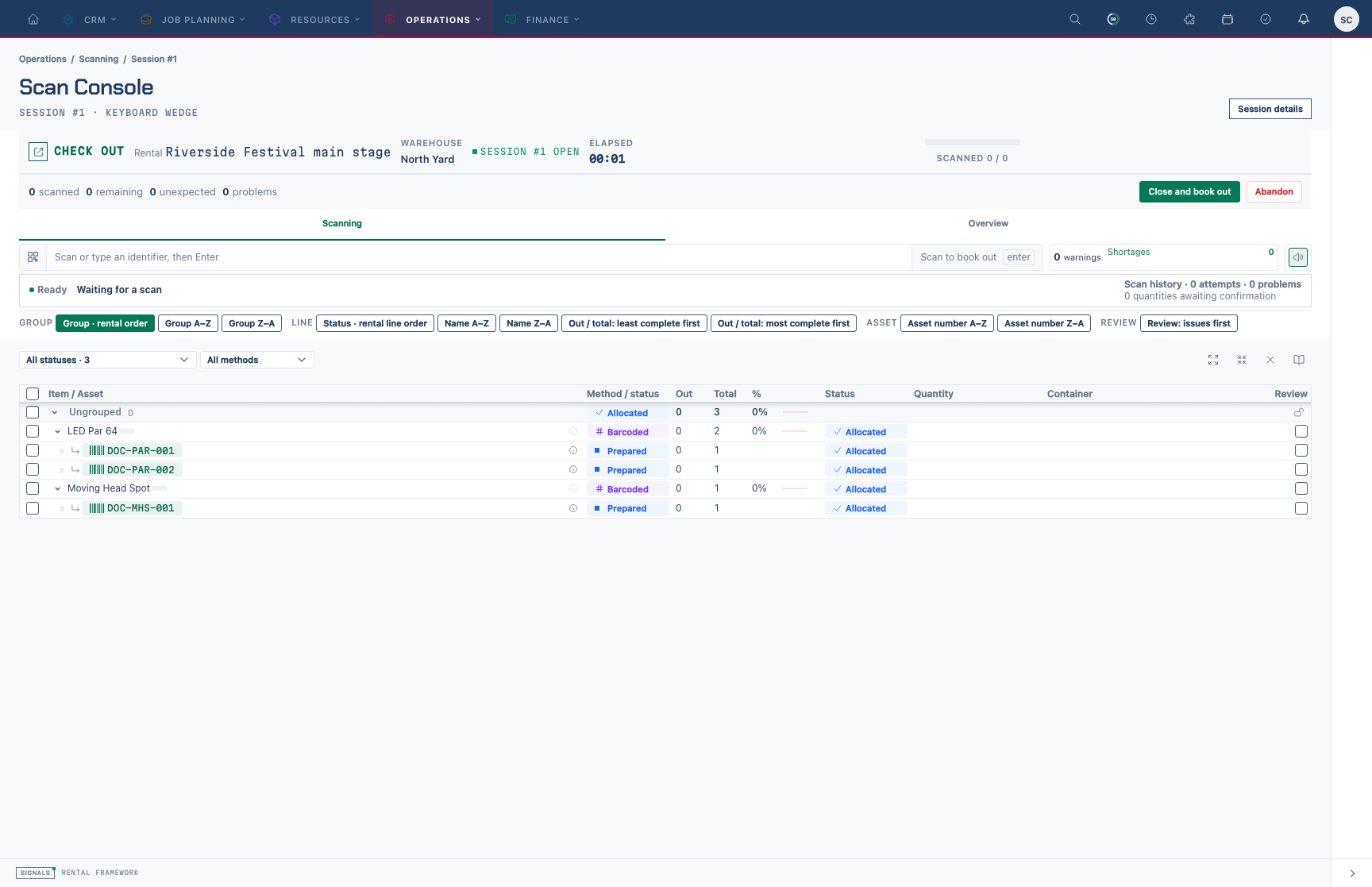
A check-out session on the console desk. The band shows the rental, warehouse, session number, elapsed time and what remains; each line lists its prepared assets.
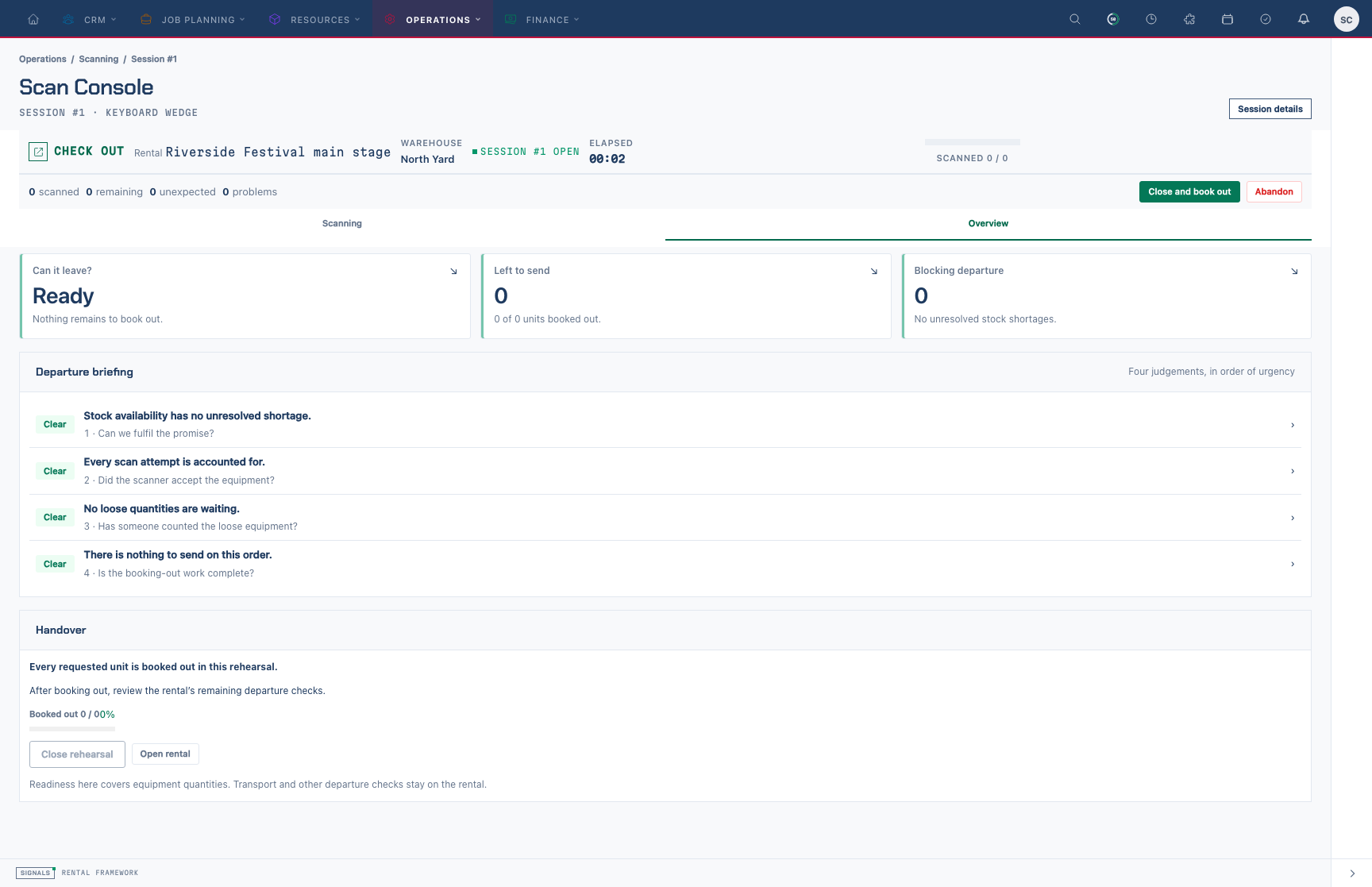
The Overview tab's departure briefing. Work down the four judgements before closing.
An unallocated asset can be allocated to a matching rental line as part of Check Out. A flightcase must already be sealed; an open case is refused rather than dispatched.
Scan assets in
- Select Check In, then select the rental.
- Confirm the Warehouse is the place receiving the returned stock.
- Scan each asset or kit flightcase. The field reads Scan to check in.
- For anything that comes back without a scan, select its rows and use the toolbar: Return, Damaged… or Missing… (both ask for a note), or Finalise once an item has been checked in.
- Investigate anything counted as unexpected or problems before finishing, and check Overview (Is it all back?).
- Choose Close and check in when the returned stock has been accounted for.
A transport flightcase is checked in by scanning its individual assets. Scanning the transport case itself is reported as unexpected.
Pick up a session again
If you leave the console with a session still open, open it from Scan Sessions and choose Resume scanning. The console reopens the same session with its recent scans in the history — it does not start a second one. Only the person who opened the session can resume it, and only while it is open. If Resume scanning is missing, the page explains why.
Supervisors can pick up a colleague's open session the same way: the button reads Take over and resume. Confirm the prompt and the session becomes yours from then on; the scans your colleague already made stay recorded against them, and the takeover is kept in the session's audit timeline.
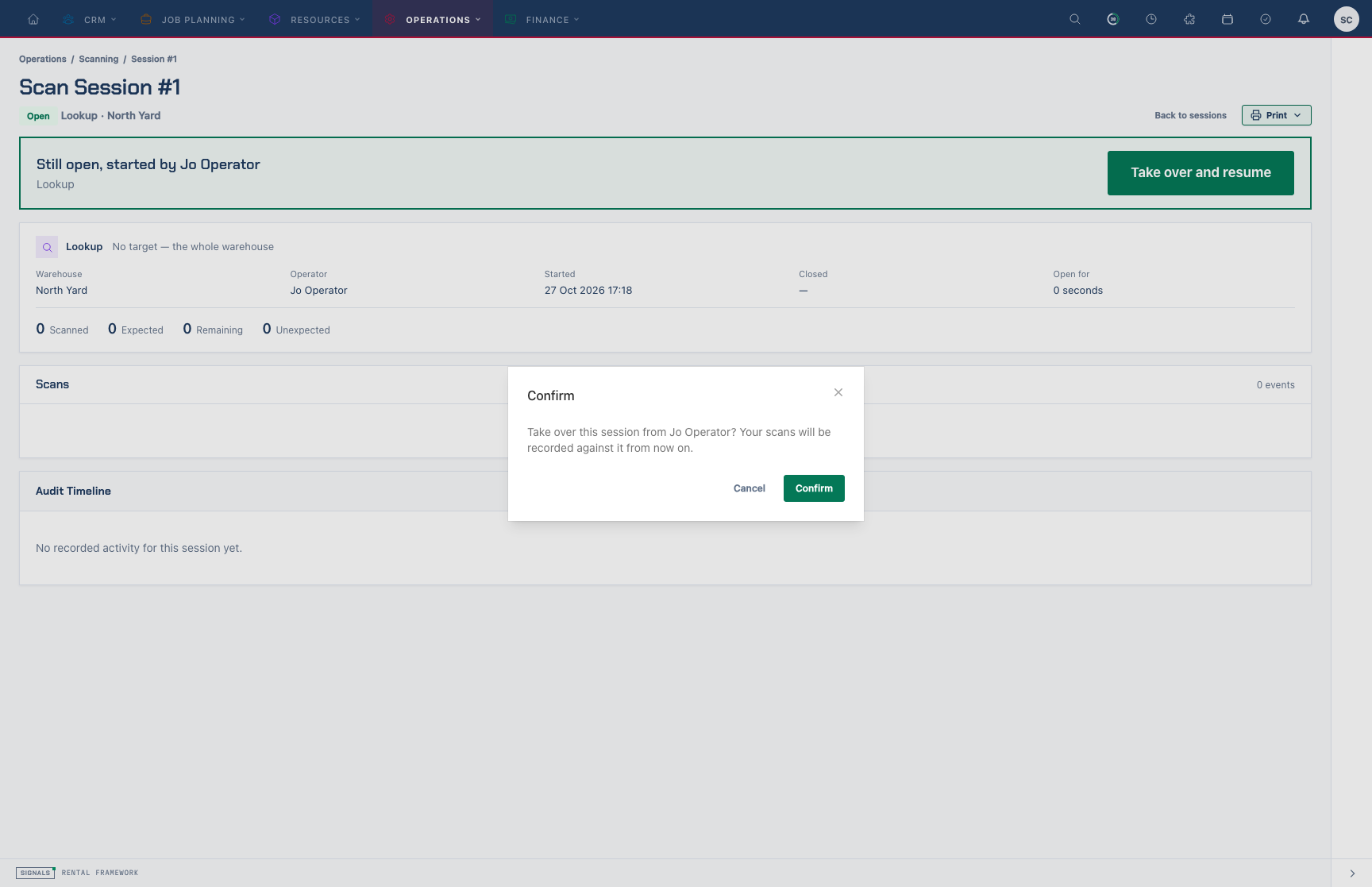
A supervisor about to take over Jo Operator's open session. Confirm makes the session yours and opens it on the console.
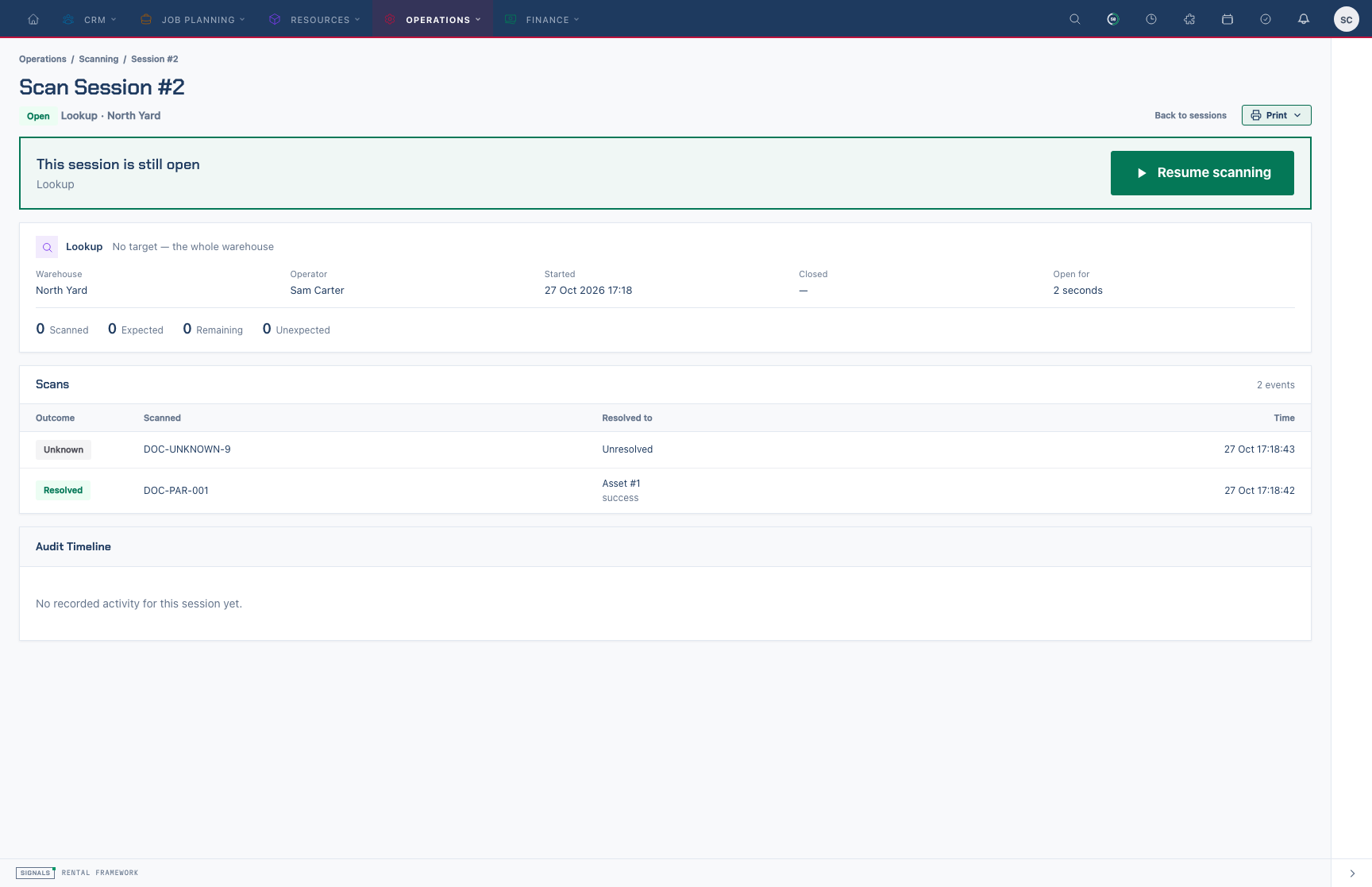
An open session's page. Resume scanning returns you to the console; Back to sessions opens the Scan Console.
Handle unknown and duplicate scans
- Read the outcome word and the reason beneath the item.
- For Unknown, check the label and scan again. The result may offer Search catalogue when no identifier can be resolved.
- For Duplicate, confirm the item was already processed. Use View first scan when that action is shown.
- Check Scan history under the result strip for earlier attempts. In Lookup and Prep / Testing, the scan feed's Problems chip isolates unresolved outcomes and All returns to the complete feed; the feed keeps the latest 50 events.
An unknown or duplicate result does not need to be treated as a successful new movement. Confirm the physical item against the feed before continuing.
Undo a scan with Void
On the desk (Check Out, Check In, Global Check-in, Transfer Receipt, Sub Hire Receiving):
- On the Scanning tab, select the rows whose scans you want to undo.
- Choose Void on the selection toolbar.
- Check that the rows move back on the worklist. Each void is recorded with a standard reason, such as Dispatch voided from the desk. or Return voided from the desk.
In Stocktake, use Uncount on the selected rows instead; it reverses one counted contribution per row. In Sub Hire Receiving, Revert receipt takes back a loose intake receipt that has no scan to void.
In the desk shell, a voidable scan shows Void under its answer while the session is open. Choose Void, type the Reason for void, choose Confirm void, then confirm the prompt.
Void is available only in the contexts that support it:
| Context | Void | What the void does |
|---|---|---|
| Check Out | Yes | Puts the asset assignment back as it was before dispatch, or removes an assignment that the scan created |
| Check In | Yes | Puts the asset assignment back to dispatched or on hire |
| Global Check-in | Yes | Puts the asset assignment back to dispatched or on hire |
| Stocktake | Yes | Removes one counted contribution; repeat counts reverse one at a time |
| Transfer Receipt | Yes | Adds opposite stock movements and removes one receipt; the original movements stay as history |
| Sub Hire Receiving | Yes | Removes one received asset, and reopens the intake only when no active receipt is left |
| Prep / Testing | No | The scan has no movement to reverse |
| Lookup | No | The scan has no movement to reverse |
A void never edits or deletes the original scan. The original stays in the feed with its outcome and is flagged as voided, and Signals adds a second, compensating event that records the reversal. So the session's scan count goes up by one when you undo something, not down.
Void before you close. A closed session cannot be voided. Only a successful Resolved scan can be voided, only once, and the compensating event cannot itself be voided.
If a void is refused, the result explains why: the session is closed, the scan was already voided, the scan has no movement to reverse, or the stock has moved on since and reversing it is no longer safe. Correct the condition, or make the correction on the record itself.
Recover from a rejected scan
- Read the reason on Wrong context, Blocked, Refused, Ambiguous, or Failed.
- Use the action offered with the result when there is one, such as Open repair record, Raise repair, View conflicting allocation, or Open asset record.
- Correct the stated condition outside the scan field.
- Return to the open session and scan the item again; do not assume the rejected attempt moved it.
- If the entire session was started against the wrong target, choose Abandon, confirm Abandon session (or Keep scanning to back out), then choose New session and start again with the correct context.
The confirmation states that abandoning changes the session status but does not reverse rental, stock, or transfer actions already completed by earlier successful scans. Correct any committed movement separately before starting the replacement session.
Look an item up
- Select Lookup and choose Start session. Lookup needs no target.
- Scan the item. The answer card shows what it is, where it is, the rental it is on, its next equipment test due, and a link to open the record.
- Use Prep / Testing instead when you need the asset's due equipment tests; each has a Perform link.
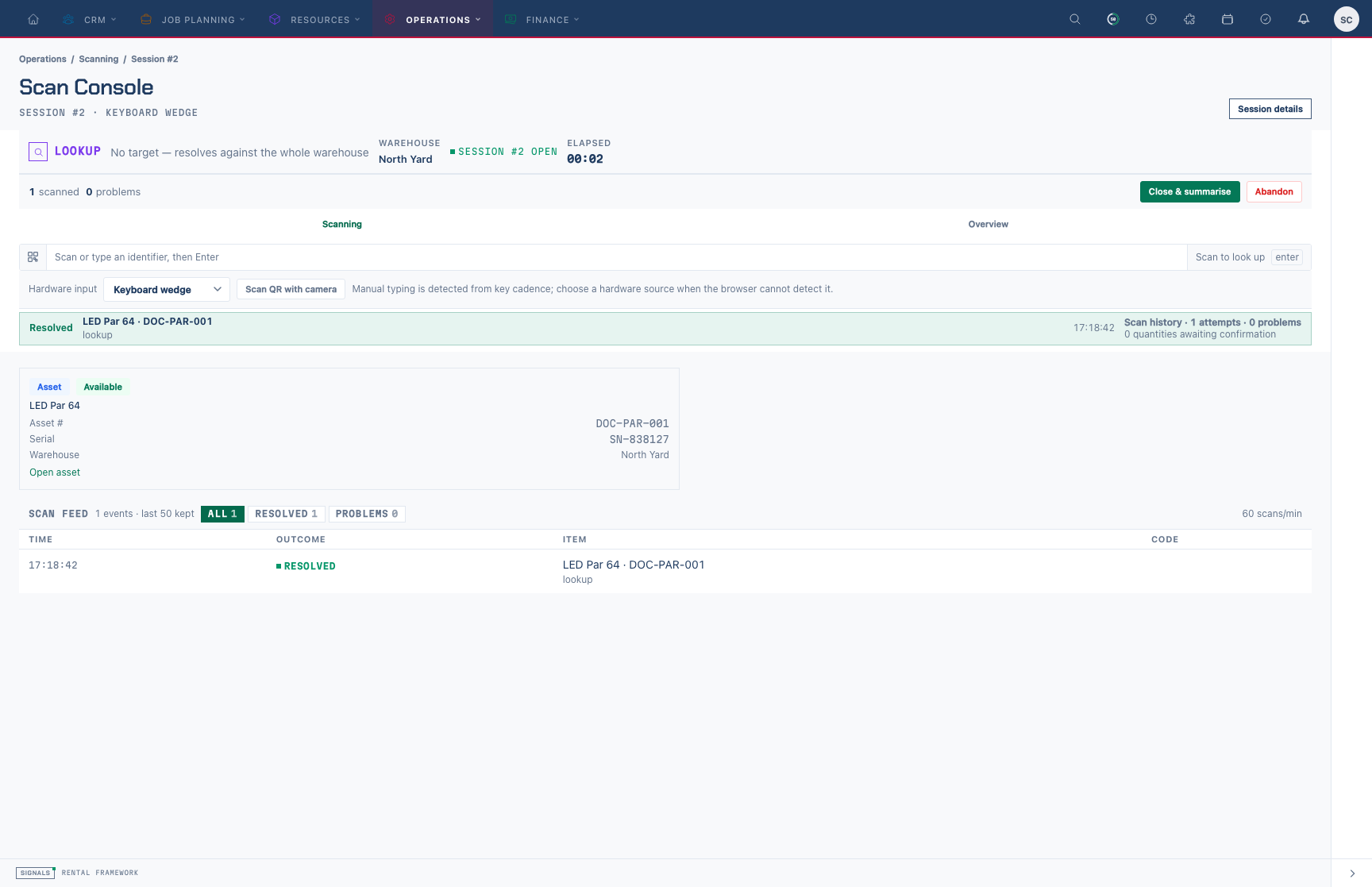
A lookup session. The answer card for the last scan sits above the scan feed; nothing about the item is changed.
Related
| Reference | Use it for |
|---|---|
| Scan Console | Context behaviour, outcome vocabulary, manifests, identifiers, and session history |
| Dispatch & Returns boards | Opening Check Out or Check In from today's job cards |
| Stock Checks | Counting stock through the Stocktake context |
| Warehouse Transfers | Sending and receiving transfer stock |