Performing an Equipment Test
Find an asset that is due, complete its inspection, record the outcome, and understand the dispatch gate.
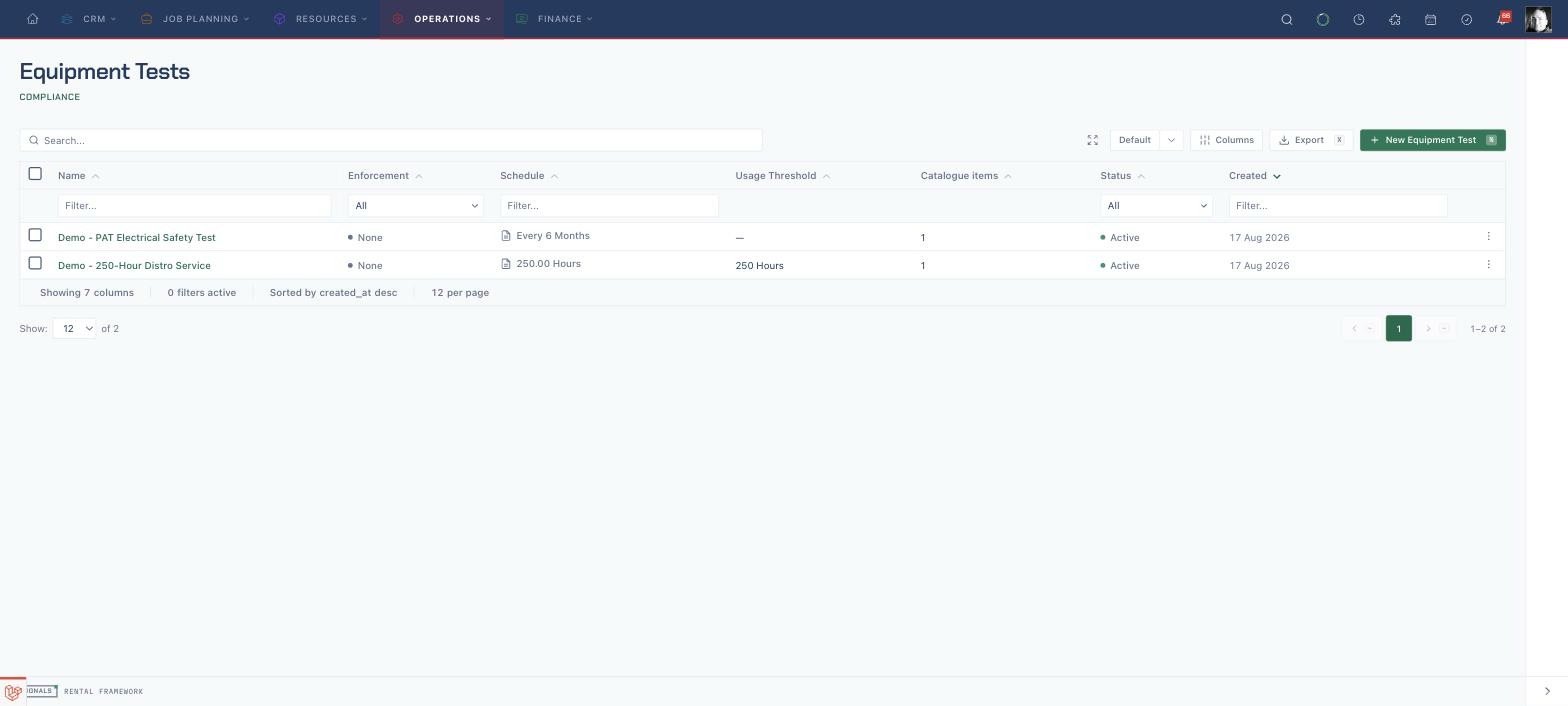
Find an asset that is due
- Open
/equipment-testsand choose the relevant test definition. - In Fleet compliance — the census register, use Status and Due to find assets marked DUE SOON, OVERDUE, or AWAITING FIRST READING.
- Select the asset number to open the asset.
- Open the asset's actions and choose Perform Equipment Test: {test name}.
The /equipment-tests page lists test definitions, not a combined queue of every asset that is due. Open a definition to see its per-asset compliance register.
Choose every compliance answer explicitly. Pass / fail and Check tasks start at Select. The form will not submit until each one has been set to Pass or Fail.
Perform the checklist
- Confirm the asset and equipment-test name at the top of the page.
- Work through each task in order. Pass / fail and Check tasks use a Pass or Fail choice; Measurement accepts a number and shows any minimum, maximum, and unit; Choice offers the configured options; Text accepts notes.
- Pay particular attention to tasks marked Required. A required failure makes the overall result Fail; an unanswered required measurement, choice, or text task makes it Incomplete.
- Add Notes under Result when the reading needs context.
- Choose Save Equipment Test.
Optional failed tasks do not change the calculated overall outcome. Record them accurately even though the result can still pass.
Review the recorded outcome
- On the result page, read the outcome badge and the Overview tab.
- Check the frozen Readings against the physical test sheet or instrument.
- For a passed certifying test, compare Valid until with Next due. They are separate dates and can differ.
- Use the Files tab for supporting attachments when required by your process.
| Result | What the save actually records |
|---|---|
| Pass | All required tasks were answered without a required failure |
| Fail | At least one required task failed |
| Incomplete | At least one required task was unanswered |
Submitting again for the same asset and test amends your existing incomplete result instead of creating another one. Another operator's incomplete result is kept separate.
Issue and hand over a certificate
- Open a passed result for a certifying test.
- Optionally choose Preview draft to inspect a numbered draft PDF.
- Choose Issue certificate. The result is checked again while locked; the existing draft is issued in place, or a new certificate is generated and issued.
- Check the Issued time and issuer in the certificate row.
- Choose Download, then hand the PDF to the person who needs it.
Each result can have one certificate. It is issued once, is final, and cannot be revoked or re-issued. A failed, incomplete, or non-certifying result cannot be issued. An issued certificate is an immutable compliance snapshot: later result changes do not rewrite it, and the page warns if it no longer matches the current result. If an amended result needs certification, record a new equipment-test result and issue its certificate. Certificate delivery is download and handover.
Understand the dispatch gate
- On a rental's Assets page, read Equipment test dispatch gate before booking stock out.
- Open each flagged item's Inspect Now link when the test can be completed before dispatch.
- Treat Prevent as a hard block: the asset cannot be dispatched while the test condition remains unresolved.
- Treat Warn as a controlled exception. Dispatch can proceed only when an authorised operator selects the acknowledgement; Acknowledgement notes are optional and are recorded when supplied.
- Recheck the gate after recording the test. It is evaluated against the rental's off-hire date, so a test due during the hire can still block or warn before the asset leaves.
The same gate is checked again when dispatch is recorded, including quick, bulk, and flightcase dispatch paths.
Related
| Reference | Use it for |
|---|---|
| Equipment Tests & Maintenance | Test definitions, due calculations, certificates, and enforcement modes |
| Assets | Asset records, identifiers, locations, and lifecycle |
| Scanning Assets In and Out | Booking tested assets out and back in |
| Logging and Tracking a Repair | Following a failed asset into repair |