Moving Stock Between Warehouses
Build a warehouse transfer, pick stock, review route impact, dispatch it, and receive it at the destination.
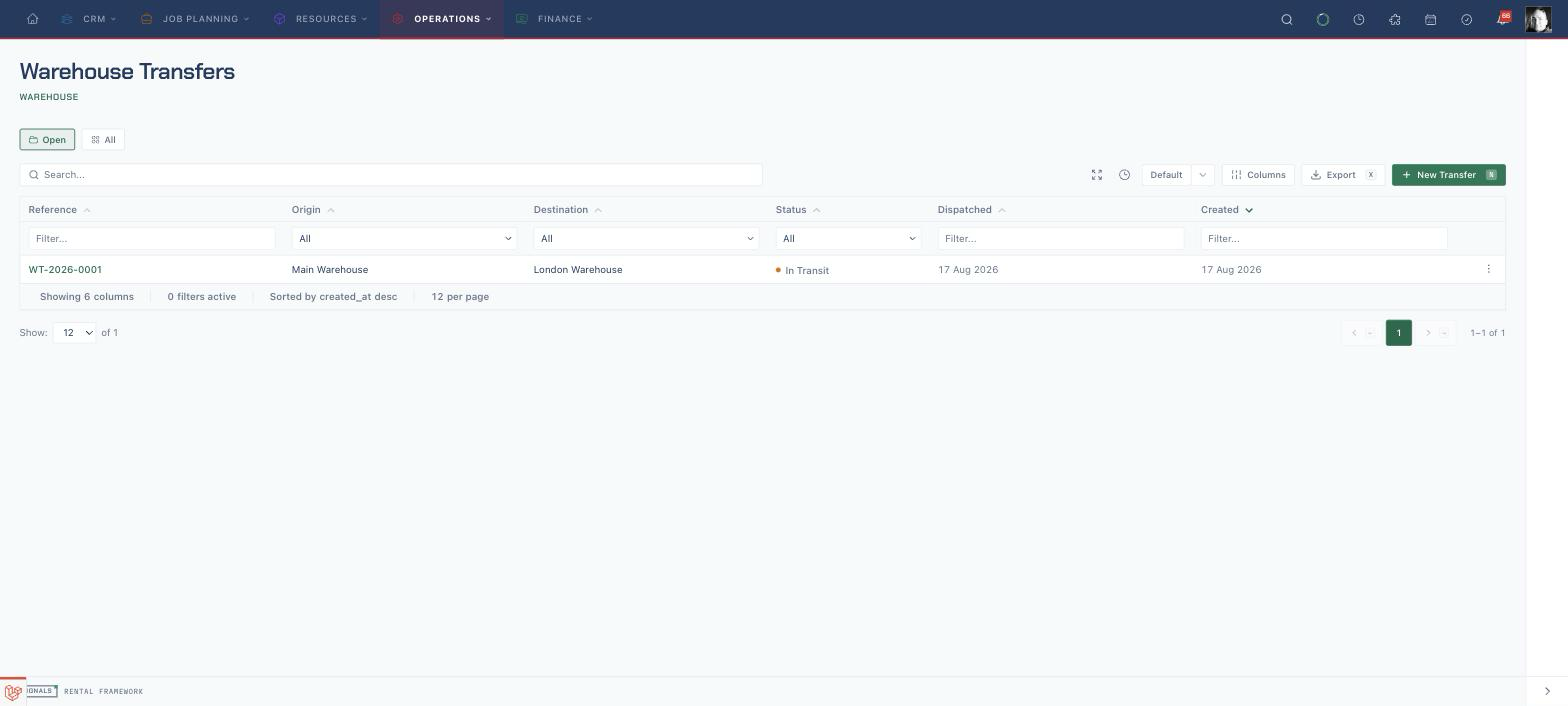
Create a transfer
- Open Warehouse Transfers, or go to
/warehouse-transfers. - Leave Open selected to see draft and in-transit transfers, or choose All to include completed and cancelled records.
- Choose New Transfer.
- Under Warehouse journey, select a distinct Origin warehouse and Destination warehouse.
- Set Departs and Arrives when dates are planned. Arrival cannot be earlier than departure.
- Choose a Reason when it helps the warehouse understand the move: Cover shortage, Rebalance, Event support, or Depot consolidation.
Confirm the route before picking stock. Changing the origin clears every picked line, and the origin is locked after the draft is created.
Build the stock workbench
- In Products to transfer, search by product, serial, barcode, or asset number.
- Choose a result marked Loose stock or Barcoded. Results can be disabled as Already on this transfer, Unavailable while under active repair, or No transferable stock is held at the origin.
- For loose stock, set the Transfer quantity with the field or −/+ controls.
- For barcoded stock, use Pick serials and select each physical unit. A Repair hold unit is visible but disabled.
- Read Origin after and Destination after for every line. Pay attention to Creates a shortage before the next demand, Origin is already short before this transfer, and Resolves an open shortage.
- Add an optional Line note, then complete Logistics note and Internal notes when the receiving team needs them.
- Choose Save draft if the transfer is not ready to leave.
If Origin shortage risk offers another warehouse, selecting it moves that line into a separate, linked sibling draft. It does not change the origin of the current draft.
Send the transfer
- Check Transfer totals and the Warehouse impact cards.
- Choose Request dispatch.
- Read Confirm request for dispatch. If risk remains, the page states how many lines create or worsen it.
- Choose Confirm dispatch, or Accept risk and dispatch when that is the button shown.
- On an already-saved draft detail page, the equivalent header action is Dispatch and asks Dispatch this transfer? Stock will leave the origin warehouse.
- Confirm the transfer now shows its in-transit status and a Dispatched time.
Dispatch records what was sent and reserves the movement. The physical stock ledger remains at the origin until receipt is recorded at the destination.
Receive stock at the destination
- Open the in-transit transfer at
/warehouse-transfers/{warehouseTransfer}. - Confirm the origin-to-destination band and compare Requested, Sent, and Received for each line.
- For loose stock, choose Receive on a line. Enter a partial quantity, or leave the field blank to receive the remaining sent quantity, then choose Receive again.
- For serial-tracked stock, choose Receive, select the arriving serial, then confirm Receive. For a scanning workflow, open the actions menu and choose Receive via scanning so each arriving serial is identified by its label instead.
- Continue until every line's Received quantity matches Sent.
- Confirm the transfer changes from in transit to received and the Received time appears under Details.
Each receipt moves that quantity out of the origin and into the destination. Partial loose-stock receipts keep the transfer in transit until every line is fully received.
Related
| Reference | Use it for |
|---|---|
| Warehouse Transfers | Transfer lifecycle, availability effects, cancellation, and access rules |
| Warehouses | Warehouse configuration and stock ownership |
| Shortages | Creating a transfer from a shortage resolution |
| Scan Console | Receiving serial-tracked transfer stock by scan |