Resolving a Shortage
Find a rental shortfall, choose an honest resolution path, follow its work, and close the resolution when stock is secured.
Find the shortage
- Open the rental and select its Shortages tab, or go to
/rentals/{rental}/shortages. - Read Conversion & Dispatch Checks before changing the plan. Convert to Order gate can show Block, Warn, or Allow; Dispatch policy describes what can leave the warehouse.
- Under Detected Shortages, compare Requested, Available, Short by, and, when present, Remaining.
- Use
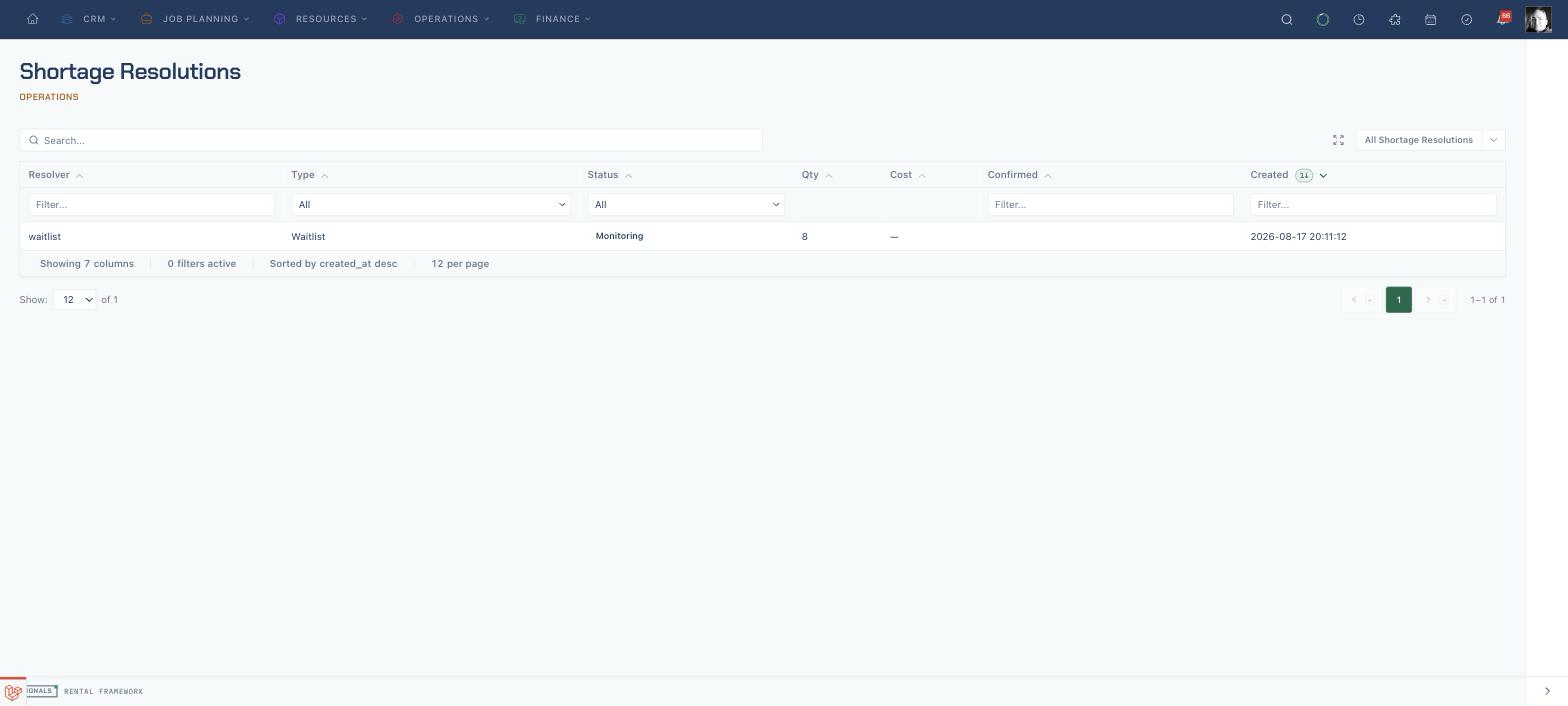
/shortageswhen you need the cross-rental Shortage Resolutions list. That page lists recorded resolutions by resolver, type, status, quantity, cost, and dates; it does not show unresolved detected shortages.
A shortage is recalculated from the rental line, warehouse, dates, and current availability. It can change when bookings, returns, repairs, or stock movements change.
Recording a resolution does not always mean stock is secured. Read its status and description, complete the downstream work, and choose Fulfill only when the promised stock or agreed outcome is real.
Triage the available options
- Open the affected line's Resolution options.
- Read the option label, description, Covers, estimated cost, and lead time before choosing Review.
- Add Notes (optional) in Record resolution, then choose Record resolution.
- Recheck Remaining and the new row under Resolutions.
Only applicable options are rendered. Depending on stock and configuration, the UI can offer:
| Option | What applying it actually does |
|---|---|
| Release stock held by a competing quote | Records a pending reallocation intent; it does not release the quote's stock |
| Transfer N from {warehouse} | Creates a draft warehouse transfer from that warehouse |
| Shift N day(s) earlier/later | Records a confirmed date-shift proposal; it does not edit the rental dates |
| Fulfil N of N | Records a confirmed partial-fulfilment decision; it does not reduce the rental line quantity |
| Add to waitlist | Creates a monitoring resolution that watches for stock becoming free |
| Sub-hire N from {supplier} | Creates a draft sub-hire purchase order and a draft virtual stock intake |
The current source has no catalogue-item substitution data source, so Substitute catalogue item produces no options. The Shortages panel states that substitution is unavailable instead of presenting a dead option.
Follow reallocation and transfer work
For Release stock held by a competing quote, treat the new Pending row as an agreed intent only. Complete the quote-release decision elsewhere before progressing the resolution.
For Transfer N from {warehouse}:
- Open Warehouse Transfers and find the new draft created for the shortage.
- Pick the required stock, dispatch the transfer, and receive it at the rental's warehouse.
- Return to the rental's Shortages tab and confirm the live shortage has recalculated.
- Progress the resolution only as the transfer moves from plan to delivered stock.
Arrange sub-hire stock
- Choose the supplier option whose cost, basis, preference badge, and lead time fit the job.
- Choose Review, review the summary, then choose Record resolution.
- If Resolve across jobs is shown, use Apply batch to consolidate the same catalogue item across the displayed jobs into one sub-hire purchase order.
- Follow the draft purchase order and virtual stock intake through supplier confirmation and receipt.
- Return to Resolutions and progress the row as the work advances.
Applying sub-hire does not make the quantity physically available. The resolution remains pending and availability changes when the intake is confirmed through the receiving workflow.
Close out the resolution
- Find the row under Resolutions and read its Status.
- Use the enabled lifecycle action: Confirm for an agreed pending plan, Start when work begins, and Fulfill when the outcome is complete.
- Use Cancel when the plan is abandoned, or Fail when it could not be completed. Add the optional reason in the Reason dialog.
- Recheck Detected Shortages. A fulfilled resolution record and a clear live availability gap answer different questions, so confirm both.
- If the conversion gate shows Warn, add Acknowledgement notes (optional) and choose Acknowledge shortages only when the remaining risk has been accepted.
Buttons that are not legal from the current status remain visible but disabled. Fulfilled, Cancelled, and Failed are terminal and show no further actions.
Related
| Reference | Use it for |
|---|---|
| Shortages | Detection, policies, resolver catalogue, and resolution lifecycle |
| Equipment Availability | Understanding the stock and demand behind a shortfall |
| Sub-Hire & Procurement | Following supplier purchase orders and virtual stock intake |
| Warehouse Transfers | Dispatching and receiving transfer-based resolutions |
| Rentals | Editing rental quantities, dates, and order state |