Working the Dispatch Board
Read today's outbound workload, clear blockers, scan jobs, and move rentals through dispatch stages.
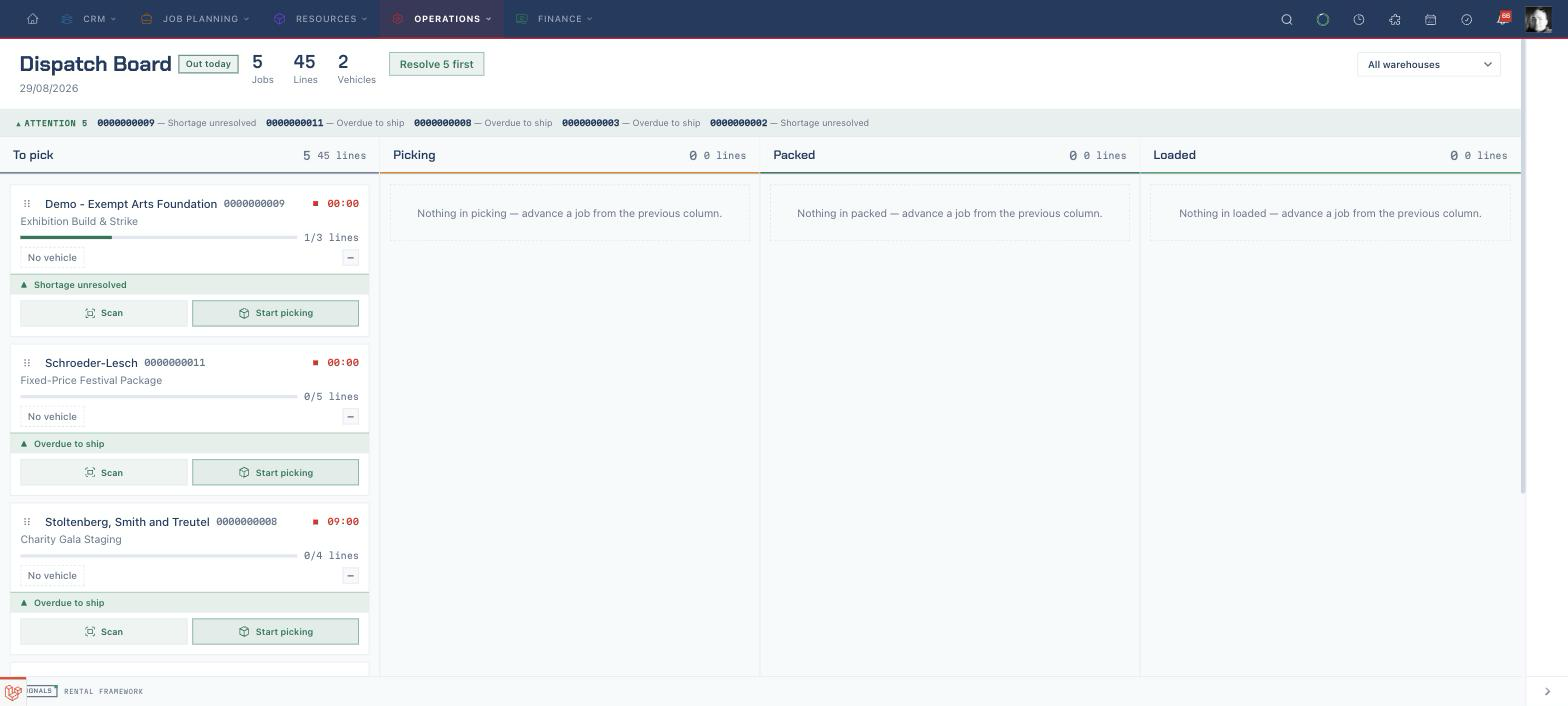
Open today's board
- Open
/dispatch. - Use the warehouse dropdown in the top-right corner to show the site you are working from.
- Check the date and Out today label, then read the Jobs, Lines, and Vehicles totals.
- Use the status message as the shift's starting point: Resolve N first, Progress remaining N, or Board clear.
Need to move a card? You need dispatch management access. If you can see the board but cannot drag a card or see its next-action button, ask your administrator.
Clear attention items
- Read the Attention strip before progressing the board. Each entry shows the job reference and the blocker.
- Find the matching card and read its blocker banner for the immediate problem.
- Choose the job reference on the card to open the rental when you need to resolve a shortage or correct the job record.
- Return to the board after the blocker has been dealt with.
Read a dispatch card
Each card gives you the facts needed on the warehouse floor:
- the customer name, or the rental title when there is no customer name;
- the job reference, which opens the rental;
- the planned out time, with an urgency marker when the job is flagged urgent;
- picked lines as a fraction and progress bar;
- flightcase count, vehicle or No vehicle, and assigned crew;
- a blocker banner when the job cannot progress cleanly;
- Scan when checkout scanning is available; and
- the next-action button, or On vehicle when the card is in its terminal stage.
Move a job to its next stage
- Confirm you are moving the correct job and that its blocker banner is clear.
- Choose the card's next-action button to move it to the next configured stage.
- Check that the card appears in the new column. The card is briefly highlighted after a move.
The button label follows your configured stages. A typical board progresses from To pick through Picking and Packed to Loaded.
Move a job directly to another stage
- Hold the six-dot drag handle on the card.
- Drag the card into the required configured column.
- Release it and confirm the card appears in that column.
Dragging can move a job directly into any configured column. It is not a way to set the order of cards within one column; that order follows the board's load times.
Scan equipment for the job
- Choose Scan on the card when it is shown.
- Complete the checkout work in the scan console.
- Return to the dispatch board and continue the job with its next-action button or by dragging it.
Finish the dispatch
- Move the job into its terminal loaded stage once the equipment is on the vehicle.
- Check that the card shows On vehicle.
- Use the hairline progress bar below the board to judge the remaining load across all jobs.
Related
| Reference | Use it for |
|---|---|
| Dispatch & Returns boards | Stage configuration, board behaviour, card data, and returns-board differences |
| Scanning | Checkout and check-in sessions opened by Scan |
| Rentals | The rental record, shortages, assets, and fulfilment workflow |