Creating a Purchase Order
Raise a purchase order, add supplier lines, mark it sent, and record partial or complete receipt.
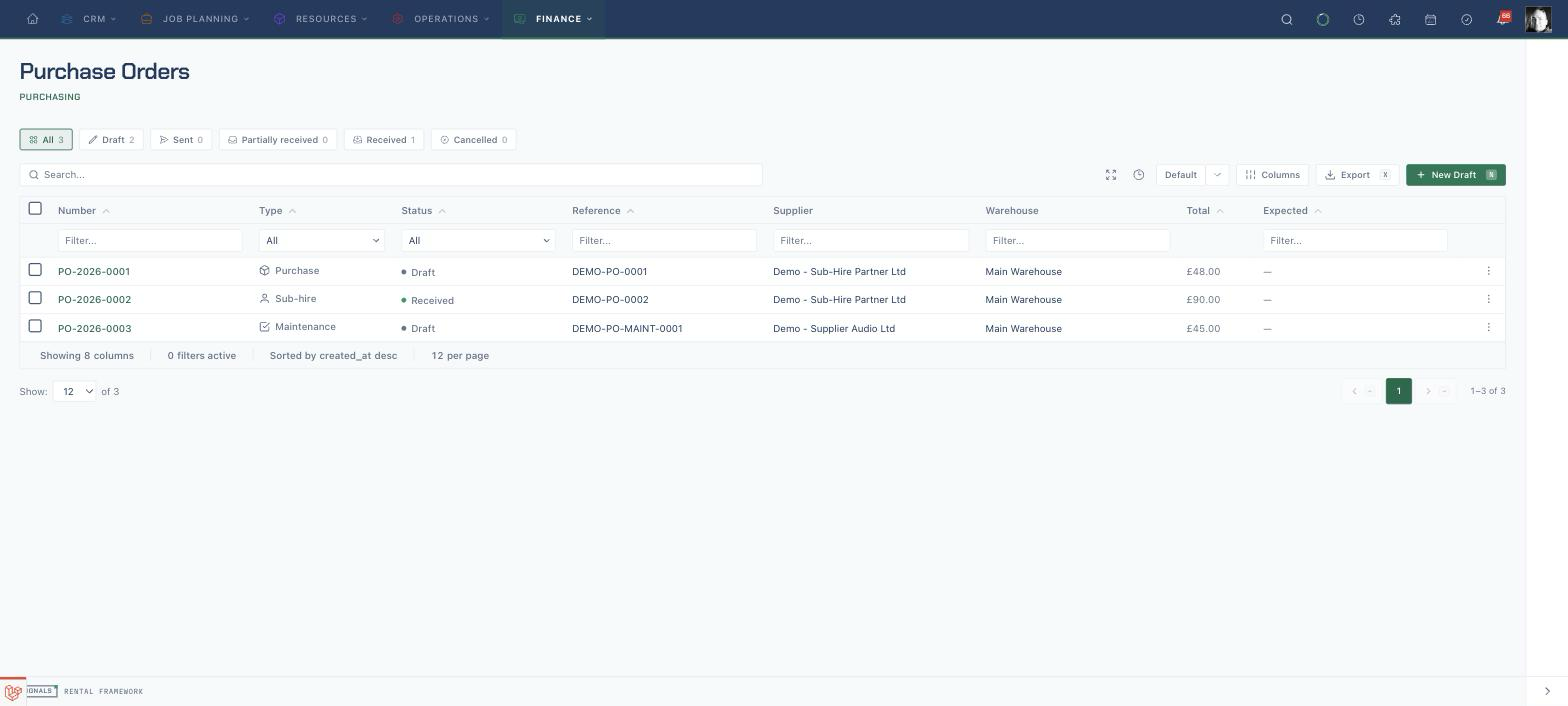
Start the purchase order
- Open
/purchase-ordersand choose New Draft. - Search Supplier (Company) and select the company you intend to order from.
- Select the receiving Warehouse.
- Set Type to Sub-hire, Purchase, or Maintenance.
- Add the supplier's Reference and your internal Notes when available.
The Supplier (Company) search includes every company account; it does not filter the choices to companies marked or configured as suppliers. Confirm the company before continuing.
Record as sent does not contact the supplier. The action only marks the purchase order Sent and records its sent time. There is no purchase-order approval step in this UI and no email, document generation, or supplier transmission in this action.
Add the order lines
- In Line items, optionally search for and select a Catalogue item.
- Enter the required Description.
- Enter Qty.
- Enter Unit cost, or leave it blank on a catalogue-item line to use the preferred per-unit supplier cost when one can be resolved.
- Choose Add line for each additional item and remove any accidental blank rows.
- Save the purchase order to create its draft.
A catalogue line without a resolvable preferred supplier cost still needs a unit cost before the draft can be saved.
Review and mark the order sent
- Open the draft and check its supplier, warehouse, type, totals, expected date, and line quantities.
- Use Edit while the purchase order remains a draft to correct the header or lines.
- Complete your organisation's approval and supplier-communication process outside this screen.
- Choose Record as sent only when the supplier has actually received or accepted the order through that process.
- Confirm that the status changes from Draft to Sent.
| Action | What it actually does |
|---|---|
| Record as sent | Changes the purchase order to Sent and records its sent time; it does not approve or transmit it |
| Cancel | Cancels an open purchase order |
| Receive | Opens quantity entry for a Sent or Partially received order |
Record a receipt
- Open a Sent or Partially received purchase order and choose Receive.
- In Receive goods, check each line's remaining quantity. The fields start at the full remaining amount.
- Reduce each line to the positive quantity physically received now.
- Choose Record receipt.
- Confirm the purchase order shows Partially received when quantities remain, or Received when every line is complete.
The modal submits every outstanding line and rejects zero. It cannot record a delivery where one outstanding line has nothing delivered while another does. Do not leave an undelivered line at its default quantity or record stock that is not physically present. Close the modal and ask an API-enabled operator to use the purchase-order receive endpoint with only the delivered lines. If that workflow is unavailable, keep the delivery record outside Signals and wait rather than entering a false receipt.
For a Purchase order, receipt of catalogue-item lines records stock into the warehouse. For a Sub-hire order, receipt progresses its virtual stock intake. Do not record the supplier's full delivery until the physical count agrees.
Follow linked procurement work
- On a sub-hire purchase order, review the intake register after recording receipt.
- Return to the affected rental's Shortages tab and confirm availability has recalculated.
- On a maintenance purchase order, follow the asset and its repair record as well as the purchase order.
- Use Documents and Activities on the purchase-order page to review its recorded paperwork and history.
Related
| Reference | Use it for |
|---|---|
| Sub-Hire & Procurement | Purchase-order types, virtual stock intake, and receiving behaviour |
| Resolving a Shortage | Creating and following a sub-hire order from a rental shortfall |
| Logging and Tracking a Repair | Following maintenance work against an asset |
| Equipment Availability | Confirming received stock has reached availability |