Scan Console
Operator scanning, identifier management, and label printing.
Overview
The scanning layer turns a scanned code — a barcode, QR code, or asset number — into a platform action. It resolves the code to an asset, flightcase, or catalogue item, then hands it to a context handler that drives the right workflow: dispatching kit, receiving returns, counting a stocktake, receiving a transfer, or just looking something up. Every scan is recorded, whatever the outcome.
Scanning UI routes:
| Route | Purpose |
|---|---|
/scanning/console |
Operator scan console |
/scanning/console?context={context}&target={id}&session={id} |
Deep link: preselect a context and target, or resume an open session |
/scanning/identifiers |
Scannable identifier index |
/scanning/generation-rules |
Identifier generation rules |
/scanning/generation-rules/create |
Create a generation rule |
/scanning/generation-rules/{rule}/edit |
Edit a generation rule |
/scanning/sessions |
Scan session history |
/scanning/sessions/{scanSession} |
Session detail with event feed |
/rentals/{rental}/scanning |
Rental-scoped scan console and desk |
The scan console
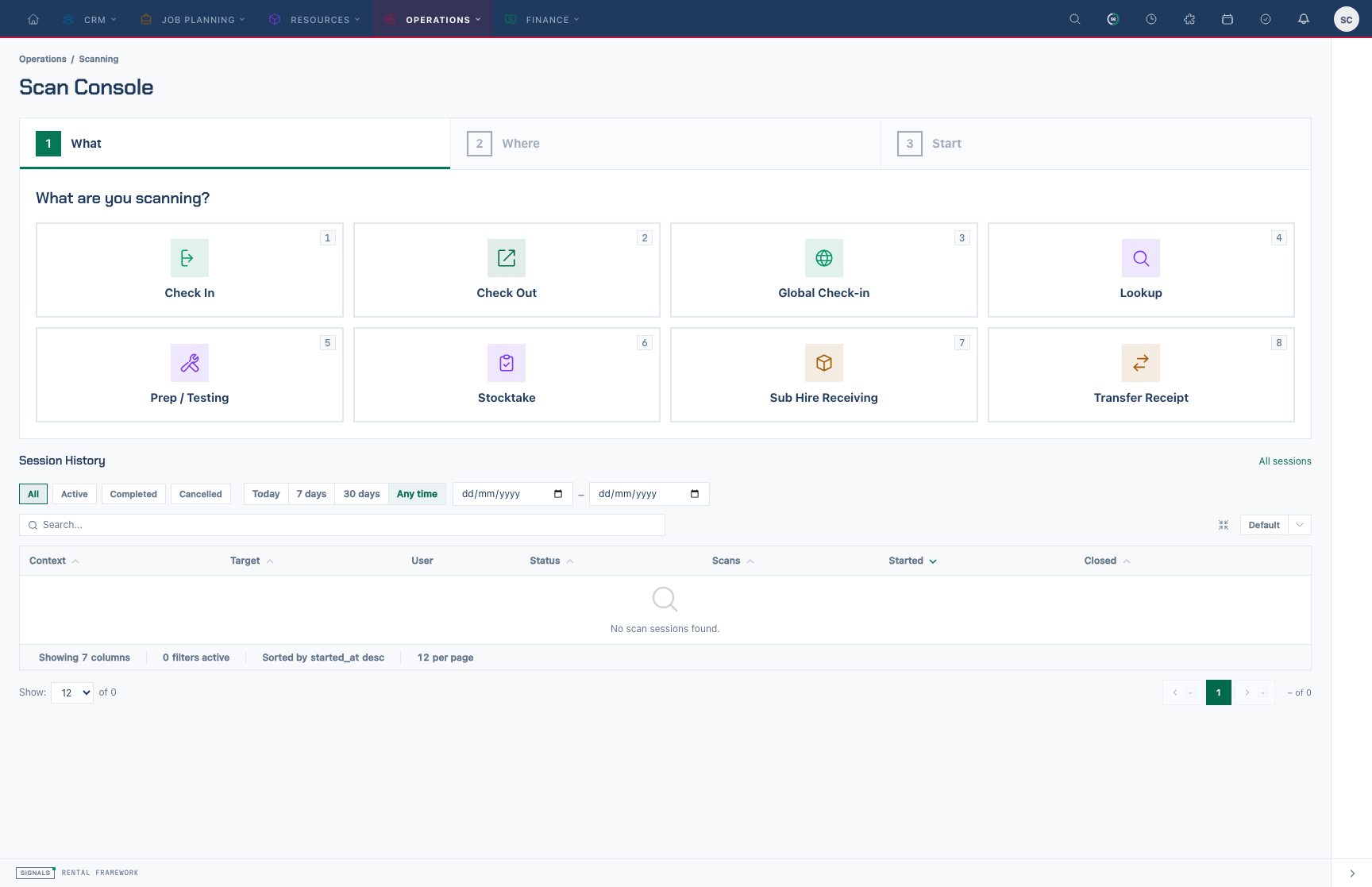
The console before a session starts: a three-step flow. 1 What — tap a context (or press its number key); 2 Where & which — confirm the warehouse and, when the context needs one, pick the target; 3 Start — check the summary and choose Start session. Each choice moves on by itself and the step bar steps back. Supervisors see the session history underneath, filtered by status and start date, with Resume or Take over on open sessions.
The console is the operator's main surface. Pick a context, choose a warehouse and (where relevant) a target, and choose Start session. The context picker is data-driven — new context handlers, including plugin-provided ones, appear automatically without any console change.
Once a session is open, the console renders one of two layouts:
| Context | Layout |
|---|---|
| Check Out, Check In, Stocktake, Transfer Receipt, Sub Hire Receiving, Global Check-in | Desk — the worklist desk, the same one the rental's own Scanning tab runs |
| Lookup, Prep / Testing | Desk shell — the desk's band, tabs and result strip around the console's scan field |
A session the desk cannot serve (for example a desk context whose target can no longer be viewed) falls back to the desk shell.
Both layouts share the same session band and foot: the context and target, the warehouse, the session number and status, the elapsed time (h:mm:ss, or Nd Nh for long sessions), progress, and the close and abandon controls. Progress, remaining and unexpected appear only for contexts that snapshot an expected set (check out, check in, stocktake, transfer, sub-hire receiving — ScanContextPresenter::hasManifest()); problems always appears. The scan field shows a per-context hint, such as Scan to book out, Scan to count or Scan to look up.
Each layout has two tabs:
- Scanning — the scan field, the result strip for the last scan with a Scan history list, and the worklist (desk) or the answer to the last scan (shell).
- Overview — on the desk, the direction's briefing (for check out: Can it leave?, for check in: Is it all back?); in the shell, the session summary so far, or the final summary once closed.
Detail level
During a session, choose Simple, Standard or Detailed in the Detail level control (shortcuts Alt+1, Alt+2, Alt+3). The choice is remembered for you.
- Simple keeps the scan input and last result prominent. On a desk, the current-line card shows the line just scanned and its remaining quantity.
- Standard shows the worklist, counts, statuses and scan feed for checking progress and acting on rows.
- Detailed shows the full desk, including sorting, tools and every column, at a compact size.
The level changes how much is shown, not what a scan does. Use the Overview tab for the context's briefing and Session details for the session record.
The desk
The desk lists what the target asks for — rental lines and assets, stock check items, transfer lines, intake lines, or (for global check-in) whatever has come back through the door — beside the scan field. The worklist can be filtered by status bucket and by method, sorted, and grouped; groups can be locked so their rows are read only. Loose (non-barcoded) lines are confirmed by quantity on the line itself.
Rows can be selected for review and acted on in bulk from the toolbar. The bulk actions per direction are:
| Direction | Bulk actions |
|---|---|
| Check Out | Void |
| Check In | Return, Damaged… (note required), Missing… (note required), Finalise, Void |
| Global Check-in | Void |
| Stocktake | Count, Uncount |
| Transfer Receipt | Receive, Void |
| Sub Hire Receiving | Receive, Revert receipt, Void |
Void on the desk takes back the selected rows' scans through the context's own void (see Voiding in operator language), recorded with a standard reason such as Dispatch voided from the desk. Uncount reverses a stocktake count the same way. These are the same actions the API exposes; see UI to API parity.
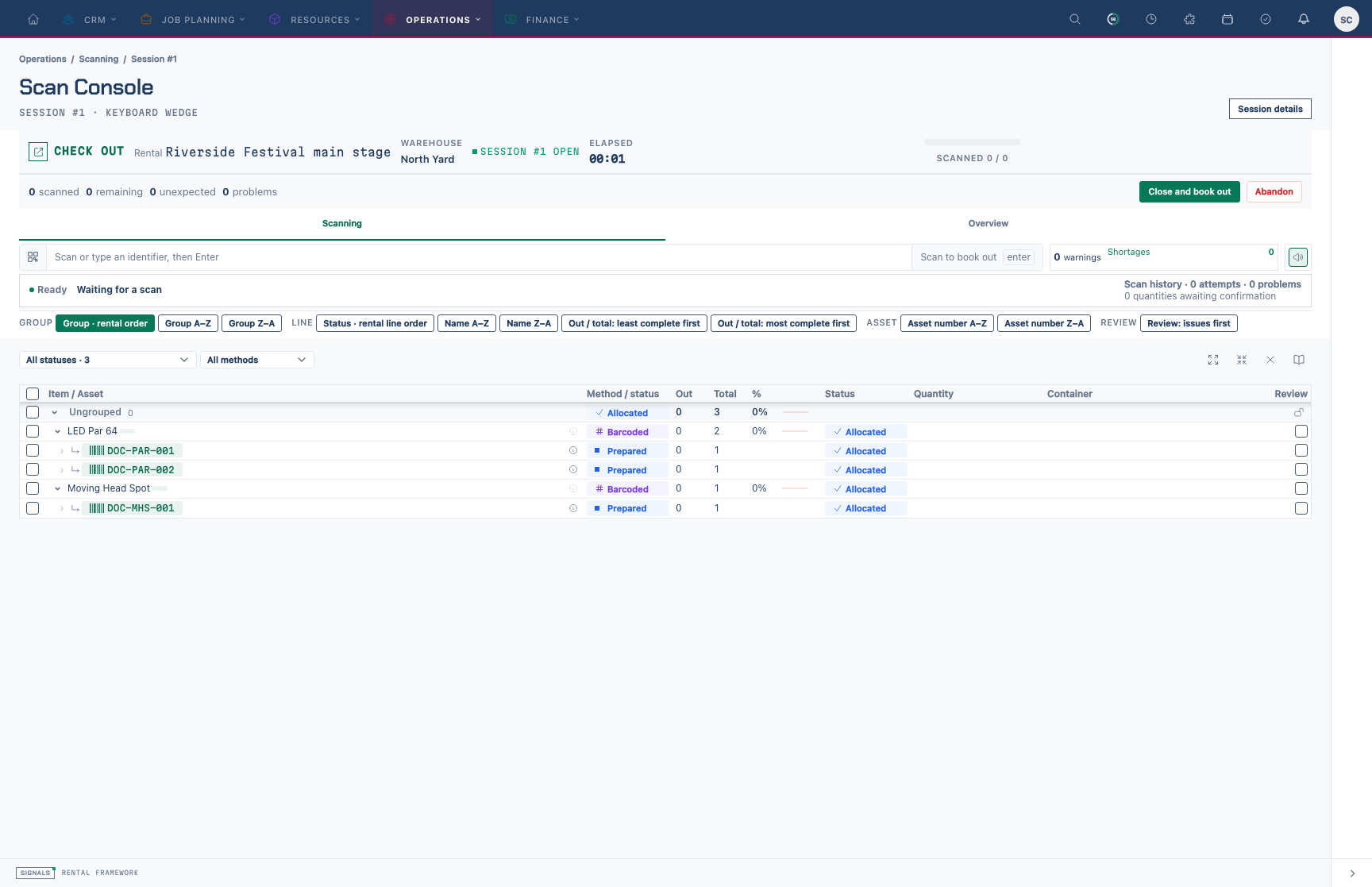
A check-out session on the desk. The band shows the rental, warehouse, session number, elapsed time and remaining count; the worklist lists each line and its prepared assets ready to scan.
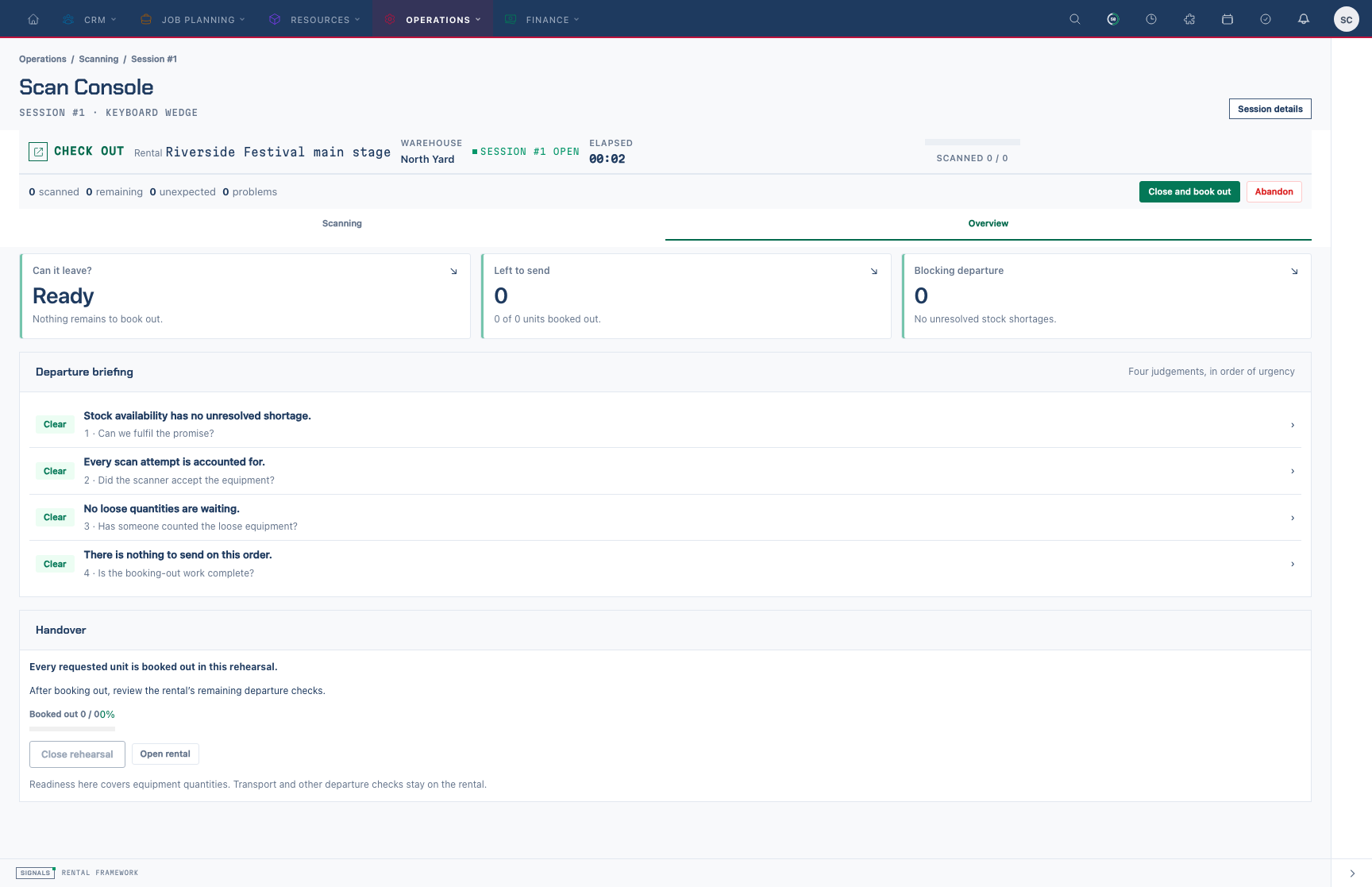
The Overview tab answers "Can it leave?" — shortages, scan attempts, loose quantities and handover — in order of urgency.
The desk shell
Lookup and prep answer each scan on its own, so there is no worklist. The shell shows the answer to the last scan instead:
- Lookup — a lookup card for the asset, flightcase or catalogue item: location, warehouse, the rental it is on, held/available counts or contents, the next equipment test due, and a link to open the record.
- Prep / Testing — the asset's due equipment tests with a Perform link for each, or No equipment tests due.
Under the answer sits the scan feed — All / Resolved / Problems chips, a scans-per-minute rate, and a note that the last 50 events are kept.
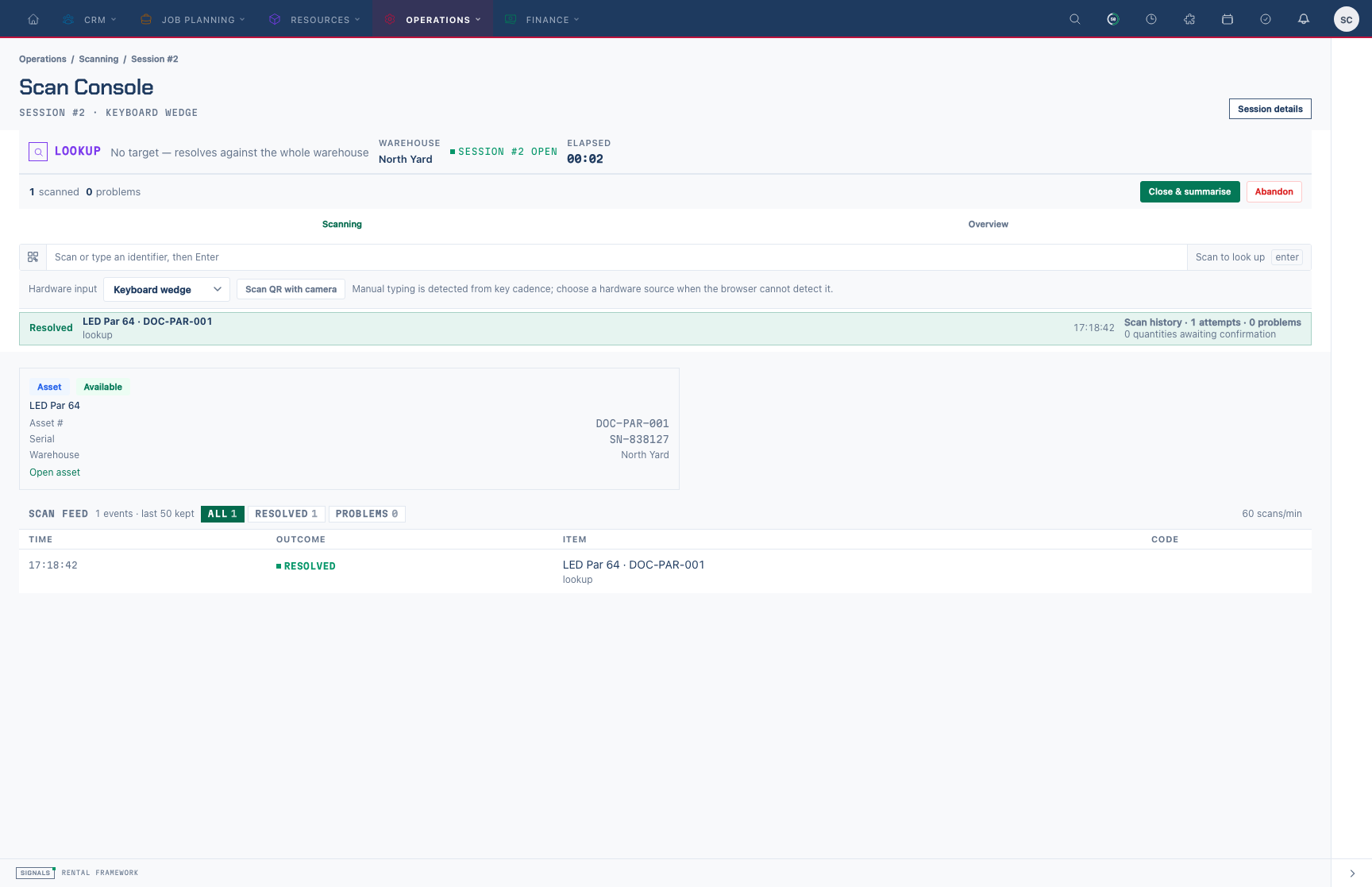
A lookup session. The shell keeps the desk's band and tabs; the answer card for the last scan sits above the scan feed.
Input
The scan field is always focused. It records slow operator typing as manual and scanner-speed bursts as keyboard_wedge, offers an operator hardware selector for keyboard_wedge, imager or rfid, and in-browser QR camera capture recorded as camera_qr. See Input methods and disconnected work.
Outcomes and actions
Outcome words stay the live ScanOutcome vocabulary (Resolved, Duplicate, Unknown, Ambiguous, Wrong context, Blocked, Refused, Failed) via ScanOutcomePresentation. Every mutation flows through the same action classes the rest of the platform uses (OpenScanSession, SubmitScan, VoidScanEvent, CloseScanSession, AbandonScanSession, plus stocktake RecordCount / CreateStockCheck), so all guard gates apply. A refusal — for example a blocked dispatch gate — surfaces as an outcome row with a reason, never a raw error.
The close button is labelled per context: Close and book out, Close and check in, Close and post variances, Close and receive, or Close & summarise. Abandon marks the scan session abandoned and stops further scans in it. It is not a rollback: rental, stock, and transfer movements committed by prior successful scans remain in place. The inline confirmation states this before the operator chooses Abandon session (or Keep scanning). After a session ends, New session returns to the picker.
Starting a stocktake
For Stocktake, the target picker offers Search existing or Create new stock check. Create & select creates a warehouse-scoped stock check in counting status and binds the session to it.
Resuming a session
An open session can be picked back up on the console from its session page (Resume scanning) or with /scanning/console?session={id}. The console adopts the session's context, target and warehouse and replays its most recent 50 scans into the feed rather than opening a second session. Only the operator who opened the session can resume it, only while it is open, only with scanning permission at its warehouse, and only for a context the console still knows. A desk session that is reached this way after it has closed renders read only.
A supervisor holding scanning.takeover_sessions can also resume a colleague's open session. The session page shows Take over and resume (with a confirmation naming the current operator) instead of Resume scanning; opening the console with ?session={id} does the same. Taking over makes the supervisor the session's operator — later scans, close and abandon are theirs, while scans already recorded stay attributed to whoever made them — and is audited as scan_session.taken_over with the preceding and new user_id.
Docked presentation
The rental scanning page embeds the scan module for contexts its desk does not serve. How a host page embeds the module is described in Scan module embedding.
The rental scan desk
A rental carries its own console at /rentals/{rental}/scanning (the Scanning tab). Starting or resuming a check out or check in session there — for this rental, in its own warehouse, in the operator's own hands — replaces the docked scan module with the desk, the same desk the console runs.
One desk shell serves every direction. The direction chooses the worklist projector, the command set, the row partials and the header's vocabulary, and rides in the desk context the page issues; the desk never names a projector itself. Check out counts requested / out / remaining and its shortage buckets; check in counts expected / out / checked in / finalised and its exception buckets.
The worklist is not rendered by Livewire. The desk issues a context, mounts an island against it, and the island reads the worklist over /rentals/{rental}/scan-out/worklist?ctx=… (rental targets), /scan-desk/{target_type}/{target}/worklist (stock checks, transfers and intakes) or /scan-desk/worklist (global check-in), and reconciles scan.recorded broadcasts into it — applying the broadcast's delta at its version, or re-fetching when follow_up says it must. The rental page and its worklist route require rentals.view and scanning.access; the other worklist routes require scanning.access plus the target's own view gate. The context resolves only for the tenant, target and user it was issued to.
Session history
/scanning/sessions lists scan sessions, newest first, with context, target type, target, warehouse, user, status, scans, started, last-scan and closed columns, and a search over context and target. The same table appears under the console's picker for users who hold scanning.manage_sessions. On the list, press n (or choose Scan Console) to open the console.
/scanning/sessions/{id} shows one session: its status and context, the target (linked to its record), warehouse, operator, started and closed times, how long it has been open (or its duration), the context's summary counts and every scan event (20 per page). The History tab shows the audit timeline. Use the Scanning breadcrumb to return to the Scan Console. The header has Print and, when the session can be resumed, an Actions menu with Resume scanning, or Take over and resume for a supervisor viewing a colleague's open session. When an open session cannot be resumed, the Briefing explains why.
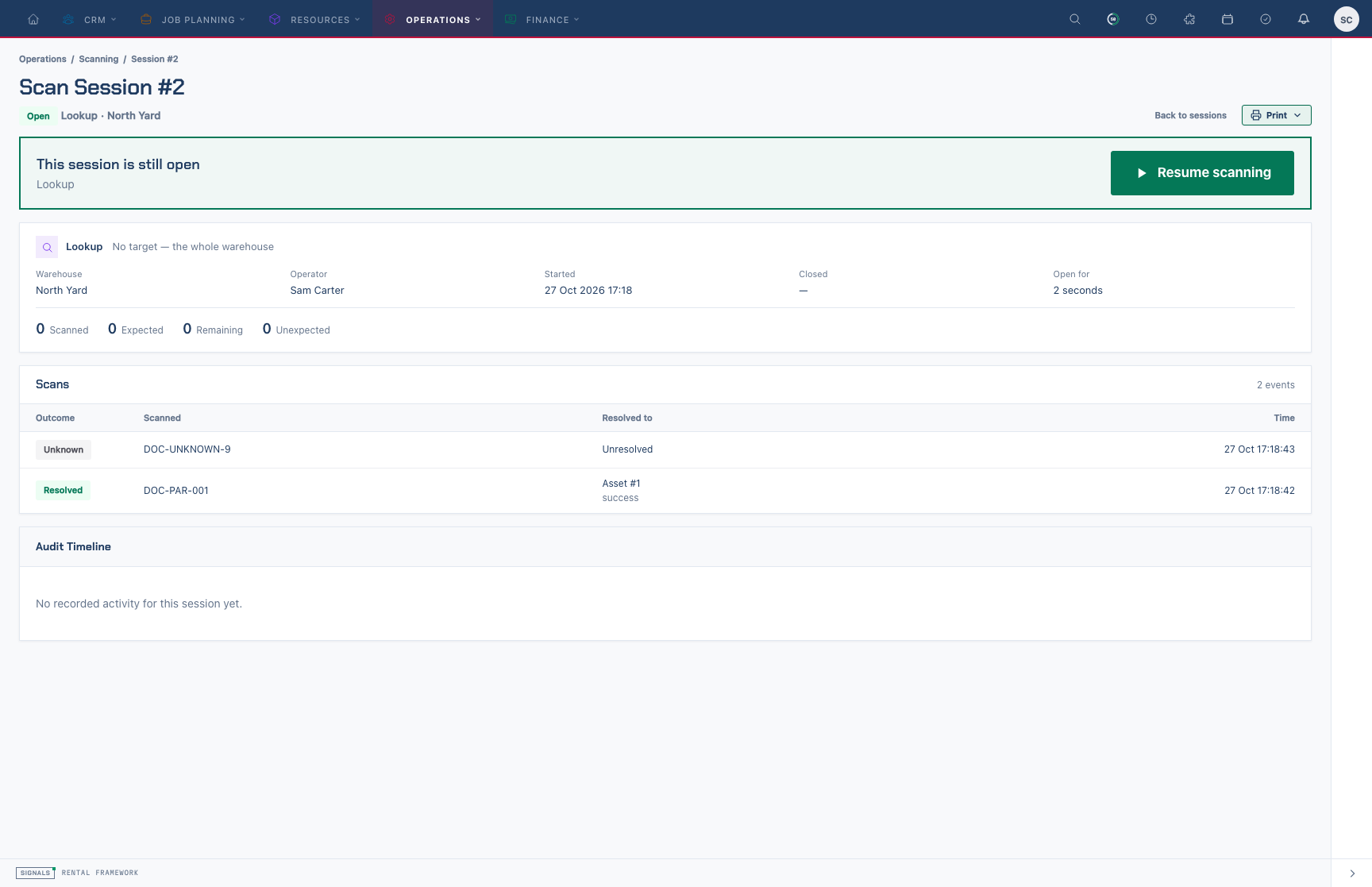
An open lookup session's page. Choose Actions → Resume scanning to continue a session you opened while it is still open.
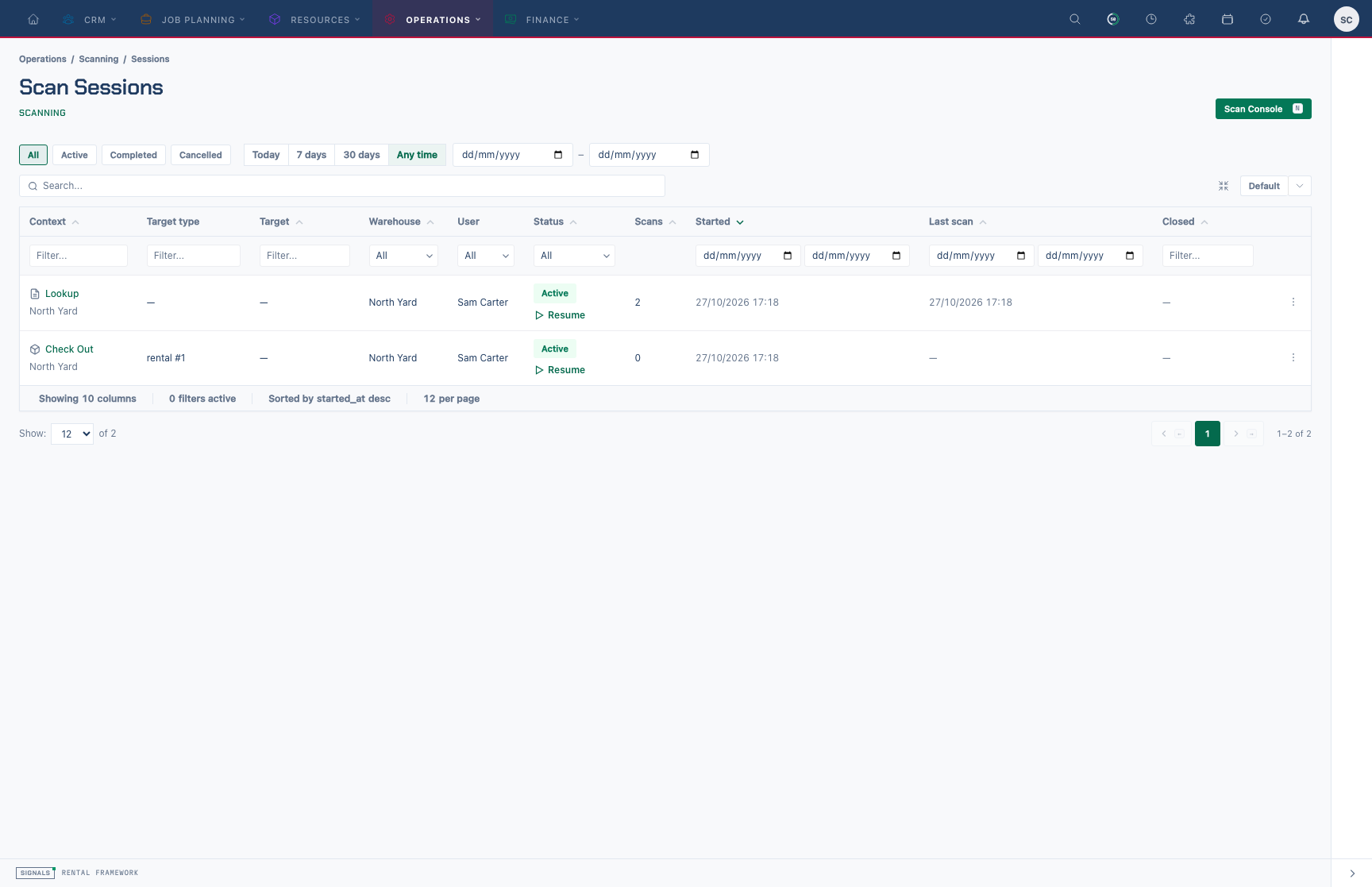
The session history list, newest first. Use a row's View action to open that session.
Contexts and capabilities
This table reflects the live handler registry and configured context facts
used by ScanContextCatalogue; GET /api/v1/scan_contexts publishes the same
catalogue at runtime.
| Context | Target | Repeat scans | Void | Handler |
|---|---|---|---|---|
check_out |
Rental; asset eligibility is checked when scanned | duplicate | Supported | Active |
check_in |
Rental; asset eligibility is checked when scanned | duplicate | Supported | Active |
global_checkin |
No target | duplicate | Supported | Active |
stocktake |
Stock check in the selected warehouse that is still counting (the catalogue's API status open also admits a draft check, which cannot be opened) |
resolved | Supported | Active |
transfer |
Transfer with API status in_transit arriving at the selected warehouse |
resolved | Supported | Active |
lookup |
No target | duplicate | Not supported | Active |
prep |
No target | duplicate | Not supported | Active |
sub_hire_receiving |
Confirmed virtual stock intake in the selected warehouse | resolved | Supported | Active |
flightcase_build |
No target required; an optional target must be one of the catalogue's published target types and must already exist | duplicate | Not supported | Record only |
duplicate means a second successful identifier is recorded without running
the handler again. resolved means each repeat reaches the handler so counting
or receipt reconciliation can add another contribution. A record-only context
keeps the scan event but has no domain handler — and because it has no handler
to vet a target, any target it is given is checked against the same set of
scannable target types the handled contexts publish.
The target picker applies the catalogue's warehouse and status filter by default. Rental searches are also limited to the selected warehouse. Choose Clear recommended filter to search the preceding all-warehouse, all-status set when investigating an exceptional target.
Voiding in operator language
- Check-out restores the asset assignment to its pre-dispatch state, or removes an assignment created by that scan, provided nothing changed later.
- Check-in and global check-in put the asset assignment back into its dispatched or on-hire state when it is still safe to do so.
- Stocktake removes one counted contribution; repeat counts are reversed one at a time.
- Transfer appends opposite stock-ledger movements and removes one receipt. The original ledger rows remain as history.
- Sub-hire receiving removes one received asset and reopens the intake only when no active receipt remains.
- Lookup, prep, and flightcase build do not support voiding because their scans do not have a supported domain effect to compensate.
Only a successful resolved scan in an open session can be voided. Signals adds
a compensating voided event; it never edits or deletes the original scan.
In the desk shell, the Void button under the last scan (with a typed
reason) is rendered from the void capability above — the same value
GET /api/v1/scan_contexts publishes. On the desk, Void is a toolbar bulk
action over the selected rows, offered per direction as listed in
The desk. See
Scanning Assets In and Out for
the operator walkthrough.
Input methods and disconnected work
Every web scan surface persists the source of each scan as manual,
keyboard_wedge, camera_qr, imager, or rfid. Manual and wedge entry share
the focused text field and are distinguished by typing cadence, which is
measured by one shared detector rather than per page — the console, the
stock-check counting workbench, and the returns workbench all report what they
measured. Camera QR has its own capture control. Browsers cannot reliably
identify DataWedge hardware triggers or RFID delivery, so operators select
Hardware imager or RFID reader explicitly; the selector defaults to
Keyboard wedge and is rendered by the console, which owns that state.
The web console processes one live scan at a time and needs a connection. For
offline or intermittent mobile work, an integration can queue scans locally and
send an ordered batch of up to 100 when connectivity returns. Keep a stable
client_ref per physical scan and its original occurred_at timestamp so safe
retries do not repeat domain effects. See the Scanning API
for bulk response shapes, idempotency, recovery, and client timestamp rules.
Identifiers & labels
A scannable identifier is a unique code tied to an asset, flightcase, or catalogue item. From the identifier surfaces you can assign, replace, and deactivate identifiers (history is retained), and generate identifiers singly or in bulk against a generation rule that defines the prefix and sequence pattern.
Labels print through the Document Template Engine — a label document type on custom page dimensions renders dependency-free Code128 barcodes, printed one at a time or in batches through the normal PDF pipeline. Identifier panels appear on the asset, flightcase, and catalogue item detail pages.
Plugins
Two contracts let plugins extend scanning without touching core: RfidReaderContract (a plugin implements only the reader; the core batch processor dedupes, resolves, dispatches, and records) and LabelPrinterContract (a plugin consumes rendered labels and returns typed results). See the Plugin SDK.
Stale session expiry
The scheduled command signals:expire-scan-sessions runs hourly. Open sessions that started more than the configured staleness window ago (scanning.session_expiry_hours, default 24) and have had no scan or desk activity within that window are automatically abandoned.
Permissions
| Permission | Grants |
|---|---|
scanning.access |
Read sessions and identifiers over the API, the identifier index, and the desk worklist routes |
scanning.scan |
Open the Scan Console; submit scans into a session you opened, or any open session when you also hold scanning.manage_sessions |
scanning.manage_sessions |
Open sessions; view the session list and session pages; close or abandon any open session (supervisory bypass of opener ownership — the opener can always close or abandon their own) |
scanning.takeover_sessions |
Resume a colleague's open session, becoming its operator (audited). Seeded to Admin and Operations Manager |
scanning.manage_identifiers |
Assign, generate, replace and deactivate identifiers; manage generation rules |
Every session action is also limited to warehouses the user can access.
API
The Scanning API exposes the same SubmitScan action as the console, so resolution and domain effects stay in parity. Session ingestion, bulk scans, safe retries with client_ref, capture times and identifier lookups are described there, and its UI to API parity table maps every console action to a REST route.
Additional form guidance
Without a current scan session, a fresh installation needs a catalogue item with an asset before the module picker opens. The page shows the missing setup steps. Existing sessions remain accessible.
Related
- Dispatch & Returns boards — day boards whose Scan links open this console.
- Scanning Assets In and Out — the operator walkthrough.
Generation rules select an asset, flightcase, or catalogue item. The form and API use the public aliases asset, flightcase, and catalogue_item for these targets.