Working Your Approvals Inbox
Triage the approvals queue, read captured evidence and stage progress, and record the right decision.
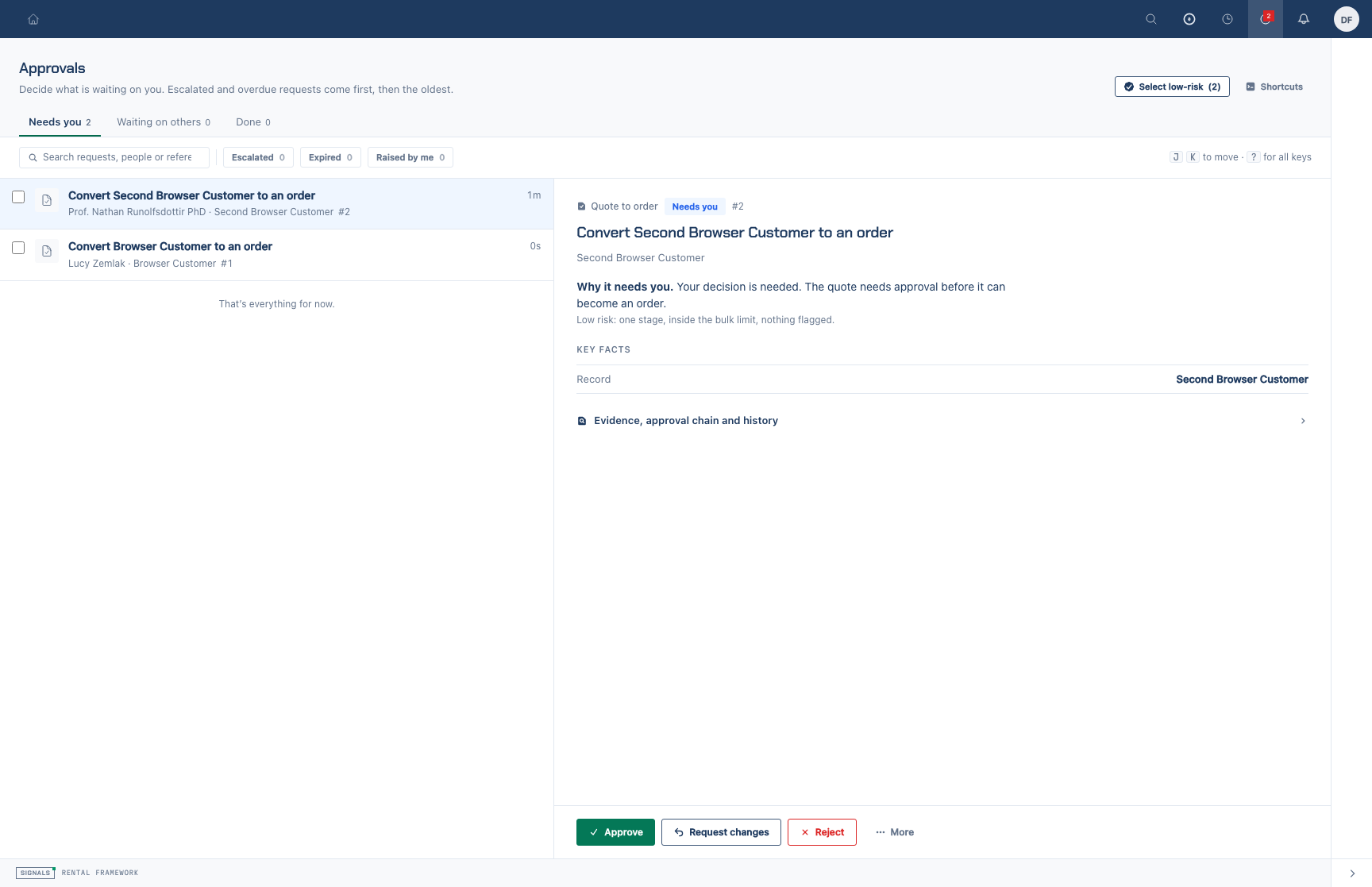
Triage the queue
- Open
/approvalsfrom the Approvals header icon. Its badge counts items needing your decision. - Start with Needs you for actionable assignments. Waiting on others shows your other visible pending requests; managers can see other pending work, and escalation recipients can view their escalated requests without gaining decision authority.
- Open Done for terminal outcomes from the last 30 days and choose Show older for earlier work. The list is paged.
- Narrow the list with Escalated, Expired, or Raised by me. Search by title, subject, requester name or request ID.
- Select a row to read its decision pane. On a narrow screen, open a row to focus on its detail and use the back control to return to the list.
Review and decide
Read why the request needs attention, the requester's note, facts, evidence, stage progress and history. Open record leads to the subject when you have access. Financial figures are shown only when available and you have cost visibility. If there are several actionable assignments, choose the one to act on.
- Approve records your approval.
- Request changes opens a comment box. Explain the changes and choose the action again to send; the requester can resubmit as a new linked request. Workflow-originated requests do not offer this action.
- Reject opens a comment box. Give a reason and choose Reject again to send it.
More may offer Approve with a note, Delegate, Revoke delegation, Reassign, Escalate, Replace escalation recipient, Send a reminder, and Mark as expired, according to your permissions and the request's state. The note on an approval is advisory. Reminders are limited to one per assignment per UTC day; after sending, the menu shows Reminder sent today. A manager can reassign work to another approver; escalation alone does not grant decision authority.
For multiple requests, see Batch-Approving Eligible Requests. Every action is checked again when submitted.
Keyboard shortcuts
Shortcuts are inactive while typing, except Escape to leave the input. The shortcuts panel is available from the inbox toolbar.
| Key | Action |
|---|---|
j / ↓ |
Next request |
k / ↑ |
Previous request |
a |
Approve |
c |
Request changes |
r |
Reject |
e |
Show or hide evidence |
x |
Toggle the current request in the bulk selection |
/ |
Focus search |
? |
Toggle shortcut help |
Esc |
Close an open menu or form, or leave an input |