Catalogue items
Manage the catalogue including rental, sale, and service catalogue items.
Loose-stock balances retain up to two decimal places in the owned, available and fleet-state figures, including warehouse breakdowns and availability registers. Serialised assets still represent individual units.
Overview
Catalogue items form the core of the equipment catalogue in Signals. Every item that can be rented, sold, or offered as a service is represented as a catalogue item. Catalogue items are grouped into catalogue item groups and can have assets, related items, custom fields, and file attachments.
| Type | Description |
|---|---|
| Rental | Equipment available for hire |
| Sale | Items for outright purchase |
| Service | Labour, transport, or other services |
| Loss & Damage | Charges for damaged or lost items |
Catalogue items list
Route: /catalogue-items
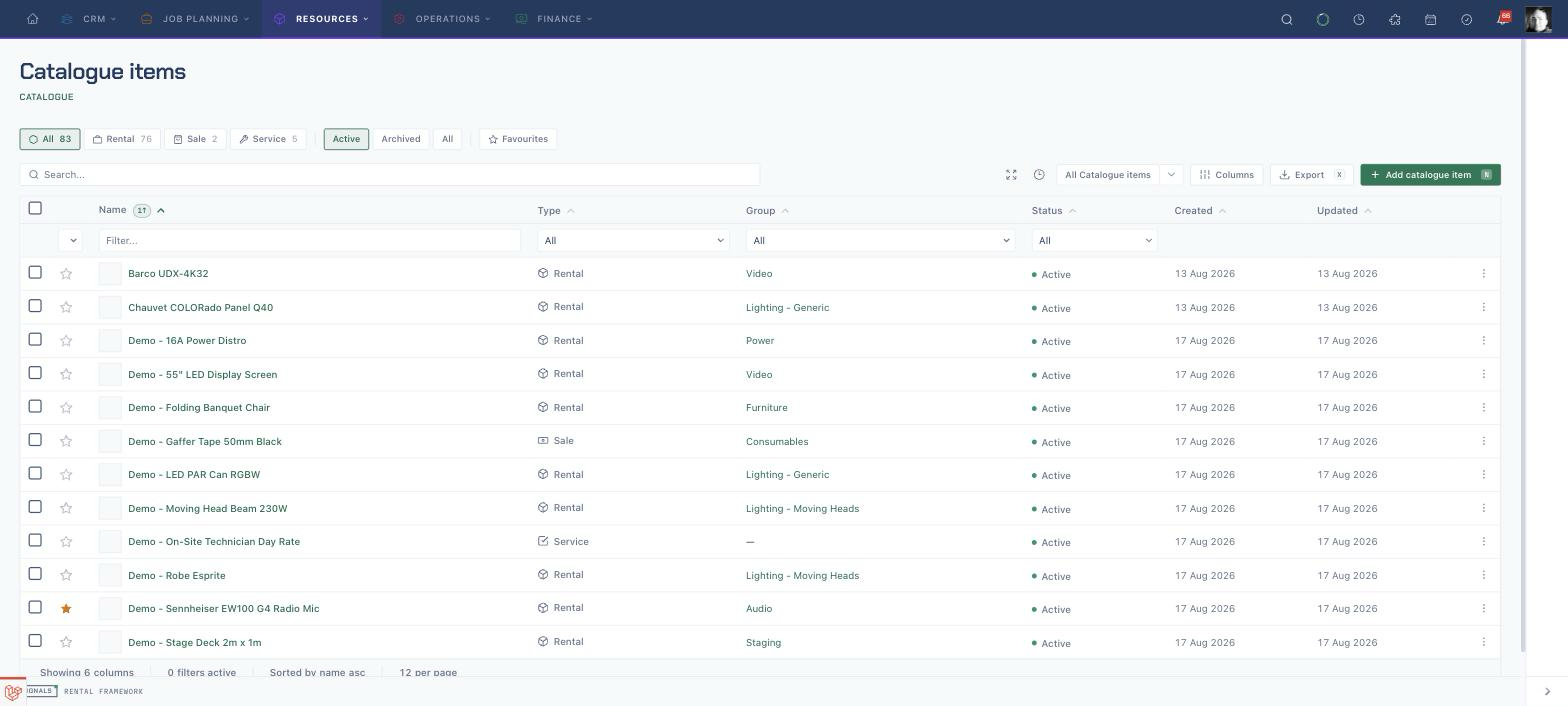
Browse all catalogue items with search, type filtering, sorting, and bulk operations.
- Search — filter by name, SKU, or barcode (debounced, case-insensitive)
- Type filter — chip buttons to show All, Rental, Sale, or Service with counts
- Archive filter — toggle between Active, Archived, and All catalogue items
- Column sorting — click column headers to sort
- Pagination — configurable items per page
| Column | Description |
|---|---|
| Name | Catalogue item name with icon/avatar |
| Type | Catalogue item type badge (Rental, Sale, Service) |
| Group | Associated catalogue item group |
| SKU | Stock keeping unit code |
| Asset records | Count of asset records, not the sum of their held quantities |
| Status | Active or Inactive badge |
| Created | Creation date |
Row Actions
Each row has a dropdown menu with View, Edit, Archive, and Restore actions.
Catalogue item detail
Route: /catalogue-items/{id}
The detail page has an identity band (breadcrumb, icon, name, method/type/active badges, SKU · group · fleet-size sub-line, favourite / print / actions) and a tab strip at both the top and bottom of every tab page.
The actions menu offers Edit, New Asset, New Related item, Merge with…, and Duplicate suggestions. Open Operations → Fleet for quantities, fleet insights and similar catalogue items.
There is currently no direct Add to rental or New Rental action on a catalogue item. This is a known workflow gap; create or open the rental and add the item there.
Overview
Route: /catalogue-items/{id}
Cost figures are hidden from viewers without permission to see costs.
- Headlines — three cards: Utilisation (12-month unit-day %), Hire revenue (company-base currency), and Available now (free today / owned). Cards open drill registers, also addressable as
?register=util,?register=yield, or?register=avail. Foreign-currency hire lines are excluded from revenue; a skip note appears when any were omitted.- Utilisation — 24 months, quarterly seasonality, idle / longest-idle / 90-day facts, and the snapshot methodology.
- Hire revenue — year totals, rate history, who hires (capped), rate-sits facts, costs when the viewer can see them, and a link to the Price card.
- Available now — next 14 days by day only (committed / free, shortage styling), plus who the stock is committed to.
- Briefing — four graded verdicts in order: hire, next, health, earn. Each row is a glyph + word + sentence (CLEAR / WATCH / ACT). Evidence expands in place and never re-renders a register table. Earn uses the costs-hidden idiom when the viewer cannot see costs.
- Open commitments — fortnight capacity bar and a spine of upcoming / recent hire lines.
- Sidebar — one Catalogue Item panel with key facts.
- Footer — Created, Updated, last hire-out and last stock count.
The shared record navigation keeps Overview and Assets as direct links. Operations → Fleet opens quantities, fleet insights and similar items at /catalogue-items/{id}/fleet. Use Trade → Performance for utilisation and revenue, Trade → Prices for price rows, and Details → Specification for the specification. Other supporting content is reached from the appropriate subpage.
Plugin tabs
Plugins can add extra tabs. Each one the user is allowed to see appears after the native tabs and opens /catalogue-items/{id}/tabs/{key}; it needs catalogue-items.view. Plugins can also add header actions.
Tabs
The tab strip groups tabs into Details, Operations, Trade and More.
| Tab | Route | Description |
|---|---|---|
| Overview | /catalogue-items/{id} |
Headlines, registers, briefing, Open commitments and Catalogue Item sidebar |
| Fleet | /catalogue-items/{id}/fleet |
Quantities, fleet insights and similar items under Operations |
| Assets | /catalogue-items/{id}/stock |
Associated asset records with held, allocated, and unavailable quantities; the tab count is the number of asset records |
| Specification | /catalogue-items/{id}/specification |
The item's specification fields |
| Custom Fields | /catalogue-items/{id}/custom-fields |
Custom fields for catalogue items |
| Availability | /catalogue-items/{id}/availability |
Availability for this catalogue item (availability.view) |
| Related items | /catalogue-items/{id}/related-items |
Optional or included items supplied alongside the catalogue item |
| Flightcase Config | /catalogue-items/{id}/flightcase-config |
Flightcase template (barcoded items only) |
| Prices | /catalogue-items/{id}/prices |
Catalogue item prices (rates.view) |
| Suppliers | /catalogue-items/{id}/suppliers |
Preferred-supplier costs (costs.view) |
| Performance | /catalogue-items/{id}/performance |
Utilisation and revenue performance |
| Activity | /catalogue-items/{id}/activities |
Activities regarding this catalogue item |
| Files | /catalogue-items/{id}/files |
Attachments and documents |
| Record details | /catalogue-items/{id}/record |
Record metadata |
| Plugin tabs | /catalogue-items/{id}/tabs/{key} |
Plugin-registered panels |
Two further pages are reached from the detail page rather than the tab strip:
| Page | Route | Reached from |
|---|---|---|
| Audit log | /catalogue-items/{id}/audit-log |
Full audit history |
| Duplicate suggestions | /catalogue-items/{id}/duplicate-suggestions |
The actions menu |
Supplier costs are entered in the supplier's own currency. How amounts are interpreted and stored over the API is described in Catalogue item API and pricing reference.
Create / edit catalogue item
Route: /catalogue-items/create or /catalogue-items/{id}/edit
Choose the Catalogue item type, enter Name, then complete Identity, Tracking and Charges. Expand More details for Description & tags, Identification & physical and Charges & availability. Separate groups below hold Tax & revenue, Custom fields and Options & files.
Fields
| Field | Description |
|---|---|
| Name | Catalogue item name (required; the form rejects a name already used by another catalogue item) |
| SKU | Stock keeping unit identifier |
| Catalogue item group | Category grouping |
| Catalogue item type | Rental, Sale, Service, or Loss & Damage |
| Catalogue method | Loose or Barcoded tracking |
| Active | Active items can be added to quotes; inactive items are hidden from quotes |
| Description | Free-text description |
| Tags | Tag list |
| Barcode | Barcode value (disabled for barcoded items, whose assets carry the barcodes) |
| Weight | Catalogue item weight |
| Country of origin | Manufacturing origin |
| Replacement value | Cost to replace |
| Availability reserve (%) | Percentage held back from availability |
| Turnaround minutes | Minutes unavailable after rental return |
| Sub-hire unit cost / Purchase unit cost | Default sub-hire and purchase costs |
| Item tax code / Purchase item tax code | Sale and purchase item tax codes |
| Sale tax category / Purchase tax category | Sale and purchase tax categories |
| Revenue accounts | Rental and sale revenue accounts |
| Cost categories | Sub-hire and purchase cost categories |
| Custom fields | Custom fields grouped by custom field group |
| Catalogue item image | Image shown on the item |
| Flags | Standalone allowed, Discountable |
| Preferred catalogue type | Rental, Sale, or Both |
API field groups
Catalogue create and update requests, responses and resource webhooks share these field names:
| Field | Values or child fields |
|---|---|
offered_for |
rental, sale or both |
tracking |
bulk or serialised |
availability |
buffer_before_minutes, turnaround_minutes, reserve_percent |
commercial.rental |
revenue_account_id |
commercial.sale |
revenue_account_id, item_tax_code_id, tax_category_id |
commercial.sub_hire |
cost_category_id, unit_cost |
commercial.purchase |
cost_category_id, unit_cost, item_tax_code_id, tax_category_id |
Timing values are non-negative minutes. reserve_percent is a percentage. Requests accept non-negative integer unit_cost amounts in minor currency units; responses use decimal strings. Updates can supply one nested setting without resetting its siblings. Cost values follow the viewer's cost permissions.
Request expanded references with their dotted paths, for example include=commercial.rental.revenue_account,commercial.sale.item_tax_code. Expanded references sit beside their identifiers within the same group: commercial.rental.revenue_account, commercial.sale.revenue_account, commercial.sale.item_tax_code, commercial.sale.tax_category, commercial.sub_hire.cost_category, commercial.purchase.cost_category, commercial.purchase.item_tax_code and commercial.purchase.tax_category.
Filters and sorts use the same dotted field names: filter[tracking][eq]=serialised, filter[offered_for][eq]=both, filter[commercial.purchase.unit_cost][gte]=10000, and sort=-availability.turnaround_minutes. Enum filters accept strings only; cost comparisons use minor currency units.
Merge catalogue items
Catalogue items can be merged from the catalogue item detail page using Merge with… in the actions menu. Preview first: it inventories every supported dependency, reports conflicts and produces a digest of the exact graph being approved. Execution locks both catalogue roots in stable ID order, verifies the preview has not gone stale, and either applies the complete bounded merge or changes nothing. Unsupported or ambiguous dependencies block the merge instead of being discarded.
The secondary becomes a soft-deleted merged tombstone linked to the canonical catalogue item. Its former SKU is reserved as an alias and the source cannot be edited or restored independently. A command ID makes a successful merge safe to retry. Historical commercial rows retain their original reference where required; mutable relationships move only when the merge manifest declares a safe resolution.
Identity and lifecycle
An item is identified by its ID, not its name; an optional SKU stays reserved even after the item is archived or merged. Use Duplicate suggestions on the item to review likely duplicates. Only active items can be added to new rentals; inactive items stay editable and their history stays readable. If someone else saved the item while you were editing, your save is refused — reload and apply your change again.
Related item Included and Included free are independent:
| Included | Included free | Result |
|---|---|---|
| Yes | No | Automatically add the related item and calculate its price normally. |
| Yes | Yes | Automatically add the related item with an explicit manual zero. |
| No | No | Do not automatically add it; a manual add calculates its price normally. |
| No | Yes | Do not automatically add it; its included-free setting applies when added as a line. |
SKU normalisation, lifecycle tombstones, version conflicts, composition revisions, rate pins and the pricing order are described in Catalogue item API and pricing reference.
Live filters
Saved list configurations allow users to customise the catalogue items list with specific columns, filters, and sort orders. System views are provided by default:
- All Catalogue items
- Rental Catalogue items
- Sale Catalogue items
- Active Catalogue items
- Inactive Catalogue items
Labour service metadata
Catalogue item create and update accept service_custom_fields for the labour service extension. These values are separate from the catalogue item’s own custom_fields and use the Service field definitions.