Checking a Product's Availability
Use the Availability tab on a catalogue item or an asset to read its units, bookings, repairs and free stock over time.
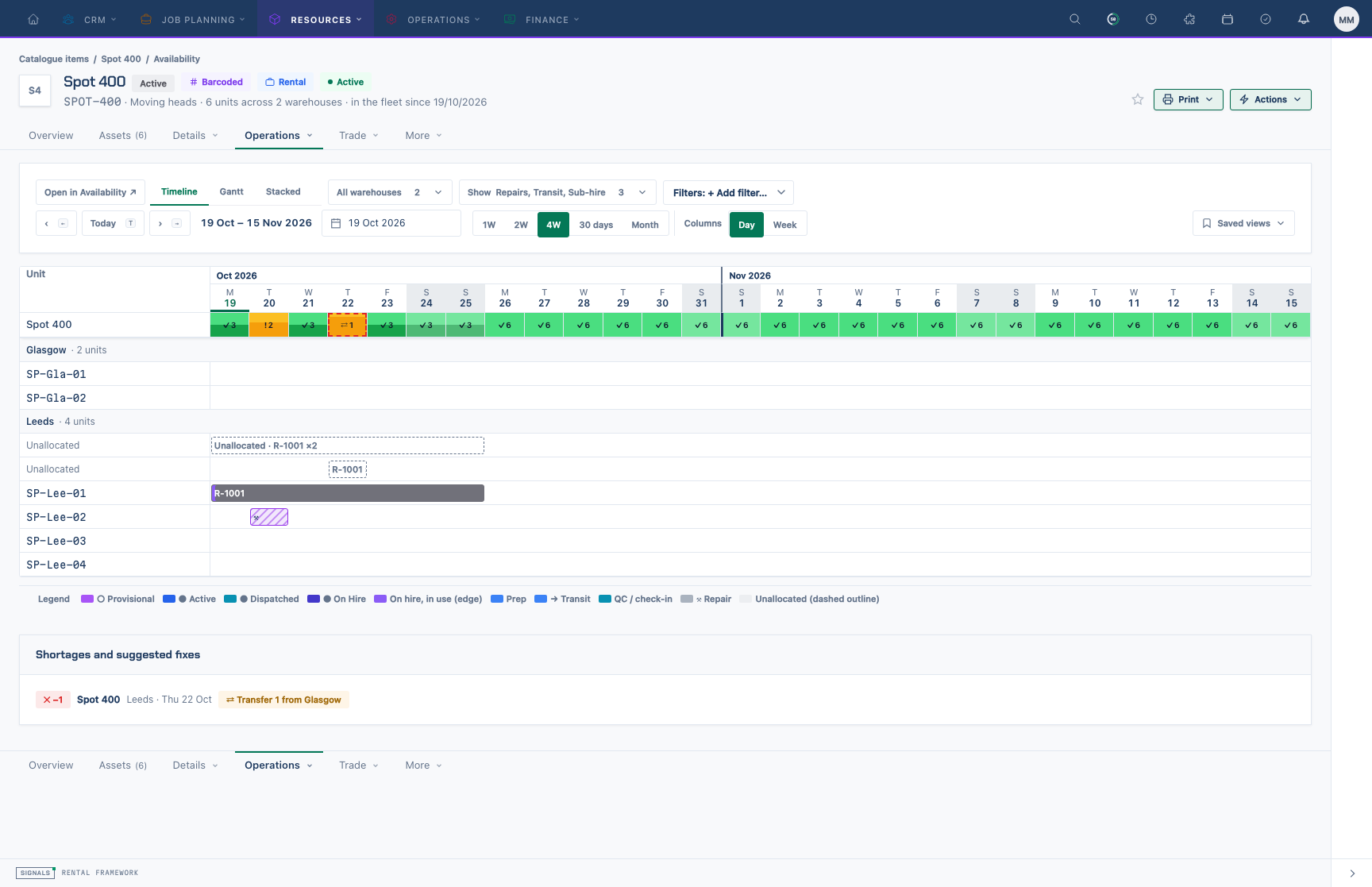
Every catalogue item, and every asset that belongs to one, has an Availability tab. It opens the availability workspace straight on that product's detail.
On a catalogue item
- Open the catalogue item and choose Availability.
- The product is fixed; choose a tab:
- Timeline — one row per unit (serialised products) with on-hire, repair and transit blocks, plus Unallocated lines for bookings with no unit yet and, with Quotes counted, Quote lines. Bulk products show a pointer to the Gantt.
- Gantt — the free-stock band per warehouse, then a bar per rental, repair, transfer and sub-hire.
- Stacked — booked, quoted, repair and free against capacity for each day or week.
- The grid row at the top of every tab is the same row as on
/availability, so the numbers always agree. - All availability opens
/availabilityon the product's group with the same span and filters.
On an asset
- Open the asset and choose Operations › Availability (shown when you can view availability).
- The Timeline opens on the asset's catalogue item with this asset's row highlighted, so you can see exactly when it is out, in repair or in transit.
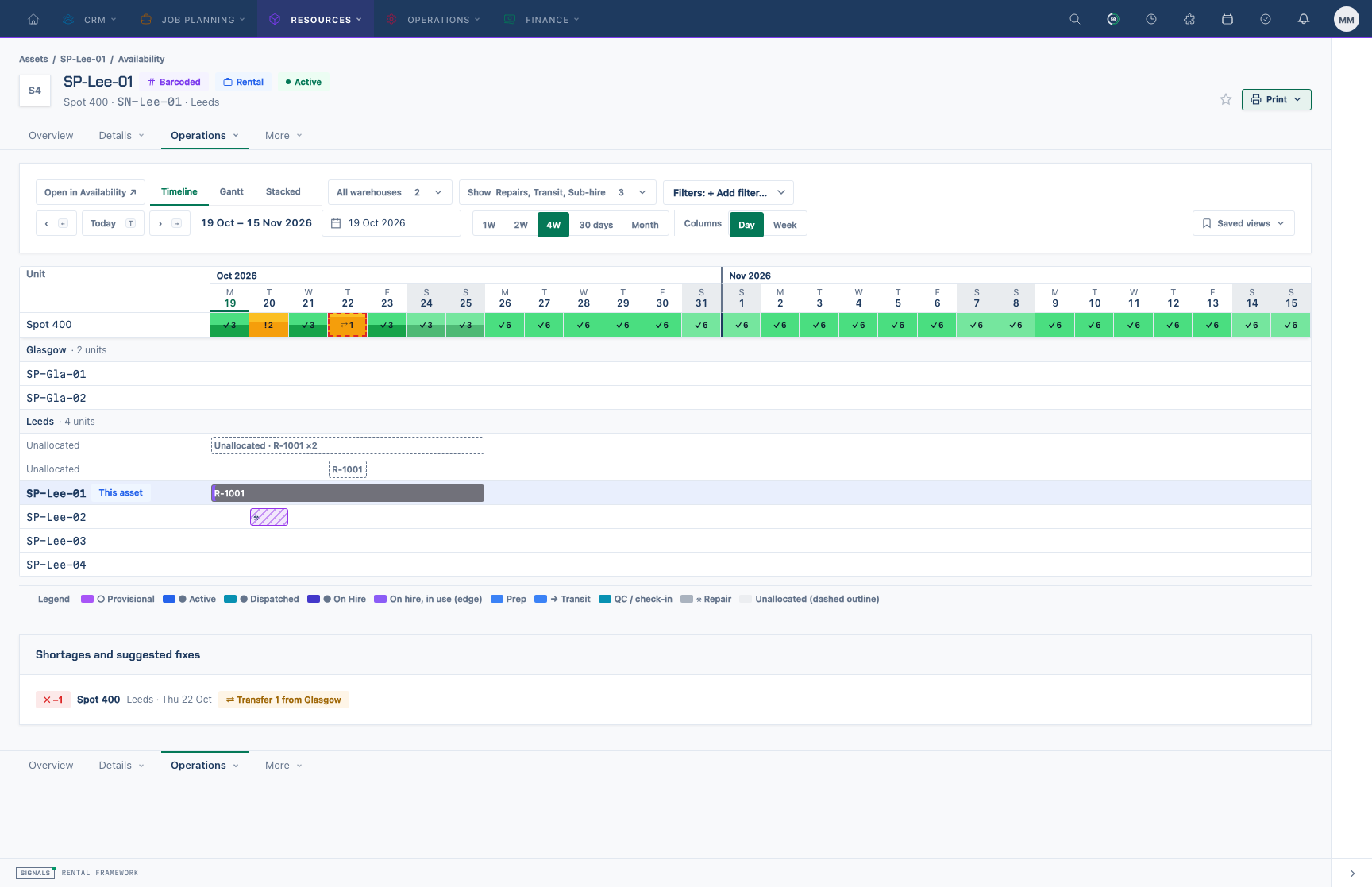
Set dates, warehouses and demand
- Span (1W, 2W, 4W, 30 days, Month) and Day / Week columns; week columns show the worst day.
- ‹ / ›, Today and the date picker; ← / → and T do the same from the keyboard.
- Warehouses — tick the warehouses to include; totals add them on the same day.
- Show › Include demand — Quotes (provisional, off by default), Repairs, Transit, Sub-hire.
- Filters — tag and other include/exclude filters still apply to the totals shown in tooltips.
Short, Low and colours
✓ available · ! low (at or below the warning threshold) · ● fully booked · ✕ short (below the short threshold) · ⇄ short in one warehouse only. Change the thresholds and all availability and schedule colours under Settings › Branding › Schedule.
Tooltips, Open links and fixes
- Hover any block, bar, readout or stacked column for the figures and — for rentals — status, customer (if you can view rentals) and dates. Open … ↗ opens the rental, repair, transfer or purchase order in a new tab.
- Shortages and suggested fixes lists each short run with a transfer or sub-hire suggestion.
- Saved views saves and reapplies your span, warehouses, demand and filters.