Planning Your Week with the Calendar
Pick the calendar layout that suits you, see who is busy, and move, hand over or schedule activities by dragging.
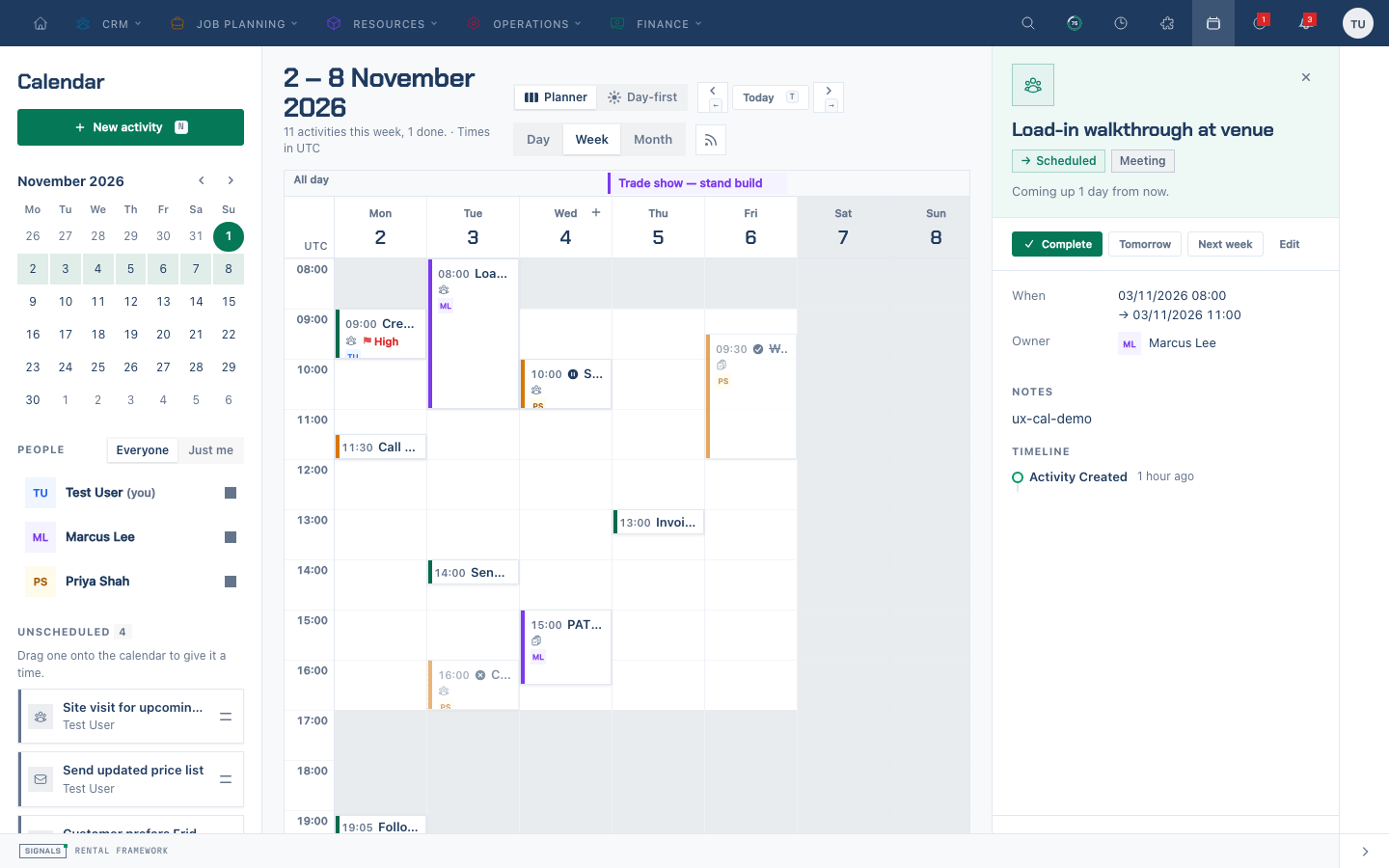
Pick your layout
- Open Calendar from the main navigation (
/calendar). - Use the Calendar layout switch in the header to choose:
- Planner — the month, the people list and unscheduled work in a rail, the grid in the middle, the selected activity in a panel beside it.
- Day-first — today and what is next up first, then the week as one lane per person.
- Your choice is remembered. You can change it any time from the header, or on Settings → Calendar under Your views.
Until you choose, the calendar uses your company's default layout.
See who is busy
- Choose Day, Week or Month in either layout.
- The calendar starts with Just me. Choose My team for colleagues sharing your active department assignment, or Everyone for all owners. Your choice is remembered. In Planner, use the people checklist or the named colour legend to select individual people.
- In Day-first's Week view, each row is a person and shows how many activities they have that week.
- The sentence beside the dates counts what you can see, for example 13 activities this week, 1 done.
Add an activity
- Click an empty slot to select it, then click the New activity marker — or double-click the slot. The editor opens with that time (and, in Day view, that person as owner).
- Use the + on a day's header, or New activity (shortcut
N). You can also Tab to an empty timed column, use Up or Down to choose a half-hour slot, then press Enter or +. - To schedule something from Unscheduled, drag it onto a slot or day.
Move, resize or hand over
You need permission to edit activities.
- Drag an activity to a new time or day. Drag its bottom edge to change when it ends.
- Hand it over by dragging it into another person's column (Day view) or lane (Day-first's Week view). The time and the owner change together.
- From the keyboard, focus an activity and press Alt+↑ / Alt+↓ to move it 15 minutes (Alt+Shift for an hour) or Alt+← / Alt+→ to move it a day.
Every move shows a message with Undo, which puts the time — and the owner — back.
Open, complete or reschedule
Click an activity (or press Enter on it) to open its detail: in the right-hand detail panel in either layout. From there you can Complete or Reopen it, reschedule it to Tomorrow or Next week, Edit it, or open its full page. Participants are labelled Staff or Contact.
Reminders and busy windows
Expand More details in the activity editor to choose a reminder. Timed activities default to 15 minutes before the start; all-day activities remind at 09:00 in the owner’s timezone. Notification preferences control in-app and email delivery. Overdue work can nudge its owner once per local day.
When a window contains more than 500 scheduled activities, a notice explains the limit. Select fewer people or a smaller date range to see the work you need.
Related
Schedule a repeating call
- Add an activity, set its start and end, then expand More details and choose Repeat → Weekly.
- Check Repeat timezone, then set Repeat until or Repeat count. The count includes this first call.
- Save. Calls appear up to eight weeks ahead; the calendar adds later calls each day, up to your limit.
- Drag or complete a call to change just that occurrence. To change the rest of the series, use Edit → Apply changes to → This and following and save the new schedule.
Choose Does not repeat with This and following to stop further scheduled calls. Completed work remains in the activity history.
Timezones
The calendar shows your profile timezone, falling back to the company timezone. Its label appears beside the range and hour gutter. Repeat timezone controls when a series starts locally across daylight saving changes; it can differ from the zone in which you view it. Subscribed calendar apps display each occurrence in their own timezone.