Working Your Activities
Choose Inbox or My day, clear overdue work, reschedule in one click, and log activities from any record.
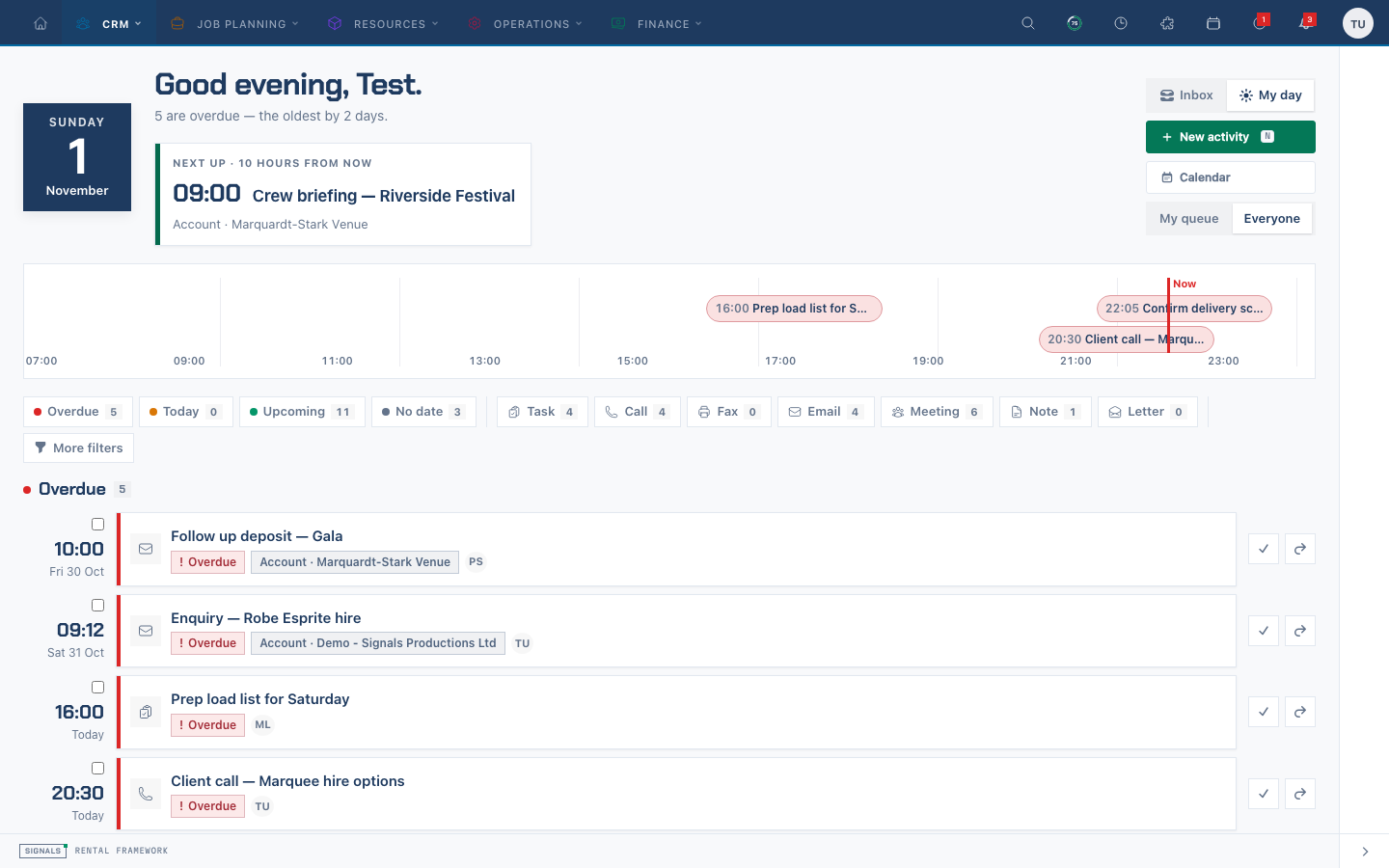
Pick your view
- Open Activities (
/activities). - Use the Activities layout switch in the header to choose:
- My day — a greeting, Next up, today's activities hour by hour, then an agenda: Overdue, Today, This week, Later and No date.
- Inbox — a list grouped by Overdue, Today, Upcoming and No date, with the selected activity open beside it.
- Your choice is remembered, and each activity's own page follows it. You can also change it on Settings → Calendar under Your views.
Choose whose work you see
- My queue shows activities you own; Everyone shows all of them.
- The bucket filters (Overdue, Today, Upcoming, No date) show how many activities each holds. Click one to show only that bucket; click it again to clear it. The type filters work the same way.
- More filters adds Owners (with each person's overdue count), Regarding kind, Status and Favourites.
Clear overdue work
- Start with Overdue.
- Select Complete on an activity that is done. To finish several, tick them and choose Complete in the bar that appears.
- For work that has slipped, open it and choose Tomorrow or Next week under Reschedule. Its time of day is kept. Undated work gets Today.
Every completion shows a message with Undo, which reopens it with the status it had.
Log an activity from a record
Every record's Activities tab — accounts, rentals, catalogue items, assets, vehicles, credit notes and payments — has New activity. It opens the same short form with the record already filled in. Credit notes and payments link the activity to the customer account.
In the compact form, expand More details for Participants, the regarding record, notes, reminder and repeat options. Participants suggests colleagues and, when the activity regards an account, that account's contacts. Each is labelled Staff or Contact. Every activity needs an owner; Assign to me sets it to you.
Read an activity in full
Select Open full record, or open the activity from a link. With Inbox the page is a brief: when, regarding, notes, attendees, related activities and the timeline. With My day it is a run sheet: logged, starts, ends and complete, with a Now marker, then the history.
Read the history
History shows translated field labels and readable changes: dates and times use your timezone and the company display format, statuses and priorities use their labels, related records show names, and booleans show Yes or No. For example, a schedule change reads Starts At: 03/11/2026 09:00 → 03/11/2026 10:00.
The same presentation applies to account, rental and other record timelines. Internal identifiers and maintenance fields are hidden. A related record you cannot access, or one that has been removed, appears as Unavailable record. Sensitive values and restricted costs remain hidden, and structured content is summarized rather than printed in full. Viewing history still requires action-log access.
Subject changes retain the record type and identifier together, so history continues to identify the correct records after further subject changes. Incomplete subject references appear as Unavailable record. Completion and reopening entries show who completed the activity.
Additional form guidance
If no activities have been created yet, My Day and Inbox show No activities yet. Choose New activity when your role permits it; the normal feed and filters appear once activities exist.
Related
Choose reminders
Every activity needs an owner. In the editor, expand More details and choose a reminder before saving, or No reminder to disable it. Timed activities default to 15 minutes before the start; all-day reminders arrive from the next five-minute scheduler check after 09:00 in the owner’s timezone. Open overdue work can nudge its owner once per local day. Your notification preferences control channels and daily digests.
Work with repeating activities
A repeating activity appears as separate occurrences in your queue. Complete, reopen or reschedule just the occurrence you are working on. Edit → More details → Apply changes to → This and following changes the series from that point and keeps earlier work intact. Choose Does not repeat with that scope to stop future scheduled occurrences.
Timezones
Your queue uses your profile timezone, or the company timezone if you have not chosen one. Today and overdue counts follow your local day. Forms show the timezone beside date fields and convert the saved time to UTC. Use Repeat timezone to choose the local start time a repeating series follows.